Note: This isn't a comparison of which tool is better. Dynamic Components and Flow Screen Components are designed to work together. This article explains what each one is for, so you pick the right one per project — and stop building workarounds.
You need a custom UI on a record page. Maybe a mission-control dashboard for your sales ops team. Maybe a redesigned related list with filters and row actions. Maybe a panel of KPIs next to a Kanban.
You already know Flow Builder. You've seen Avonni Flow Screen Components. So you do what almost every Salesforce admin we talk to does first: you build a Screen Flow, drag everything onto a single screen, and embed it on the Lightning page.
Please don't.
The instinct
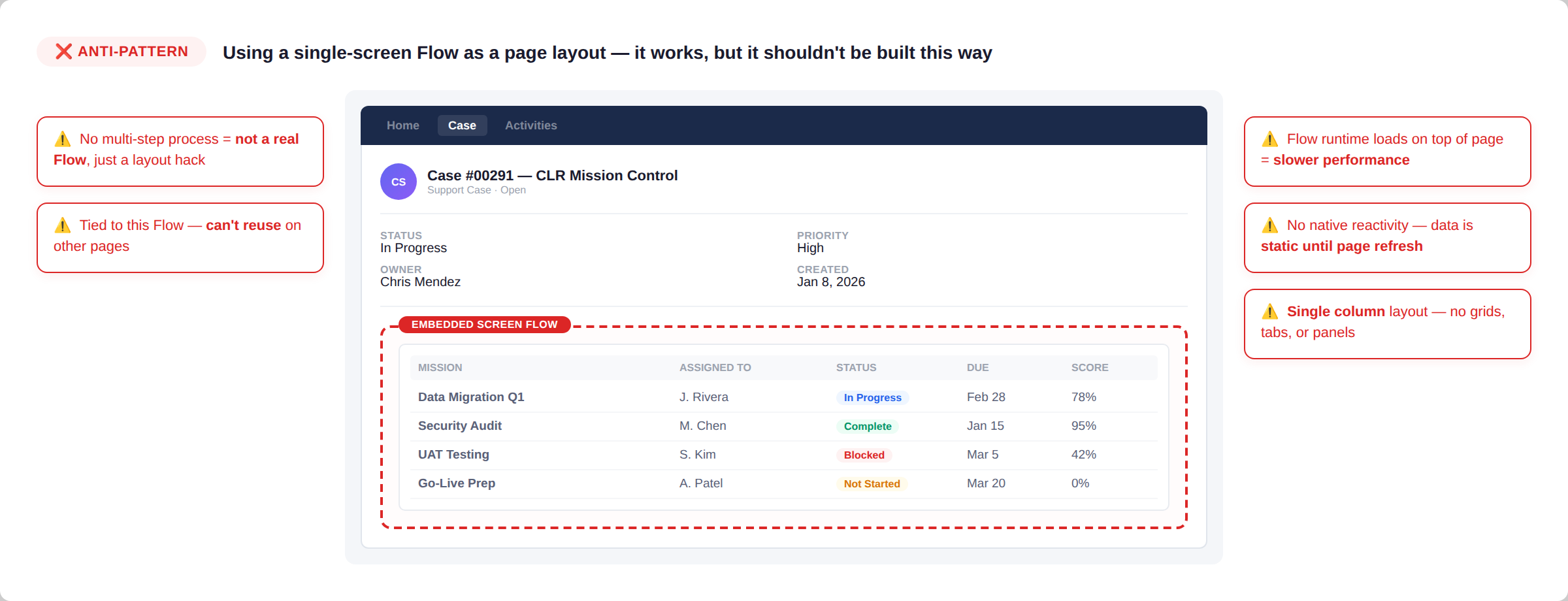
A single-screen Flow on the record page
You drag every component onto one Screen Flow and embed it on the Lightning page.
The fix
Dynamic Components, built for the page
A different Avonni product designed to compose Lightning pages without Flow.
It's the most expensive wrong turn we see in Salesforce UI work, and it's the reason I'm writing this.
Flow Builder is process automation software. It was built to move users through steps, branch on logic, and write data at the end. Use it as a layout engine and you fight its architecture on four fronts:
Performance
The page gets slower
Flow runtime loads on top of the Lightning page.
Layout
Capped at four columns
Flow sections force content into rigid grids.
Reuse
Nothing transfers
What you build is locked to that one Flow.
Reactivity
Components stay isolated
Nothing on the screen reacts to anything else.
The Avonni Flow Screen Components inside that Flow can't rescue any of it. They inherit Flow's rendering model. Turning Flow into a page-builder was never their job.
The tool that actually replaces the custom LWC you were hoping to avoid writing is a different Avonni product: Dynamic Components. And most of the customers asking me "why would I need this if I already have your Flow components?" have never opened it.
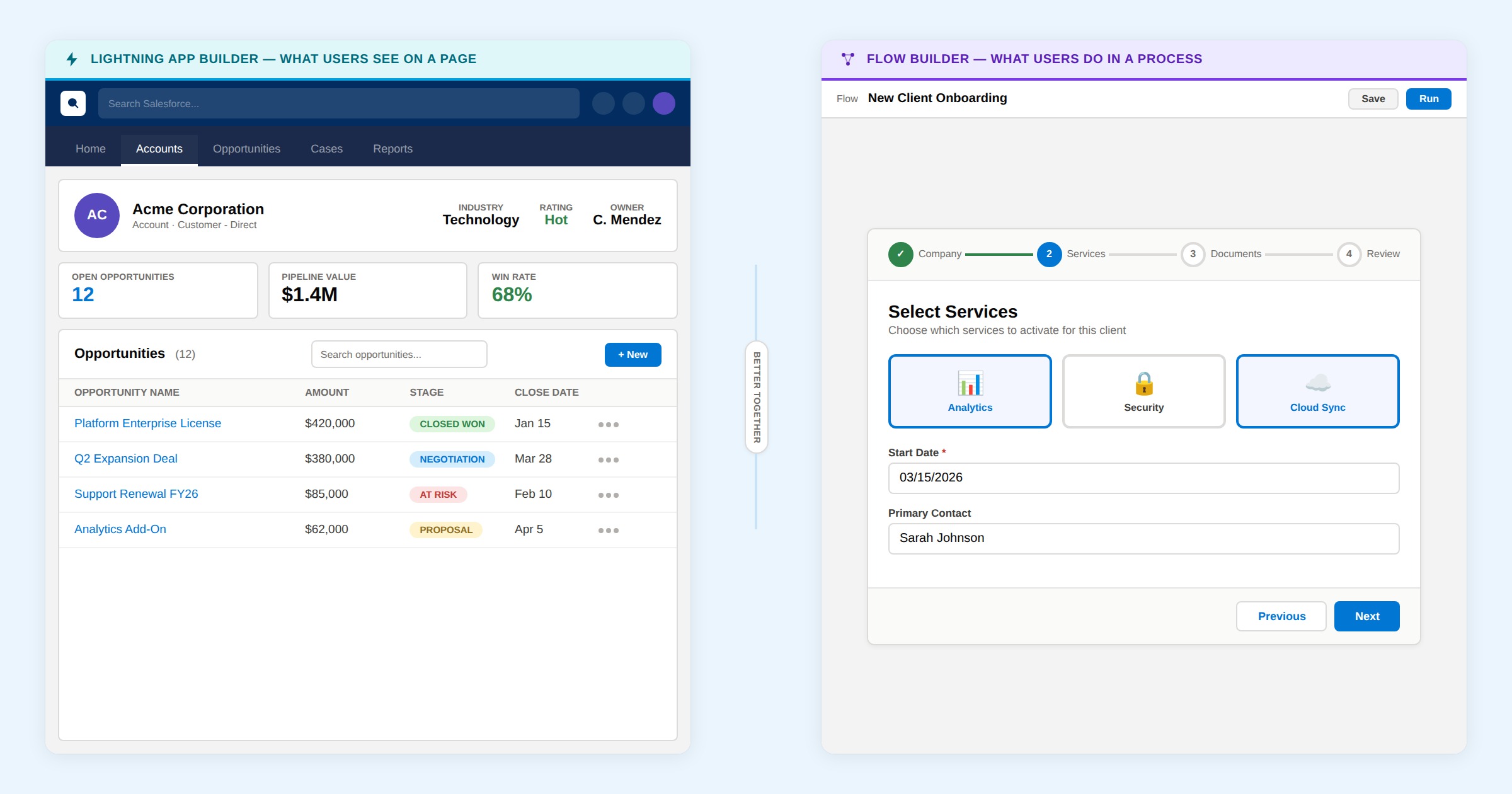
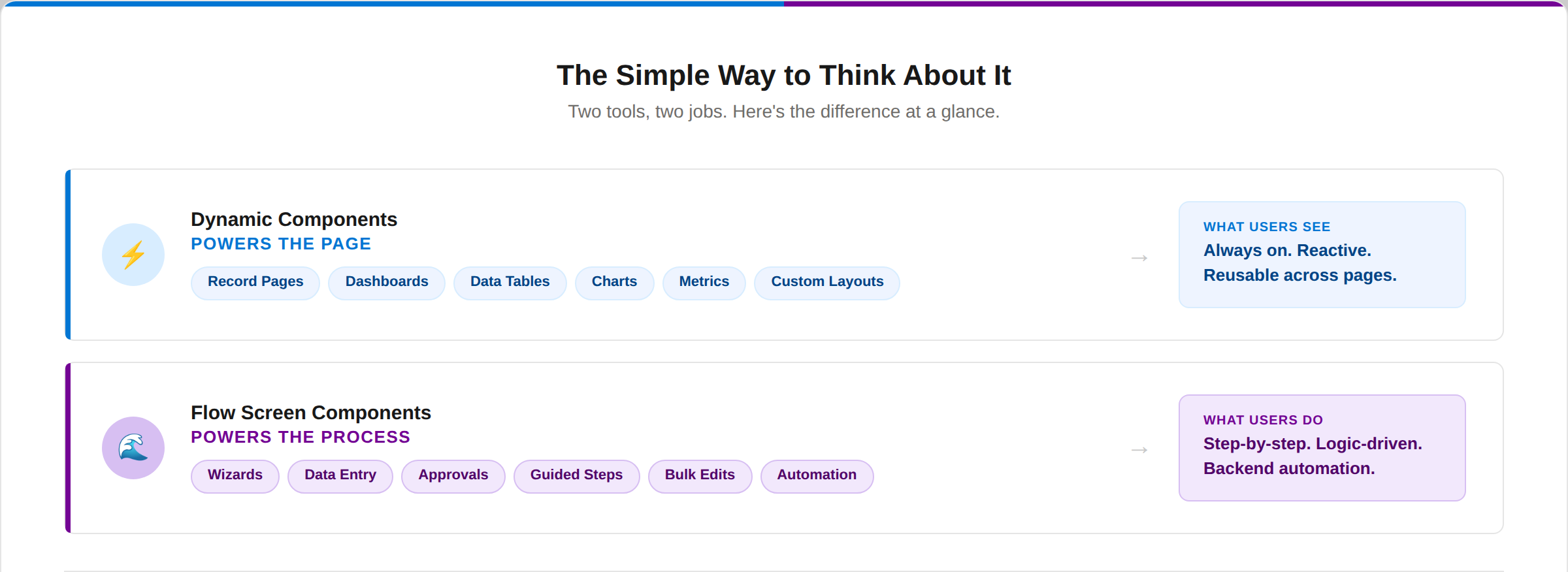
Two tools, two jobs
Dynamic Components → power the page
Built in the Avonni Component Builder
Dropped onto Lightning pages through the standard App Builder
Render natively with the page, no runtime on top
Nested grids, tabs, panels, full layout control
Own formula engine, own query builder, rich interaction system
Build once, deploy anywhere in your org
This is the product that stands in for a custom LWC. If your instinct is "I wish I could just write an LWC for this," Dynamic Components is the no-code answer.
Flow Screen Components → power the process
Built inside Flow Builder
Live inside a Flow runtime (they only exist while the Flow runs)
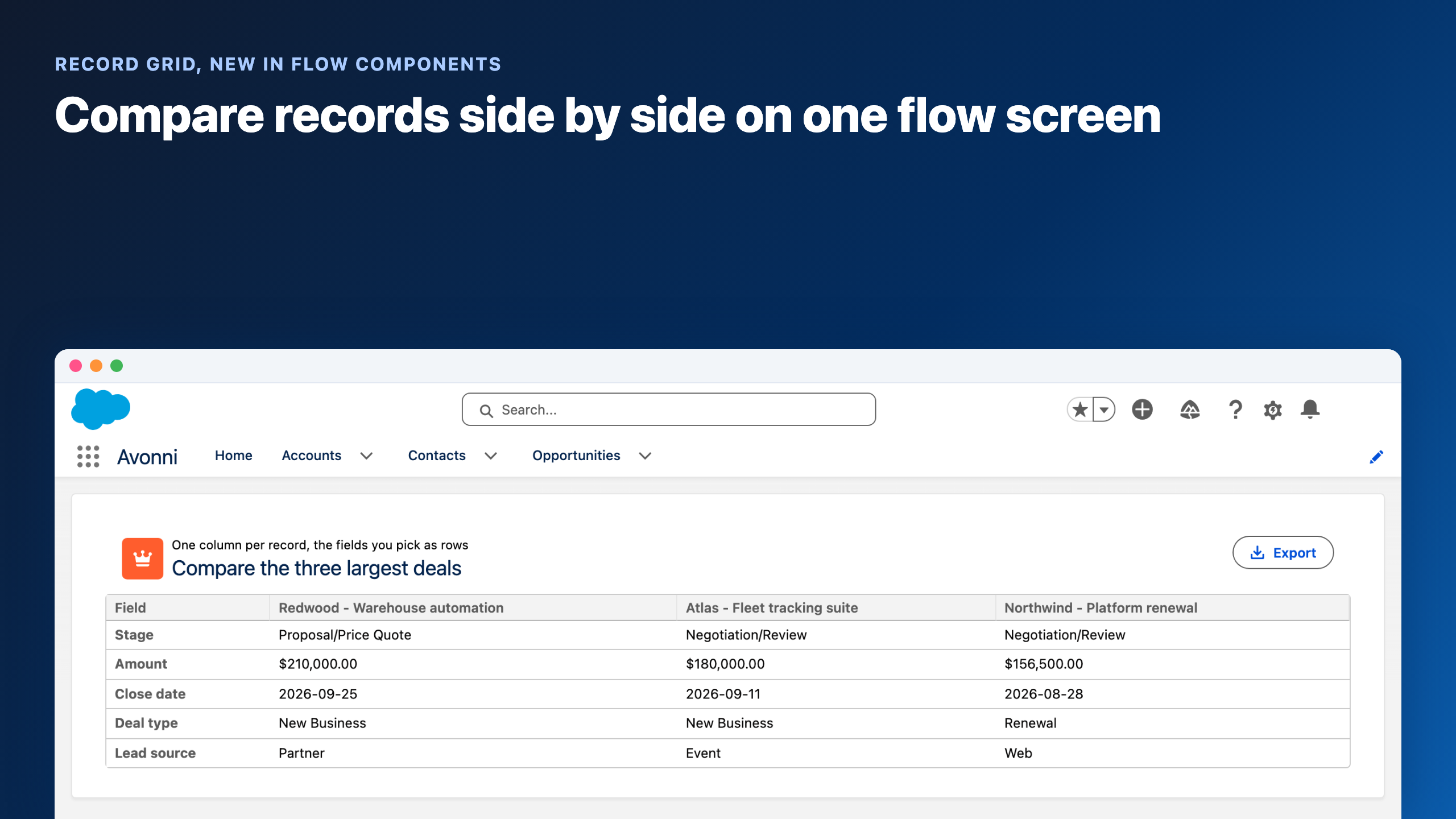
Richer inputs, visual pickers, progress indicators, data tables for selections
Bound to Flow variables, feeds decisions, lets Flow handle what comes next
These are for work that has a beginning, a middle, and an end. A 5-step client onboarding wizard. A multi-screen case intake form. A bulk edit where users select, change, and confirm before saving.
Try to turn one into the other and you get neither.
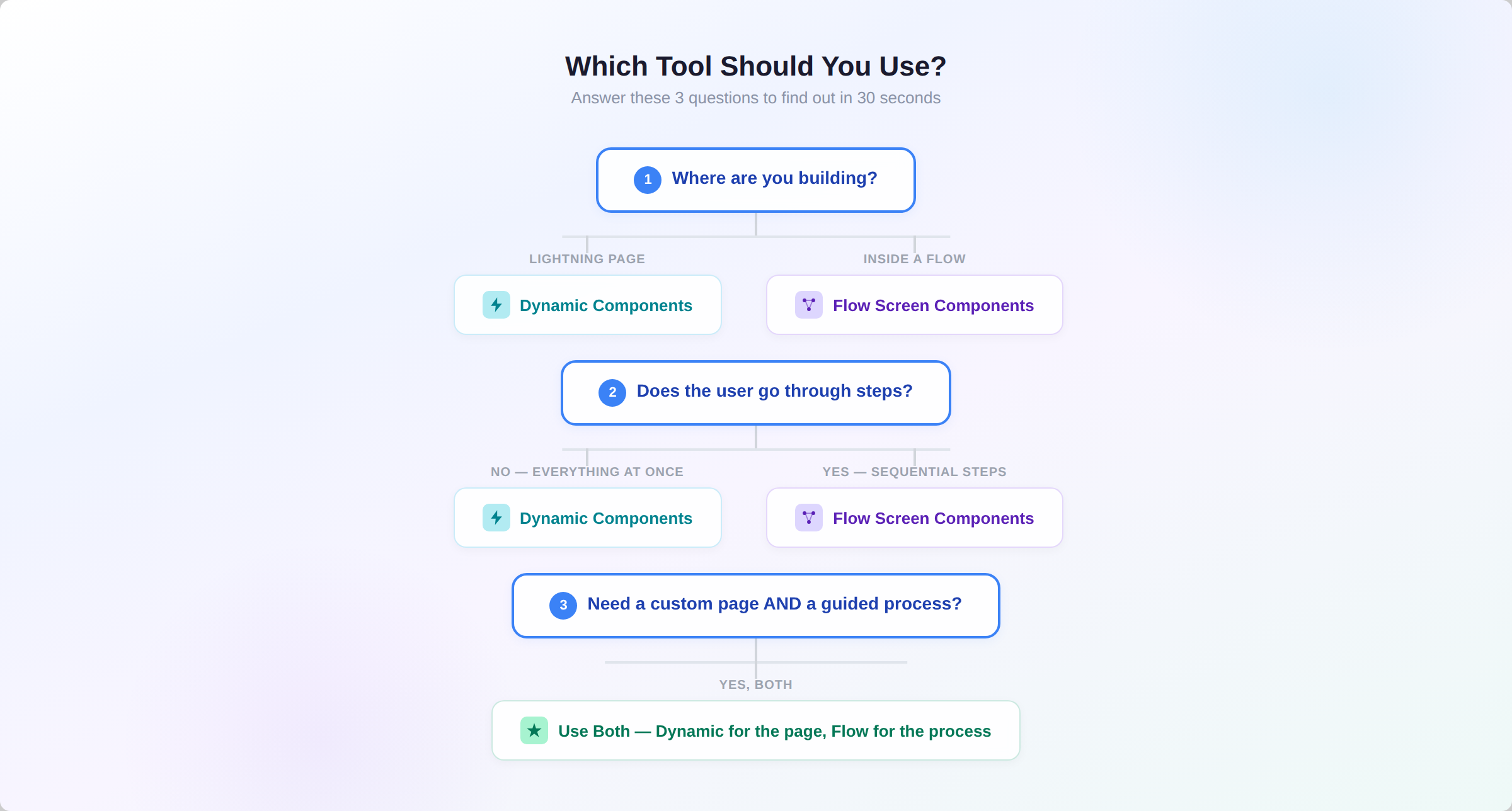
The question that decides it
Every time someone asks me which to use, it comes down to one question:
Where are you building?
On a Lightning page → Dynamic Components
Inside a Flow → Flow Screen Components
Both surfaces in the same project → install both packages
They don't conflict, and most of our customers end up with both within the first month.
Still unsure? Run through these four checks:
Is this a permanent page, or a guided process?
Does the user see everything at once, or go through steps?
Do components need to react to each other in real time?
Is the goal to display data, or to collect and save it?
When your answers keep pointing the same way, you have your tool.
Real scenarios, clear answers
"I want to redesign the related lists on my Account record page."→ Dynamic Components. Always visible, always reactive. Build a Data Table with search, filters, conditional formatting, and row actions.
"I need a 5-step wizard for onboarding new clients."→ Flow Screen Components. Sequential steps, conditional logic, data creation at the end. Flow Builder orchestrates. Avonni makes each screen look good.
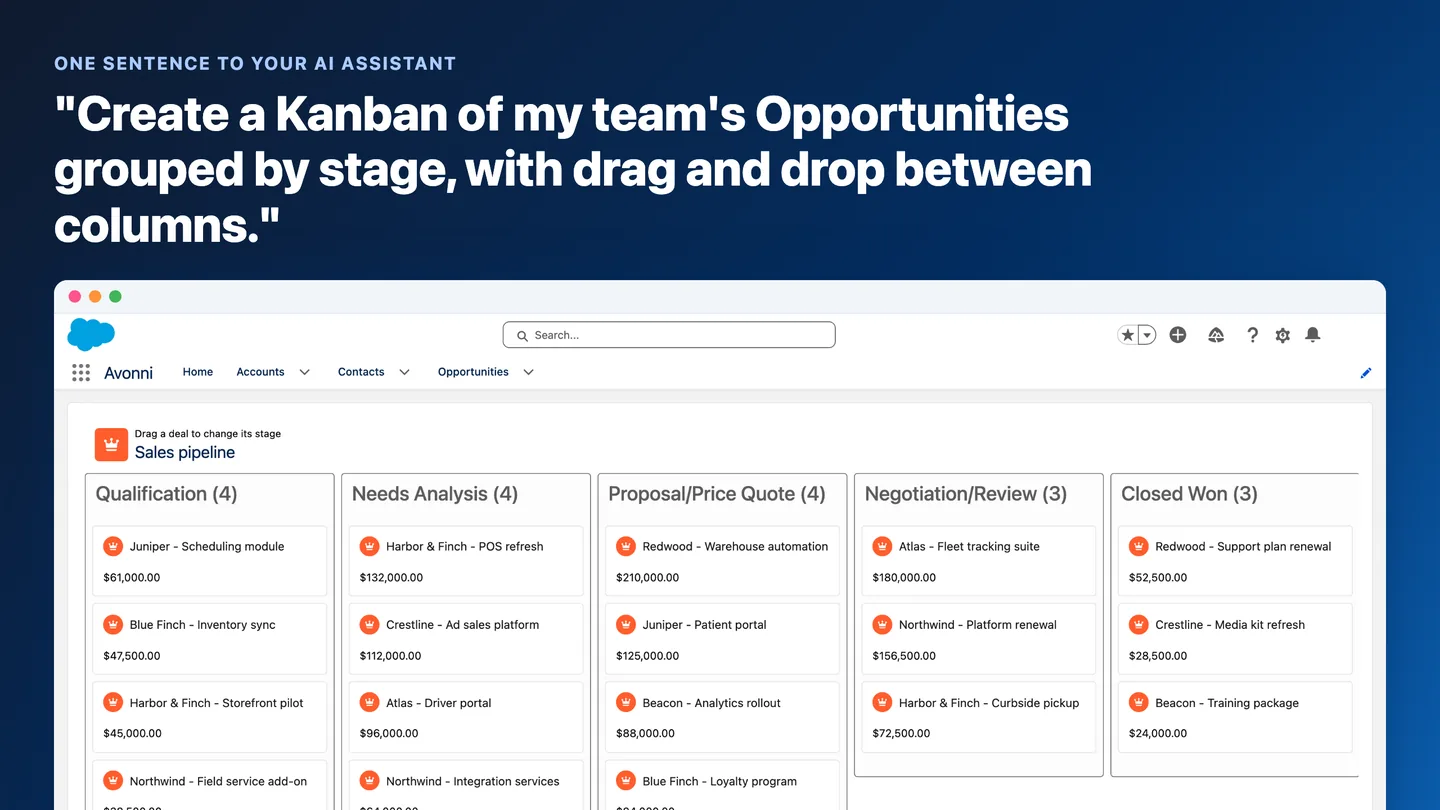
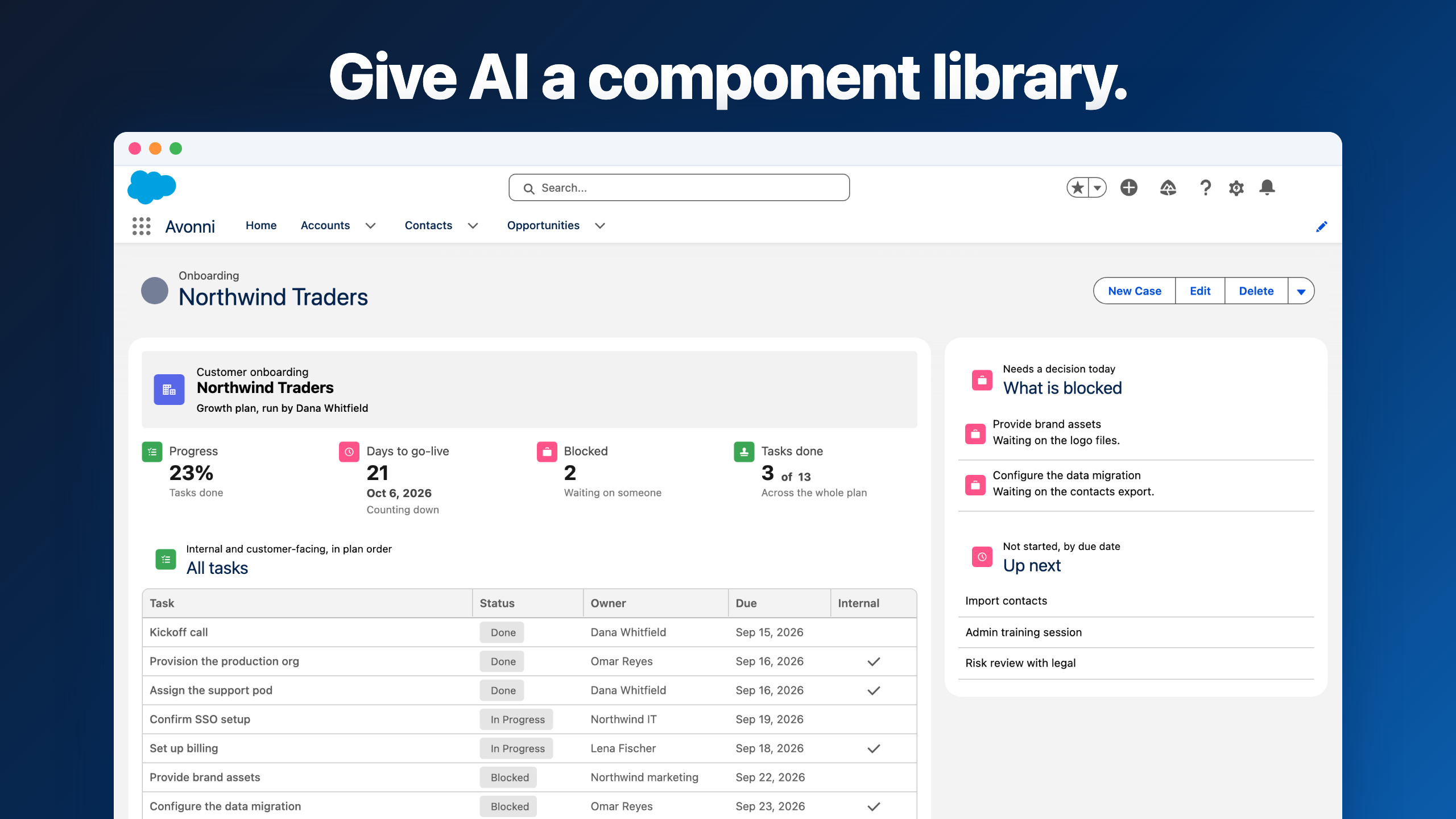
"I want a mission-control dashboard on my record page."→ Dynamic Components. Compose metrics, charts, and a data table into a reactive layout that loads with the page. No Flow involved.
"I need a bulk data editing screen where users select, edit, and confirm before saving."→ Flow Screen Components. The word "confirm" is the tell. This is a process with a write operation at the end.
"I want a page with charts and a Kanban, plus buttons that launch processes."→ Both. This is the pattern most mature Avonni orgs land on.
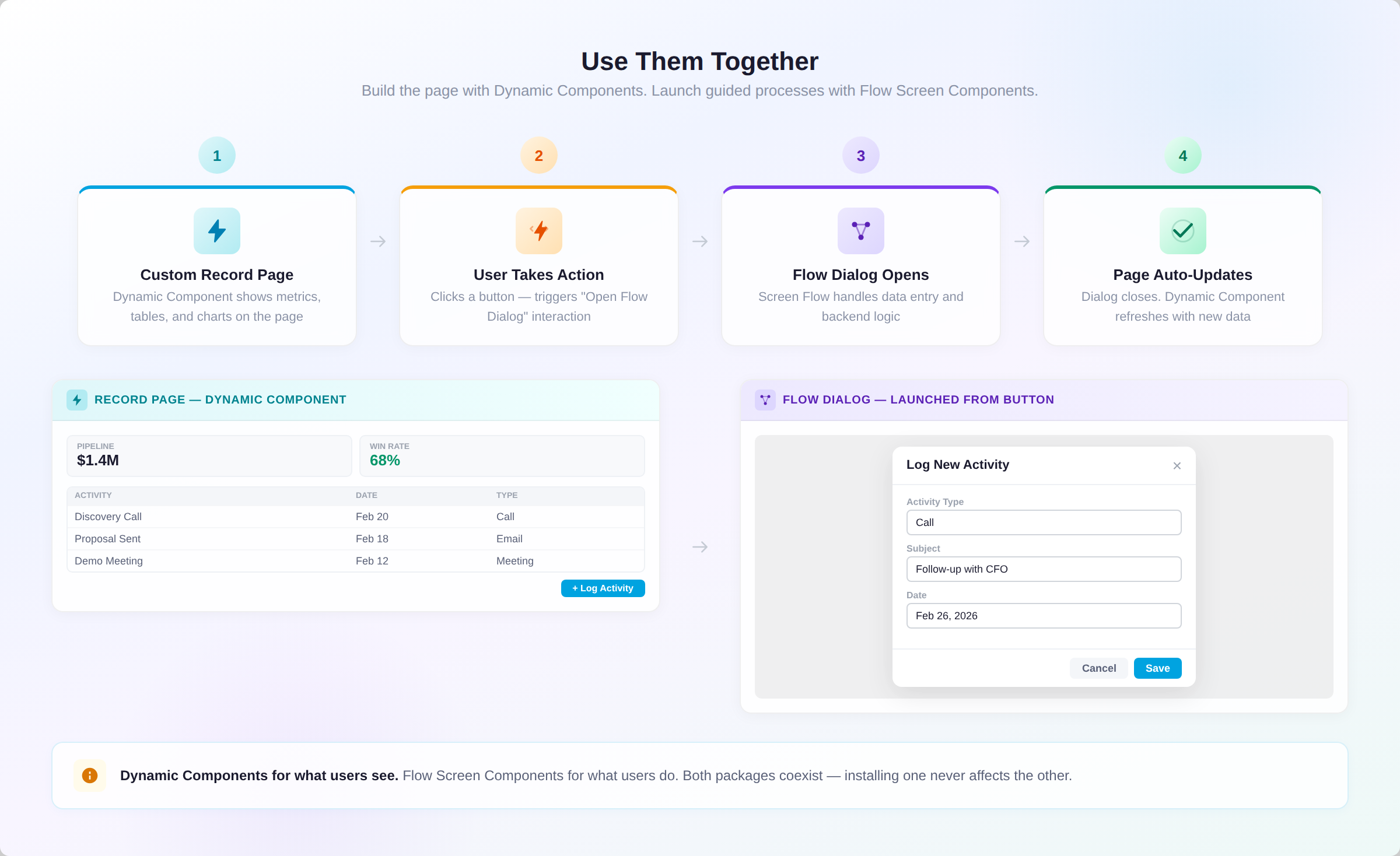
Here's how both tools work together on a real page:
You build the page with Dynamic Components.
The user clicks Log Activity or Close Case.
An Interaction opens a Screen Flow.
The user completes it. The Flow writes the data. The dialog closes.
The Dynamic Component on the page updates on its own.
Dynamic Components for what users see. Flow Screen Components for what users do
What happens if you ignore this
I can tell you exactly what happens, because we watch it happen every week.
Someone builds a single-screen Flow as a record page. It works at first. Then things start to drift:
Month 1 — It works. Everyone's happy.
Month 3 — The page feels heavy. Flow runtime is loading on top of the Lightning page.
Month 5 — A new field is needed. The 4-column section limit pushes content into awkward places.
Month 6 — A second team wants the same layout on a different object. There's no way to reuse it, so the admin rebuilds the whole thing inside a second Flow.
Month 8 — Someone asks why the page doesn't react when data changes elsewhere. The honest answer is: it can't. A Flow screen was never a reactive page surface.
[OPTIONAL IMAGE 6 — DEGRADATION TIMELINE: Horizontal strip showing Month 1 → Month 3 → Month 5 → Month 6 → Month 8, each with a small icon showing the degradation. Net-new illustration, optional but worth commissioning.]
At that point the team starts asking us whether Avonni can "fix" their Flow. We can't fix the architecture underneath it. They picked the wrong tool, and the cost of switching grows with every week they wait.
Quick decision guide
Ask yourself these four questions:
1. Am I building on a Lightning page or inside a Flow?
Lightning page → Dynamic Components
Inside a Flow → Flow Screen Components
2. Does the user go through steps?
Yes, sequential steps → Flow Screen Components
No, everything at once → Dynamic Components
3. Is the goal to display data or collect it?
Display and interact → Dynamic Components
Collect and process → Flow Screen Components
4. Do I need a custom page layout AND a guided process?
Yes → Use both
Feature
Dynamic Components
Flow Screen Components
ARCHITECTURE
Where you build
Component Builder → App Builder
Flow Builder
Rendering
Always on – loads with the page
On demand – inside Flow runtime
Multi-step process
✗
✓ Core feature
Backend automation
✗ Trigger Flows for this
✓ Full (create, update, delete, Apex)
USER INTERFACE
Layout control
✓ Full (grids, tabs, panels)
Sections with up to 4 columns
Component library
85+ components
70+ components
Custom styling
✓ Full visual control
Partial
DATA & LOGIC
Data source
Built-in visual query builder
Flow variables / Get Records
Formulas
✓ Built-in formula engine
Via Flow formula resources
Interactions
✓ Rich (navigate, dialogs, update records)
Limited – within Flow context
DEPLOYMENT
Reusability
✓ Build once, deploy anywhere
Tied to the specific Flow
Page performance
✓ Optimized for Lightning pages
Flow runtime adds overhead
The bottom line
Most Avonni users end up installing both packages.
Dynamic Components — for what users see on a page
Flow Screen Components — for what users do inside a guided process
Together, they cover every no-code UI use case in Salesforce.






%20(Vignette%20YouTube)%20(81).png)
%20(Vignette%20YouTube)%20(78).png)
%20(Vignette%20YouTube)%20(79).png)