File Upload in every row: a new column type for the Avonni Data Table
The Avonni Data Table now ships with a File Upload column type, available in both Flow Screen Components and Dynamic Components. Attach a file to every row, tied to the right record, without Apex or custom Lightning Web Components.
Every Salesforce admin has heard the same request, sooner or later: "Can we attach a document to each row?"
A signed waiver next to each participant. A photo next to each inspection. A receipt next to each expense line. The shape of the request is always the same — one row, one file, tied to one record.
The old answer
A sub-flow, a separate screen, and a custom LWC
Loop one record at a time. Break the user's context. Maintain code your team didn't ask for.
The new answer
One column type, that's it
Set a Data Table column to File Upload. Every row gets its own uploader, tied to the right record. No Apex, no LWC, no extra screens.
The Avonni Data Table — in both Flow Screen Components and Dynamic Components — now ships with a File Upload column type. That changes the shape of the answer.
What the File Upload column does
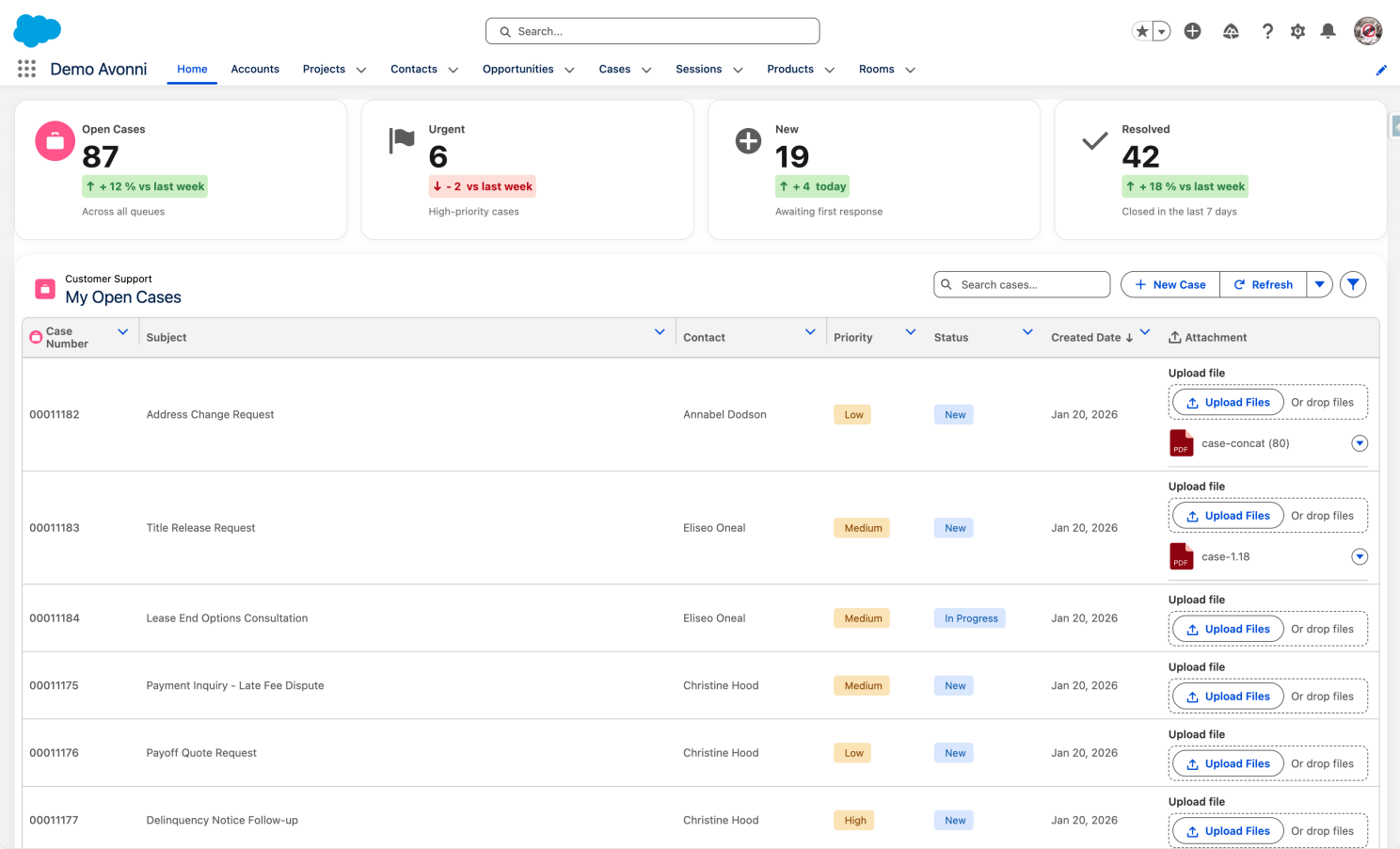
When you set a Data Table column to type File Upload, every row in the table gets its own file uploader. Each upload is automatically tied to the record that row represents — no manual record-ID handling, no extra Flow logic.
From the column's properties panel, you can configure:
Label — the text shown next to the upload button (or hidden if not needed)
Accept — a list of allowed file extensions (.pdf, .jpg, .png, etc.)
Multiple — allow more than one file per row
Show File Uploaded — display the list of files already attached under each row
File Name Prefix / Suffix — automatically prepend or append text to file names before they save
Disabled — turn off the uploader on a per-column basis
Files land on the record as standard Salesforce Files. They show up in the Files related list, in Reports, in Search — exactly where you'd expect to find them. No middleware, no custom Apex, no custom Lightning Web Component to maintain.
Available in both Flow Screen Components and Dynamic Components
The same configuration works in both Avonni packages.
Flow Screen Components
Inline, in the flow
Drop the Data Table on a Screen Flow, configure the File Upload column from the property editor, and your end users upload inline — no separate upload step, no fault path to manage.
Dynamic Components
A column on any Lightning page
Drag a Data Table into the Avonni Component Builder, bind it to your records, and add a File Upload column the same way. Drop the result on any Lightning Record Page or App Page.
Learn it once. It works in both packages.
Three real-world examples
Onboarding
Every doc, one screen
A new hire fills in personal info, picks a role, uploads a passport, a signed contract, and an ID. One row per document. No sub-flow, no fault path.
Case management
One file, the right case
Support reps see a Data Table of cases needing supporting docs. Each row gets its own upload, attached to the right case automatically.
Field service
Photo from the field
A technician opens a Flow on their phone, sees today's work orders as a table, and uploads completion photos right in the row. No "which record?" moment.
Why this matters for builders
If you've ever spent an afternoon stitching together a sub-flow, a separate upload screen, and a fault path just to attach one file per record, you know the friction this removes.
A small-looking feature that quietly removes a whole category of workaround.
Avonni's job has always been the same: give declarative builders a way to ship modern interfaces without switching roles. Same Data Table you already know. Same properties panel. One more column type you can hand to a user.
Try it on your next build
If you're on the latest Avonni release, the File Upload column is already available. Here's how to set it up:
Drop the Avonni Data Table onto a Screen Flow, or drag it into the Component Builder for a Dynamic Components app.
Open the column configuration in the property editor.
Set Column Type to File Upload.
Configure the accepted file types, the label, and any prefix or suffix you want on saved file names.
Decide whether to allow multiple files per row, and whether to show the list of files already uploaded.
Save and activate.
The next time a stakeholder asks you for "a simple thing" that involves files and records in a list, you have a one-column answer.
One column. One answer.
See what you can build with it.
Documentation
For full configuration details, jump straight to the docs:




%20(Vignette%20YouTube)%20(78).png)



%20(Vignette%20YouTube)%20(81).png)
%20(Vignette%20YouTube)%20(79).png)
%20(Vignette%20YouTube)%20(11).png)