Agent Chat for Agentforce, a Pie Chart, and a Data Table That Does More
Two new components (Agent Chat and Pie Chart), a Data Table that handles file uploads and inline editing for unsaved records, smarter date filters, and 21 bug fixes.
Until this release, if you were building a page in the Component Builder and wanted Agentforce in it, you were stuck. There was no way to drop a conversational AI interface into your layout — users had to leave the page entirely to interact with an agent. The new Agent Chat component closes that gap. It's a new component you add directly to your Dynamic Components pages, wired to your Agentforce agents, sitting right next to your tables, records, and dashboards.
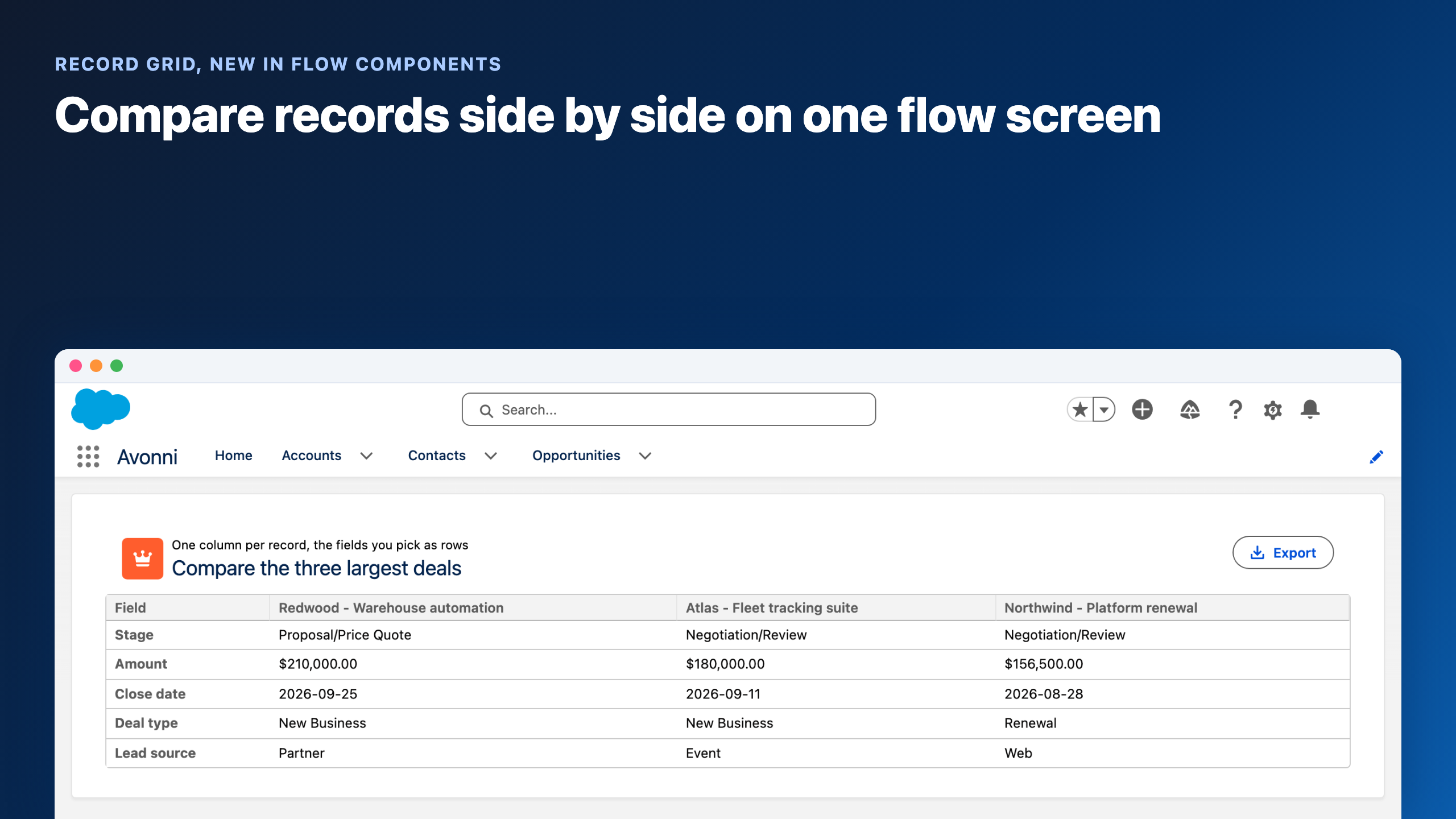
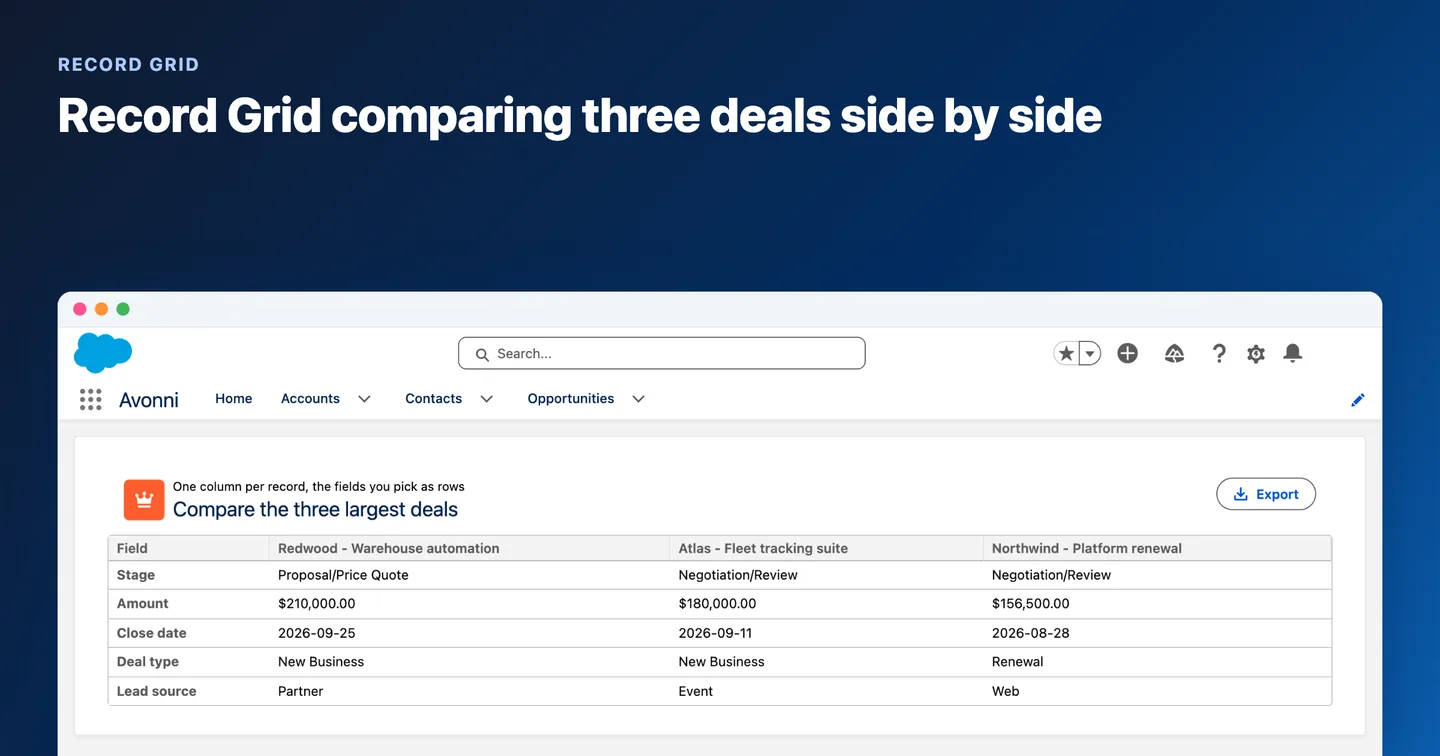
But Dynamic Components v1.17 and Flow Screen Components v6.20 also do something more methodical: they make the Data Table a place where work actually gets done. File uploads from inside a row. Inline editing on records that haven't been saved to Salesforce yet. A filter panel that doesn't overflow off the bottom of the page. None of these are dramatic, but if you've hit any of them in production, you know how much they interrupt the flow.
There's also a new Pie Chart component, date filter presets that replace manual date typing, and a few Component Builder improvements that bring it closer to how Flow Builder already works.
Here's everything that shipped:
Agent Chat — Agentforce on Your Pages
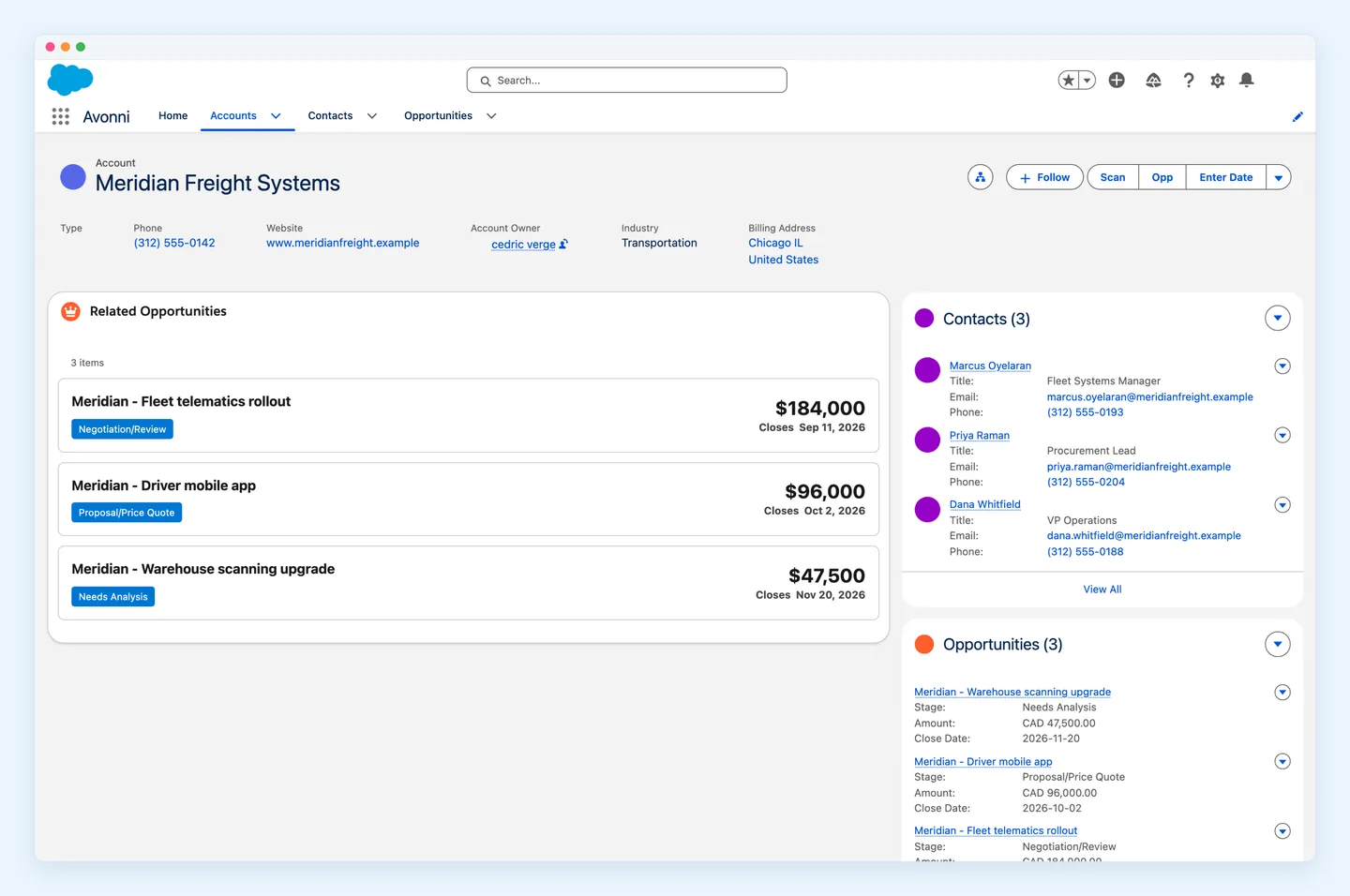
Agent Chatis a full chat interface built on the Avonni Chat component. It connects to your Agentforce agents and embeds directly into yourDynamic Components pages. Users type a question, the agent responds, and the conversation history is preserved so they can pick up where they left off the next time they open the page.
The practical use case: you're building a Case management page. Instead of making agents tab over to a separate Agentforce window, you drop Agent Chat right next to the case details. The agent has context, the user stays on the page, and the conversation lives alongside the work.
Pie Chart — See the Full Picture, Slice by Slice
Connect a Salesforce data source, pick your object, choose the field to aggregate, and the chart renders live. Pie or donut — your call.
The use cases write themselves: open opportunities by stage on a sales rep's home page, cases by status on a service console, accounts by region on a territory dashboard, contacts by lead source on a marketing page. Anything you'd otherwise build a Lightning report chart for, you can now drop into a Dynamic Components page in a few clicks.
If you've been exporting to spreadsheets or building custom Lightning components just to get a simple visual breakdown of your data, this replaces that workflow.
Data Tables That Do More
Three improvements landed in the Data Table this release. They all point in the same direction: stop making users navigate away from the table.
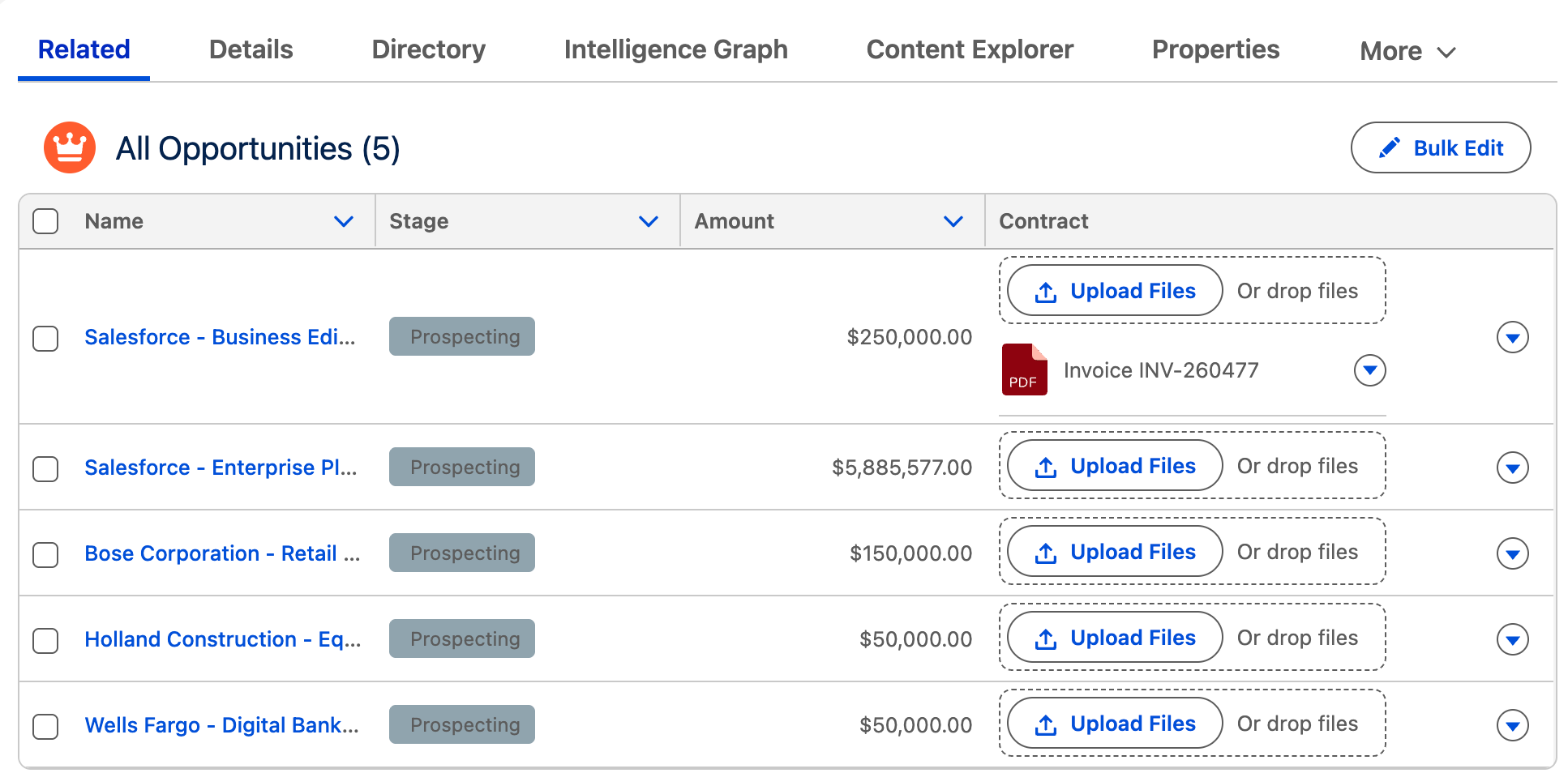
File Upload as a column type. Define a column as File Upload and users can attach documents directly from their row — contracts, receipts, field photos — without opening the record, finding the related list, uploading, and coming back.
Inline editing for unsaved records. If you're using Avonni in a Flow screen and passing variable records that don't exist in Salesforce yet, you can now edit them inline before they're created. Previously, inline edit only worked on persisted records. This is useful in any flow where you collect data across steps and want users to review and adjust before the final save.
Scrollable filter panels. When your table has a fixed height and a lot of filter options, the filter panel used to overflow outside the component. Now it scrolls. Small fix — big difference on pages where screen space is tight.
Smarter Date Filtering
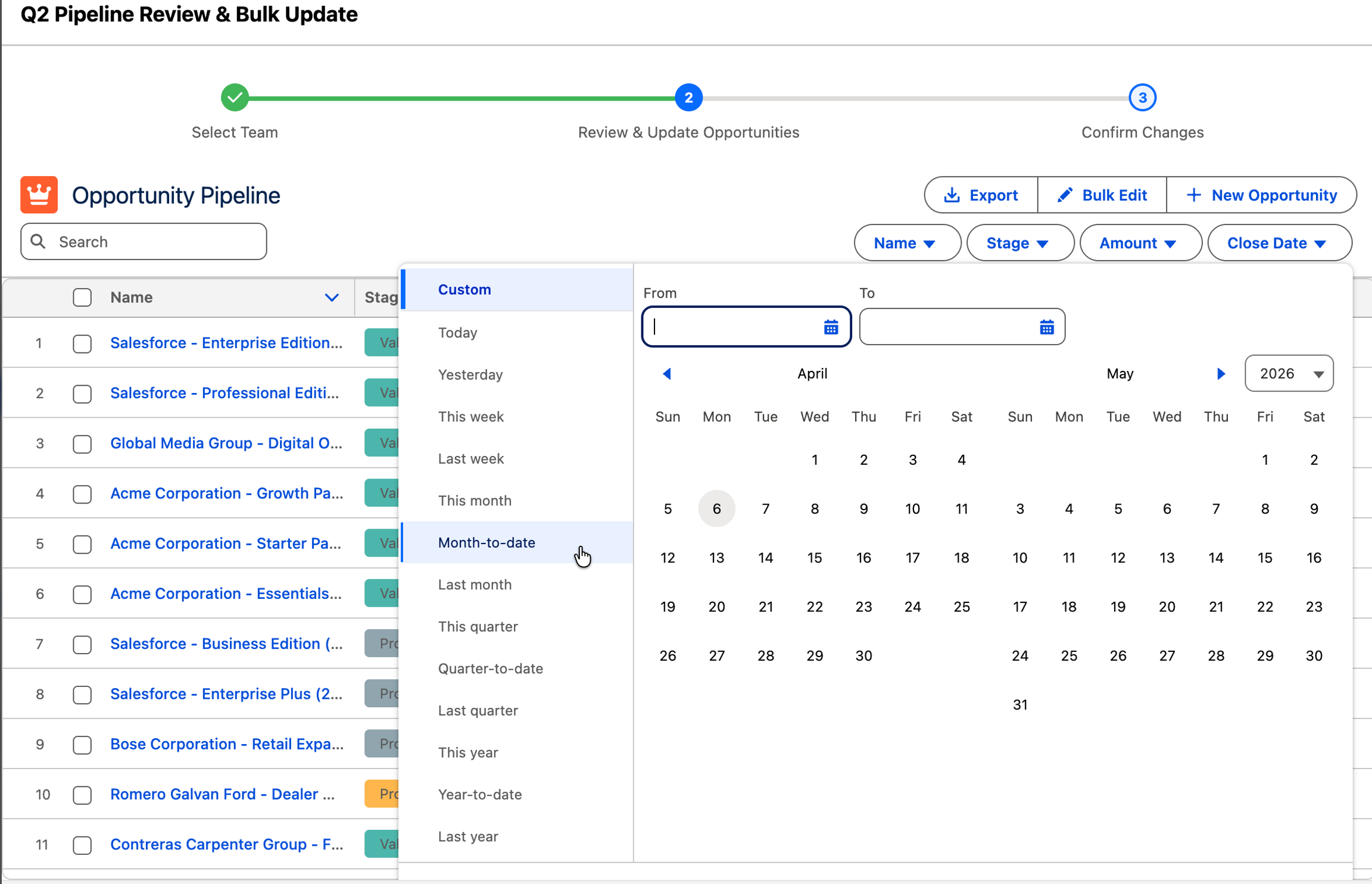
Date filters now have presets: Today, This Week, Last Month, This Quarter. Instead of typing "2026-01-01" into a date field and hoping you got the format right, you pick from a list.
The Input Date Range component got the same treatment — a combobox for common ranges and a new expanded view mode.
For multi-picklist fields, query filters now support INCLUDES and EXCLUDES operators. If you've been working around this with formula fields just to filter on multi-select picklists, you don't need to anymore.
Smaller Improvements
Button Menu options can now be data-driven — pull them from a query, a variable, or a picklist instead of defining each option manually.
Publisher and Feed on the same page now auto-sync: post something in the Publisher, it appears in the Feed without a refresh.
The Calendar shows a loading spinner during Timeline navigation, so users know something is happening when they jump between weeks.
Data Components and Repeater accept JSON collections in variables mode without needing the sObject API name upfront.
File Upload now supports the "Invoke Agentforce" interaction, automatically passing the ContentDocumentId to the agent. If you're building a workflow where users upload a document and an agent processes it, the handoff is built in.
Bug Fixes
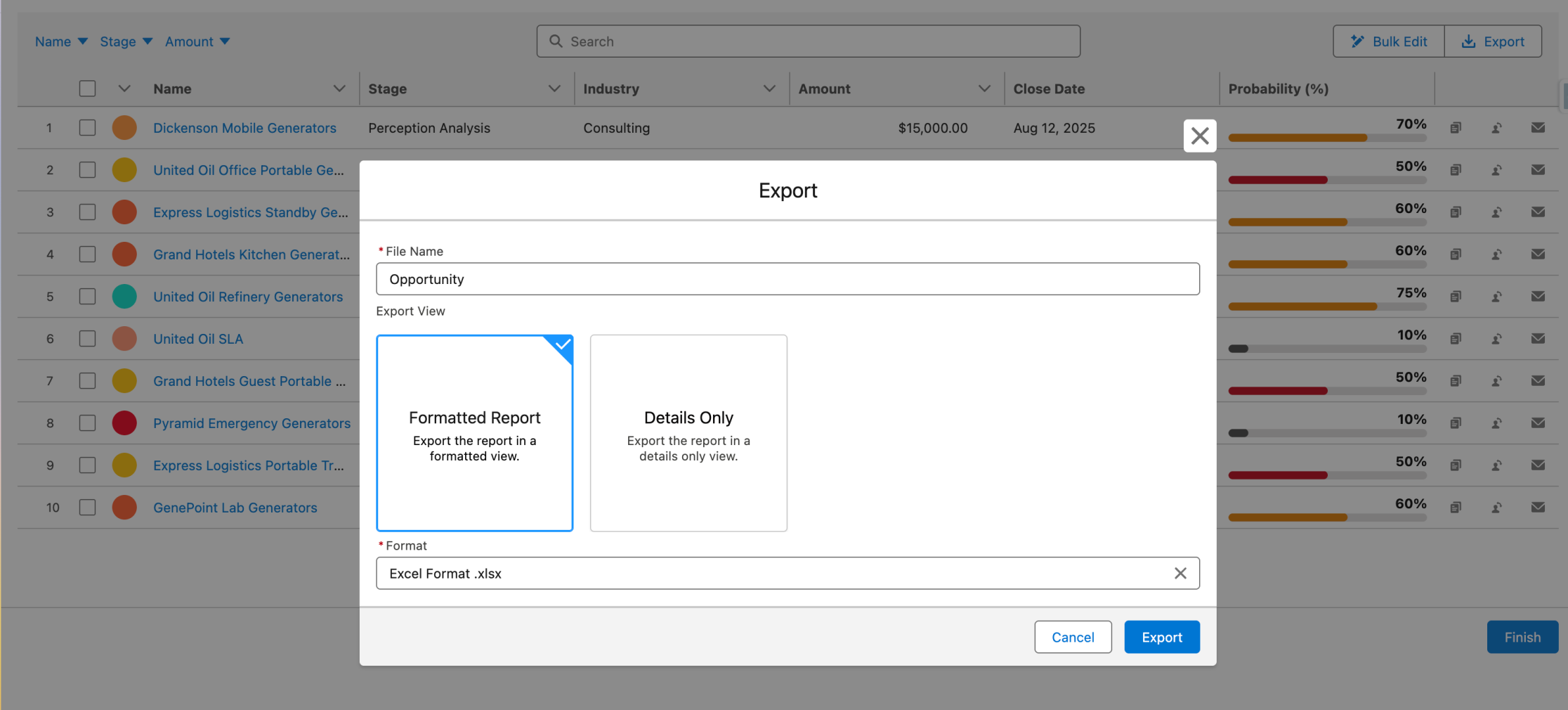
21 fixes in this release. The biggest cluster is in the Data Table: selection limits were getting bypassed after pagination, boolean fields were exporting as all TRUE in Excel, bulk edit was breaking when you edited one combobox field, and formula text fields weren't showing up in filter values. All fixed.
The most visible one: the Open Quick Action interaction was producing blank modals that loaded endlessly. If you reported that one, it's gone.
Scheduler had three fixes around resource visibility — unassigned events were invisible, resource filter colors weren't rendering, and events weren't displaying in preview. Query handling fixed a bug where the letter "t" was being stripped from date literals like TODAY and LAST_MONTH, which silently broke queries. Full list in the release notes.
Get It
Install links for Dynamic Components and Flow Screen Components. Test in sandbox first — this release touches Data Table, Scheduler, and query handling, so verify your existing configurations before going to production




%20(Vignette%20YouTube)%20(79).png)



%20(Vignette%20YouTube)%20(81).png)