Put your records side by side on one screen, and edit them where they sit
Comparing a few Salesforce records usually means opening tabs or a spreadsheet. The new Record Grid lines them up side by side on a flow screen, editable in place and saved back in one step.
To compare a few records in Salesforce, most of us open each one in its own tab and flick between them, or export a list and line the rows up by hand in a spreadsheet. A list view is built to scan down a long column of records. It was never built for the other job: holding three or five records up against each other to see where they differ.
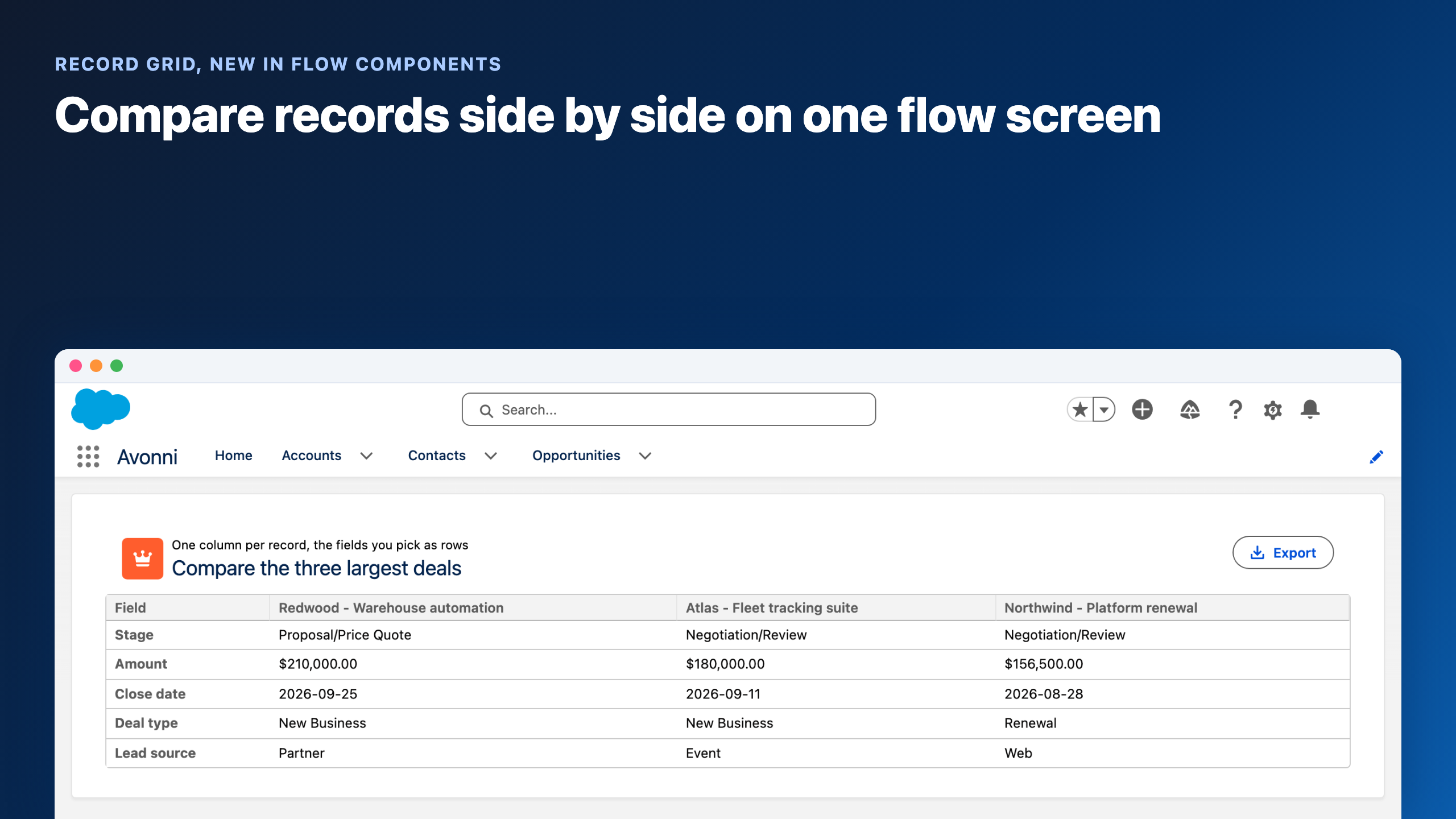
A sales manager in a pipeline review wants the three largest open deals next to each other. Same stage? Whose close date is soonest? Which one is light on amount for where it sits? Today that is three browser tabs and a good memory. The Record Grid, new in Avonni Flow Screen Components 6.32, is built for exactly that question.
Read the records across, not down
The Record Grid turns the usual table on its side. Each record becomes a column, headed by whatever names it, and the fields you choose run down the side as rows. Stage lines up against stage, amount against amount, and you read the difference straight across a row instead of holding it in your head between tabs.
Five opportunities compared side by side. The header row and the field column on the left both stay frozen, so paging through more records never loses which column is which.
The header row and the left column stay put while you page through the rest with the arrows in the header. Fields can carry help text, the small info icon next to a label, and Export sends the whole comparison to a file for the person who wants it in a deck.
Deals are only the obvious example. Line three candidates up against a role, this quarter's numbers against last quarter's, two vendor records before you commit to one. Anywhere the question is how these records differ rather than what you have, the grid answers it in a single look.
Build it in one screen
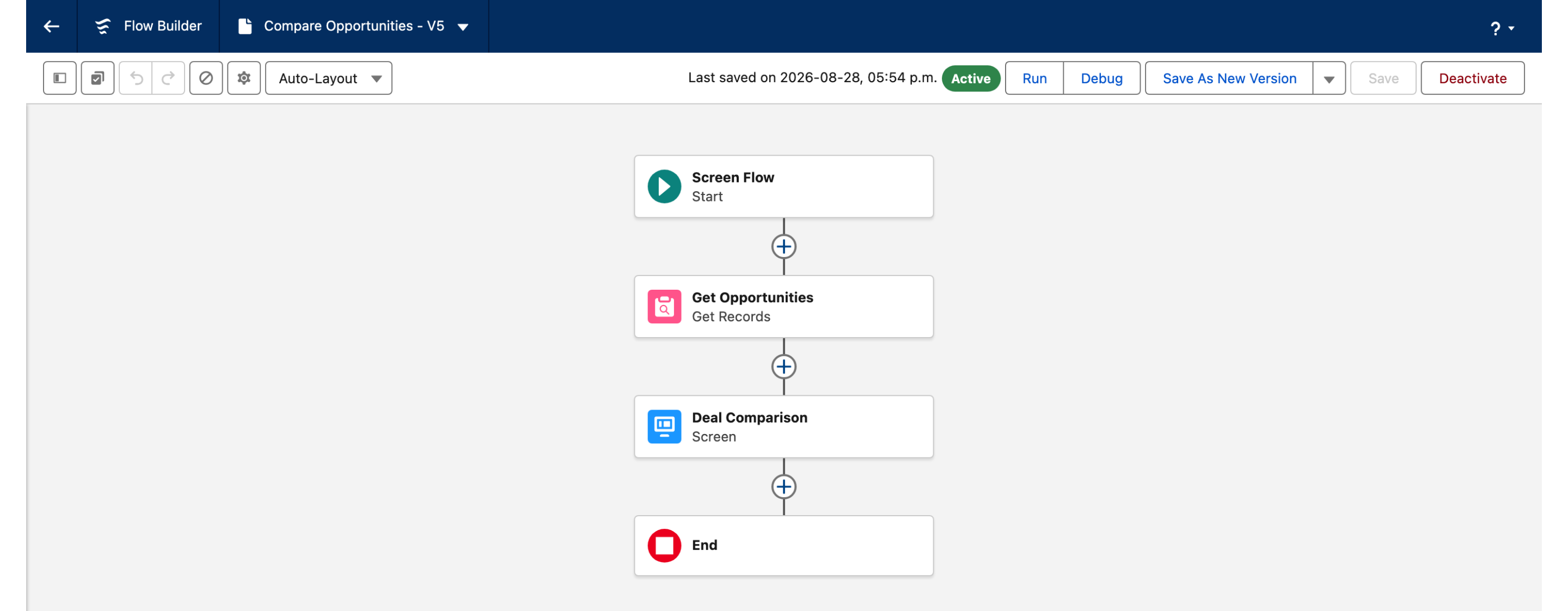
None of this is custom code. The Record Grid is a Flow Screen Component, so it drops onto a screen in a flow like any other component. In front of that screen, a Get Records element pulls the set you want to compare.
The whole flow: a Get Records that returns the opportunities, then one screen that shows them in the Record Grid. No Apex, no component to write.
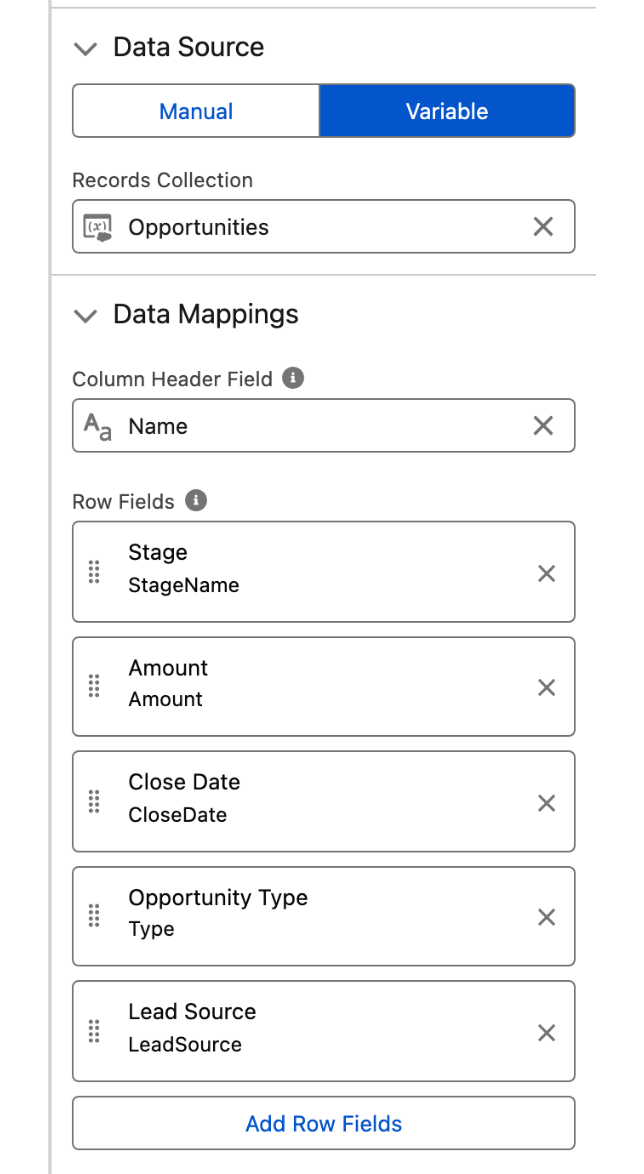
On the component, three settings turn that collection into a comparison:
Data Source. Point it at your Get Records collection (Variable), or type a fixed set of rows in by hand (Manual) when the comparison does not come from the database.
Column Header Field. The field whose value heads each record's column, usually the record Name.
Row Fields. Drag in the fields you want down the side. Each one keeps its own type, Currency, Date, Lookup, Picklist, Checkbox and the rest, so every value formats and edits with the right control.
The data side: the Opportunities collection as the source, Name as the column header, and the fields you drop in as rows.
Edit a value without leaving the grid
A comparison usually ends with a change. You notice one deal's close date is wrong, or an amount needs adjusting, and the normal path is to leave the screen, open the record, edit it, and come back to where you were. The Record Grid lets the reviewer make the change in place.
Mark a row field editable and its cells become inputs. The reviewer changes the amount right where they were reading it, with a date picker for a date and a lookup for a lookup.
Mark a row field as editable, or switch the whole grid into input mode, and its cells accept edits with the right control for each field. The person comparing the records is the person who fixes them, in the same view, without going hunting for the record first.
Save the edits back in one step
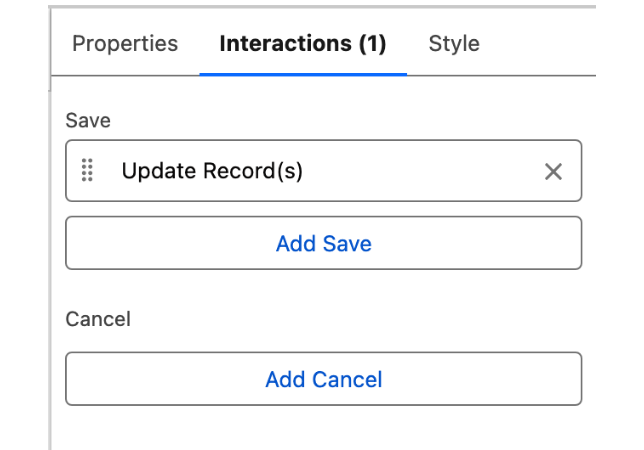
Edits in the grid are held until you say so, which you set up with an interaction on the screen.
One Save interaction, set to Update Record(s), writes every edited row back to Salesforce. Cancel throws the edits away.
Add a Save interaction set to Update Record(s), and every row the reviewer touched is written back to Salesforce in one action. The grid also hands the edited rows to the rest of the flow as a variable, so you can run your own checks or route the change through an approval before anything is saved. A Cancel discards the edits and leaves the records as they were.
What you can configure
The Properties tab controls how the comparison reads, without touching the flow:
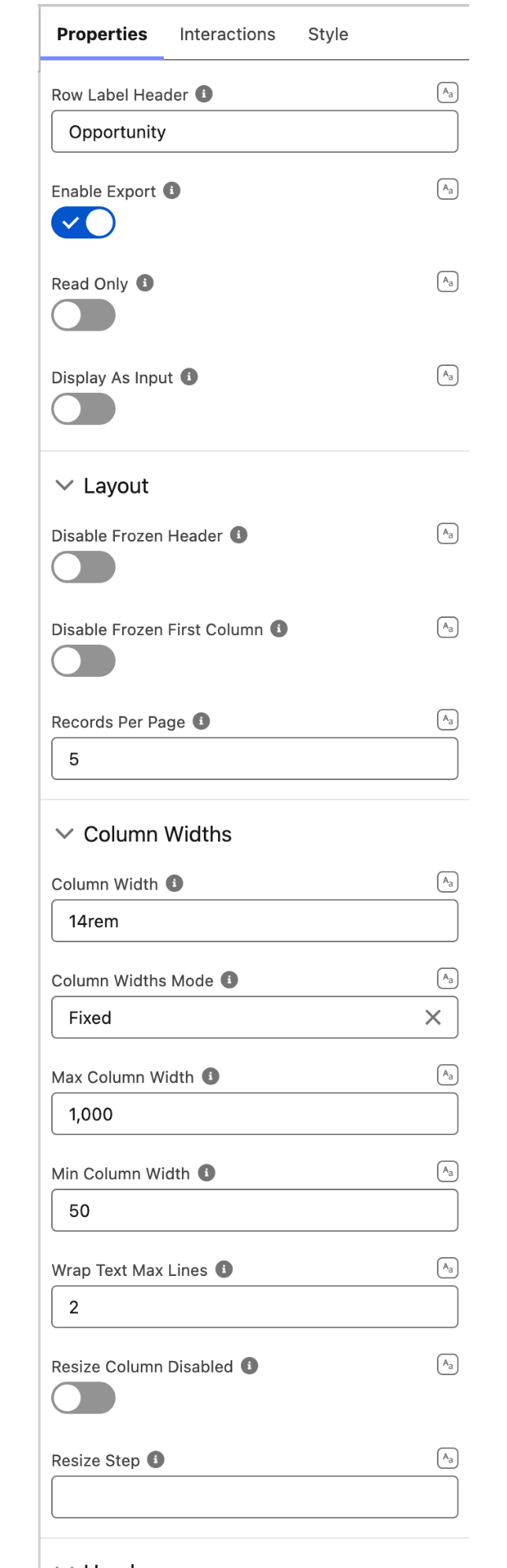
The Properties tab: header, export, frozen rows and columns, records per page, and column sizing.
Records per page. One to twenty-five, five by default. The rest page through from the header arrows.
Frozen header and first column. Both on by default, so the record names and the field labels stay in view. Turn either off.
Export. A one-click download of the whole comparison.
Column widths. Fixed or automatic, with a minimum and maximum, resizable by the reader, and a wrap-text line limit.
Read only. Leave the fields locked and the grid is a viewer, with no edits and no Save.
When a Data Table is still the right call
The Record Grid is for a short list held up against each other, not for scanning a long one. It shows a handful of records at a time and pages through the rest, so a thousand-row report still belongs in a Data Table or a list view. It also lives on a flow screen, which is where it earns its keep: you launch it from a button on a record page, a quick action, or any flow your team already runs, rather than dropping it straight onto a page on its own.
In short: the Record Grid is for holding a few records up against each other and correcting them on the spot. To scan or sort hundreds of rows, reach for the Data Table instead.
Get it
The Record Grid ships in Avonni Flow Screen Components 6.32. The full reference, with every property and every supported field type, is on the docs:
Co-founder of Avonni, Cédric leads Customer Success across the entire Salesforce-native product suite. He focuses on accelerating time-to-value and driving product adoption for admins and teams building high-performance UIs without code.