Avonni Component Playground: Try Salesforce Components Live Before You Install
The Avonni Component Playground is live: 262 Salesforce use cases to preview, tweak and copy before you install. Here's how to evaluate a component with it.
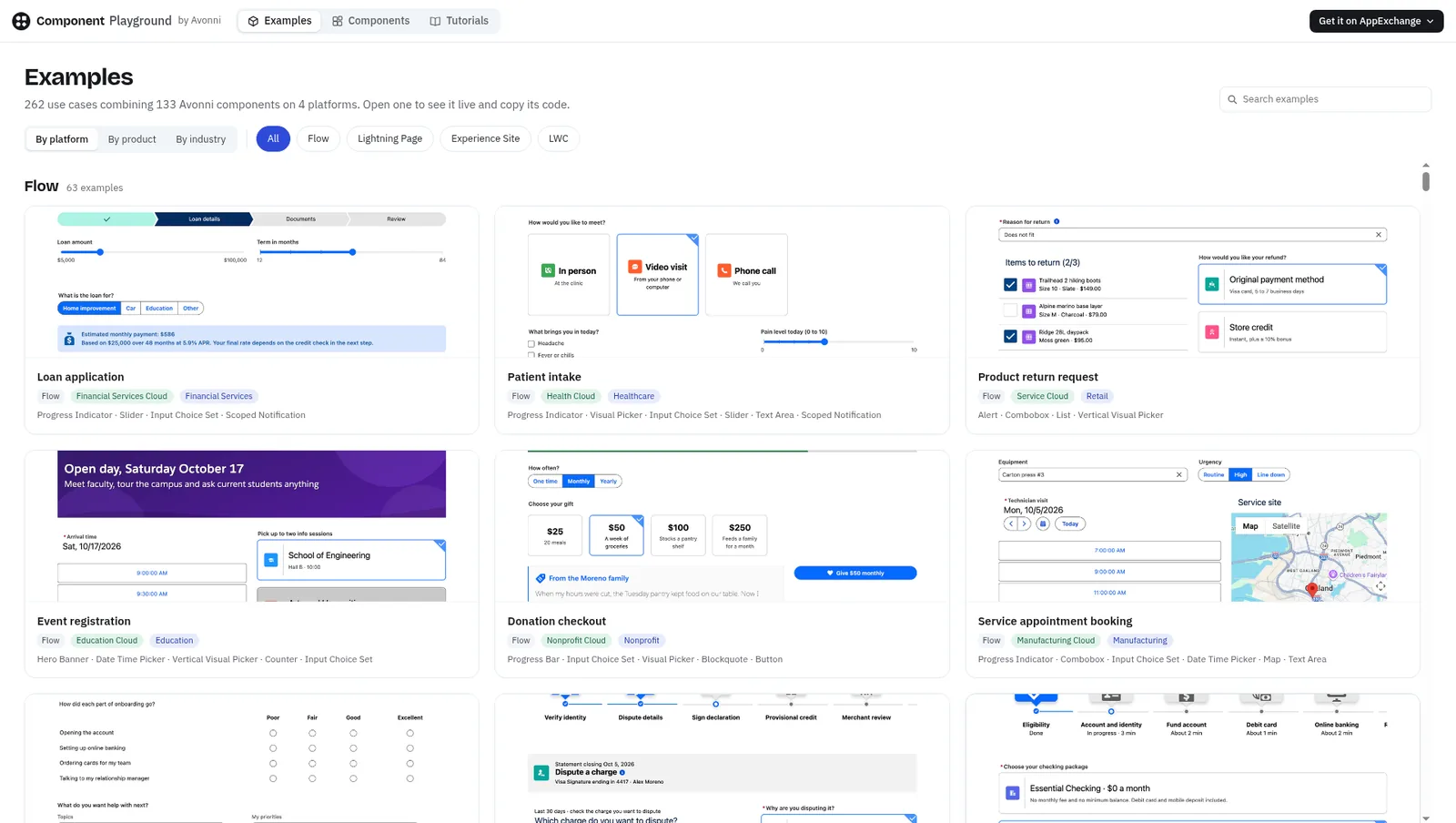
Today we're opening the Avonni Component Playground: 262 Salesforce use cases built from 133 Avonni components, across Flow screens, Lightning pages, Experience sites and LWC. Open one and it renders live in your browser. Change a component's properties, then copy the metadata. You don't need a Salesforce org or an account.
We built it because evaluating a UI component usually means installing a package first and asking questions later. That order is backwards. Here's what the Playground does, how to use it to evaluate a component properly, and where it stops being enough.
The Examples view: 262 use cases, filterable by platform, product or industry.
What the Playground is, and what it isn't
The Playground has two views:
Examples. Complete pages for real jobs: a loan application in Flow, a care coordinator console on a Lightning page, a partner portal on an Experience site, a KPI dashboard in LWC. You can browse them by platform, product or industry. Each one lists the components it uses and has a Preview tab and a Code tab.
Components. One page per component, with a live preview and a Properties panel. You can switch the target platform and the design system (SLDS 1 or SLDS 2) and watch the preview update.
It is not a Salesforce org. The data is sample data, and your sharing rules, field-level security, automation and record volumes aren't there. It's also not an LWC code editor like Salesforce's playground.lwc.dev. The Playground shows what our components do and gives you the metadata to reproduce them. Treat it as the step before your sandbox, not a replacement for it.
A five-point check before you install any UI component
This checklist works for any AppExchange component, not just ours. The Playground lets you do the first four points in minutes.
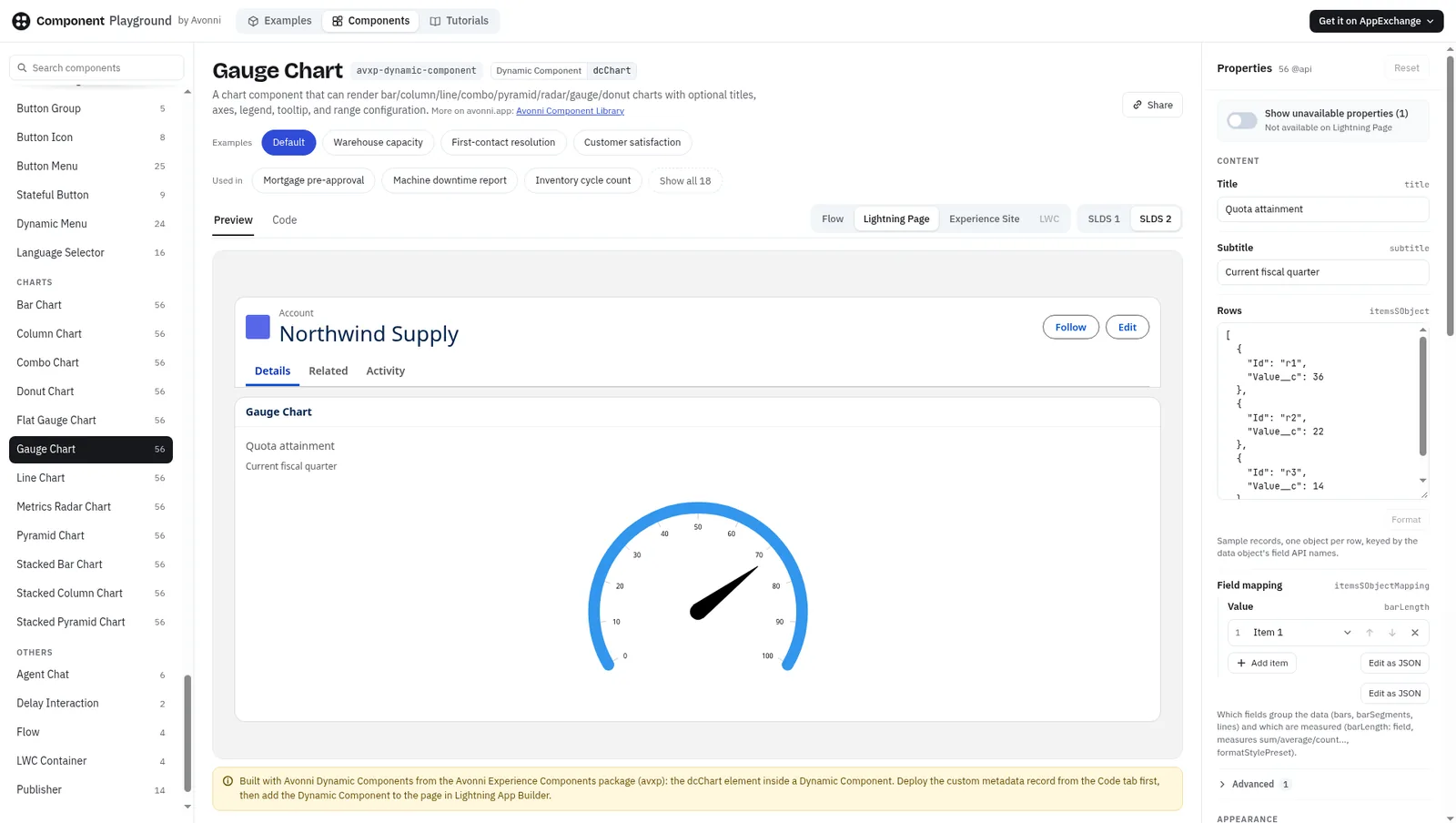
1. Configuration options on your target platform. A component can expose a property in one place and hide it in another. Check that what you need can be configured declaratively where you'll actually use it. The Gauge Chart, for example, has 56 properties on a Lightning page, and the panel has a "Show unavailable properties" toggle that reveals the ones that don't apply there. If a property your design depends on only exists in code, find out now.
2. Data binding. Find out how the component gets its data and what shape that data must have. In the Playground, chart components take sample rows keyed by field API names, plus a field mapping that decides which fields group the data and which are measured. Translate that into your org: which object, which fields, and whether your users can read them.
3. Theming. Flip between SLDS 1 and SLDS 2 and compare the result with your org's current look. A component that only looks right in one of them is a future redesign ticket. On example pages, you can also change the preview background.
4. Metadata portability. Look at what you would actually deploy. The Code tab shows the files, not a marketing summary. For a Lightning page example that means a custom metadata record for the Avonni Dynamic Component plus the Record_Page.flexipage-meta.xml. Flow examples produce a screen flow file. Read the notes under the code. They tell you about deployment order and name clashes before you hit them.
5. A sandbox test with real users. This one the Playground can't do. Install the package in a sandbox, deploy the metadata, then test with real profiles and realistic record counts. Check permissions, page performance, mobile, and how the component behaves next to your existing automation. Salesforce gives the same advice for every AppExchange install: test in a sandbox before production.
Walkthrough: from a plant maintenance page to your org
Here's the whole loop on one example.
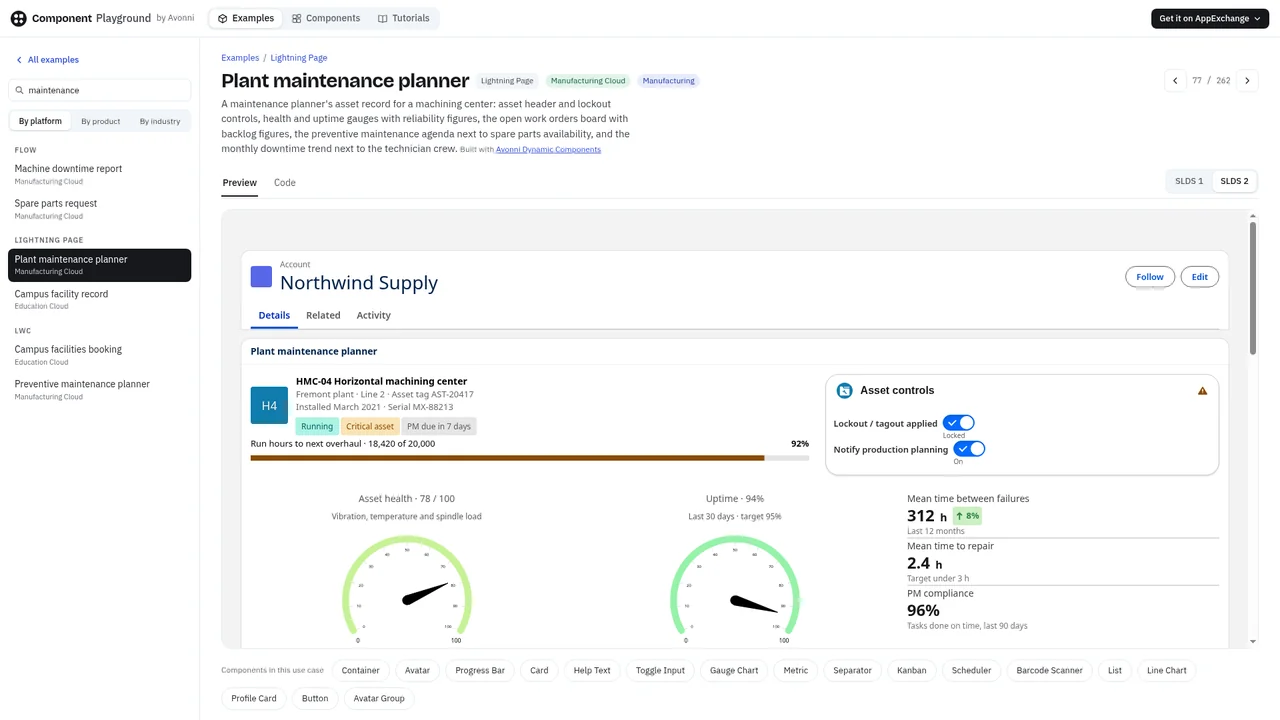
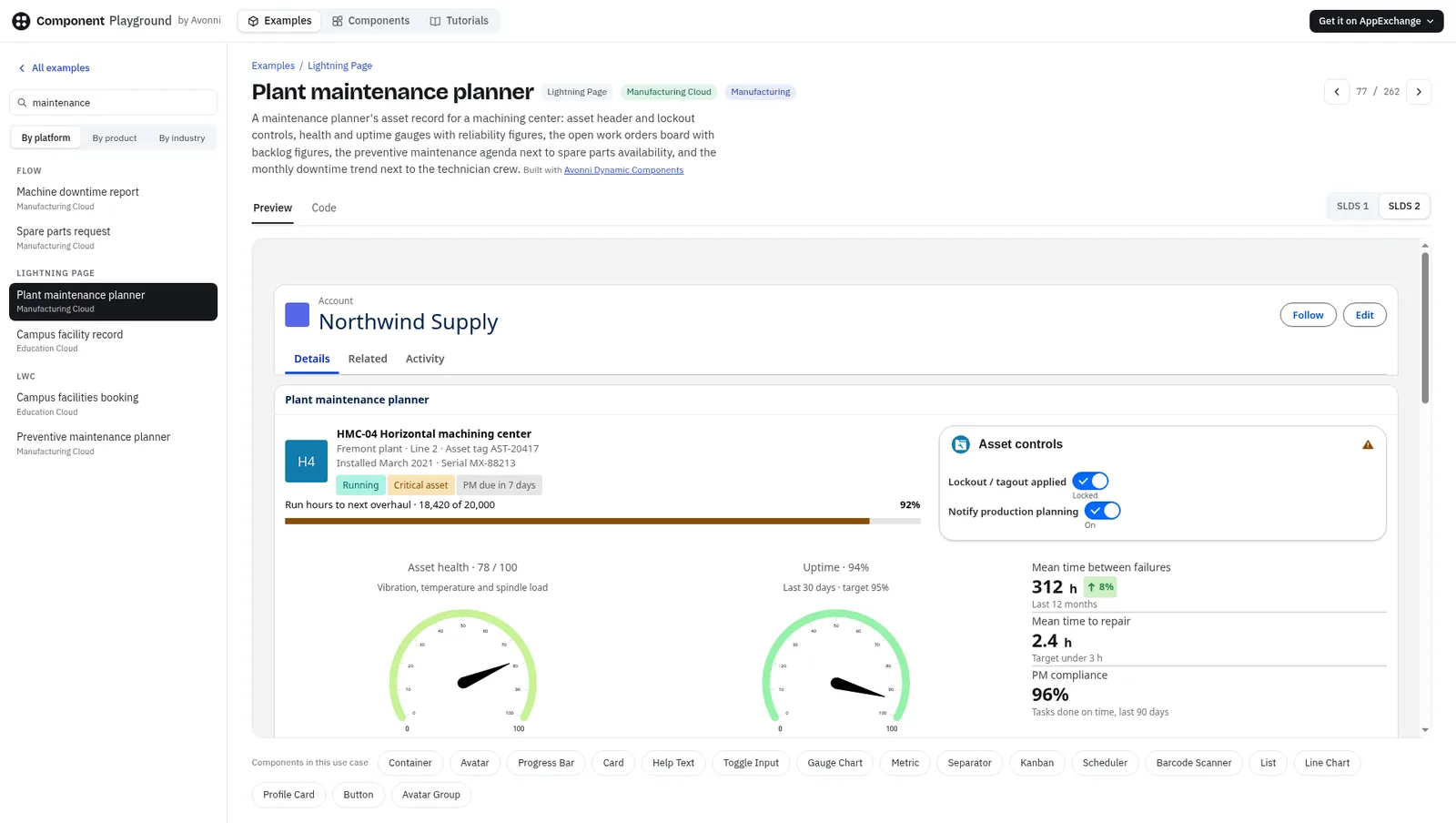
Open the example. Go to the Plant maintenance planner. It's a Lightning record page for a machining center: an asset header with lockout controls, health and uptime gauges, an open work orders board, a preventive maintenance agenda, spare parts and a downtime trend. Under the preview, the page lists the 17 components it uses, from Container and Card to Kanban, Scheduler, Gauge Chart and Barcode Scanner.
The Plant maintenance planner example, with the 17 components it uses listed under the preview.
Open one component. Click the Gauge Chart chip. It opens the Gauge Chart component page with the Lightning Page platform selected: a live preview on a record page and the Properties panel on the right. A note under the preview tells you how it's built: a chart element inside an Avonni Dynamic Component, from the Avonni Experience Components package.
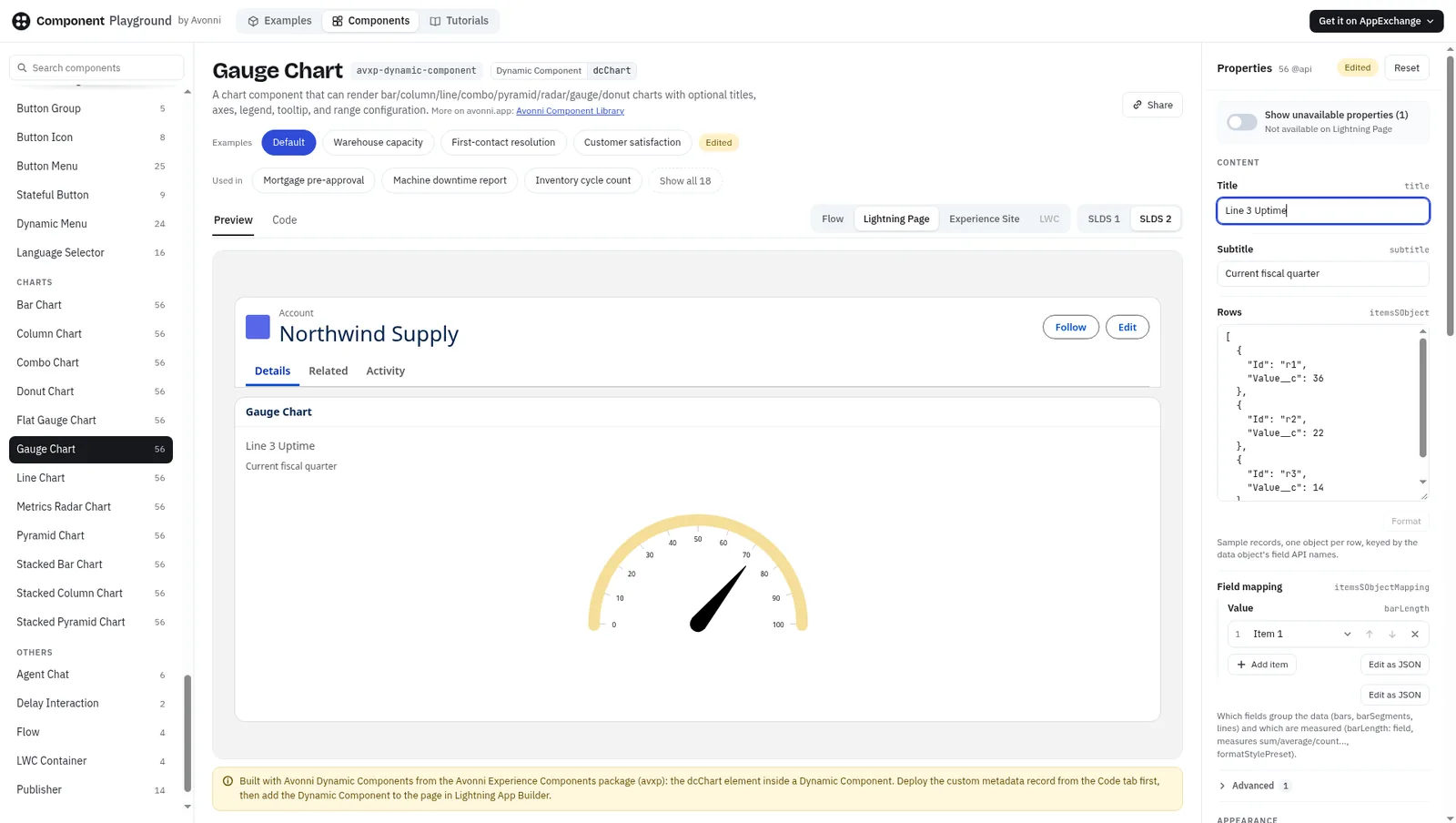
The Gauge Chart component page, Lightning Page platform selected, with the Properties panel.
Change it. We renamed the title to "Line 3 Uptime", switched the palette from aurora to sunrise and changed the gauge angle from 240 to 180 degrees (the options are 90, 120, 180, 240 and 270). The preview updates as you type. The panel shows an "Edited" badge, and Reset takes you back to the defaults.
After the edits: new title, sunrise palette, 180-degree angle. The Edited badge and Reset appear in the panel.
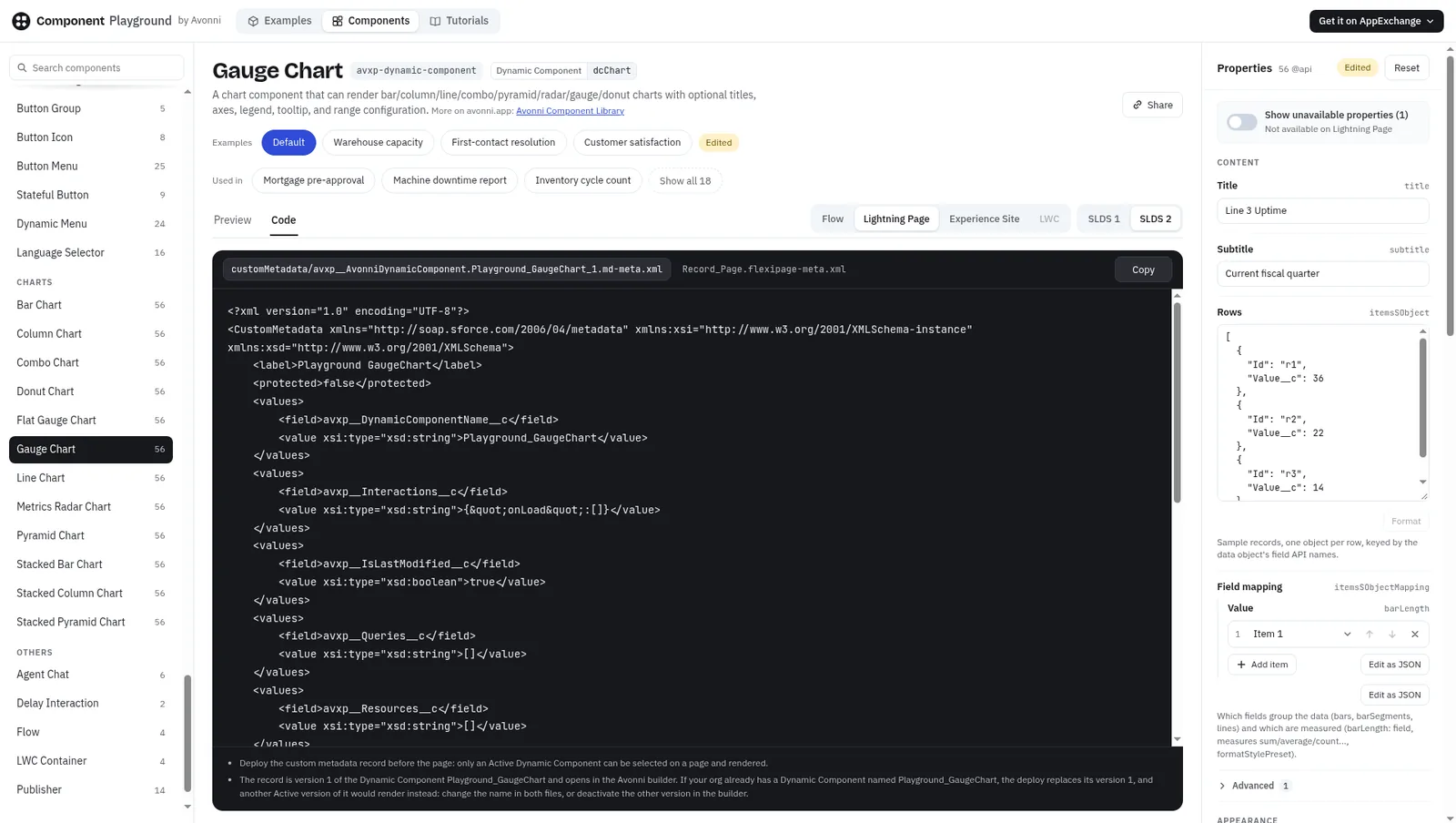
Copy the metadata. Open the Code tab. For this component on a Lightning page, you get two files: the custom metadata record avxp__AvonniDynamicComponent.Playground_GaugeChart_1.md-meta.xml, which contains your edits, and Record_Page.flexipage-meta.xml. Copy them with the Copy button.
The Code tab: the custom metadata record with your edits, plus the flexipage file.
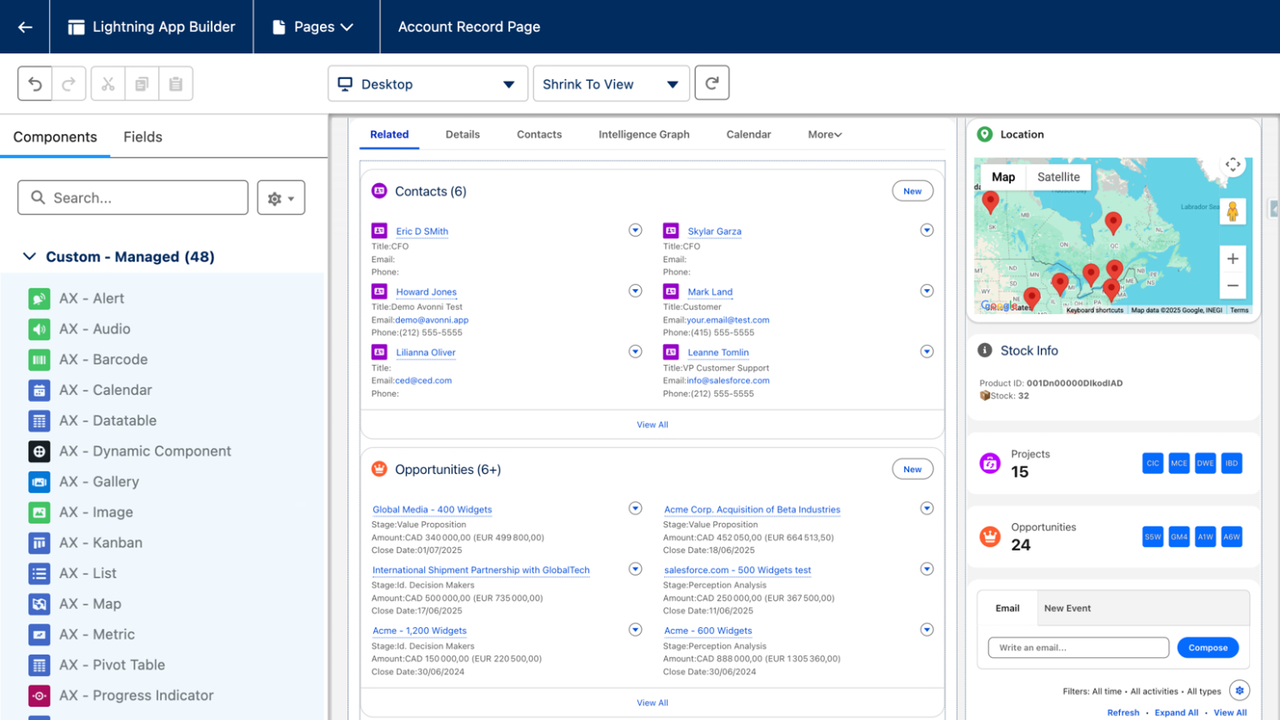
Move to your sandbox. Install the package from AppExchange (the "Get it on AppExchange" button is at the top of every Playground page). Then deploy the custom metadata record before the page. Only an active Dynamic Component can be selected on a page and rendered. If your org already has a Dynamic Component with the same name, the deploy replaces its version 1, so rename it in both files if needed. Then add the Dynamic Component to the page in Lightning App Builder and run the five-point check with real data.
Limits, stated plainly
Sample data only. The preview can't show your record volumes, your sharing model or your field-level security.
No automation. Apex, triggers and flows that run around the page aren't simulated.
Not every component exists on every platform. The Gauge Chart, for example, has no LWC version, and some properties are unavailable on some platforms. The Playground tells you, so read the notes.
The code is a starting point. It reproduces what you see. It doesn't replace a review of your org's naming, permissions and deployment process.
Do I need a Salesforce org or an account to use the Playground?
No. You can browse, preview, edit and copy code without signing in. You need an org, ideally a sandbox, when you deploy what you copied.
Will the copied metadata work in my org as is?
It needs the matching Avonni package installed. For Lightning page and Experience site examples built with Dynamic Components, deploy the custom metadata record first, then the page. Test in a sandbox before production.
How is this different from an AppExchange Test Drive?
A Test Drive is a read-only org with the provider's sample data. The Playground lets you change each component and take the resulting metadata with you. They complement each other, and neither replaces a sandbox test.
Filed under
Written by
Cédric Vergé
Co-Founder, Head of Customer Success
Co-founder of Avonni, Cédric leads Customer Success across the entire Salesforce-native product suite. He focuses on accelerating time-to-value and driving product adoption for admins and teams building high-performance UIs without code.