0:00 Welcome
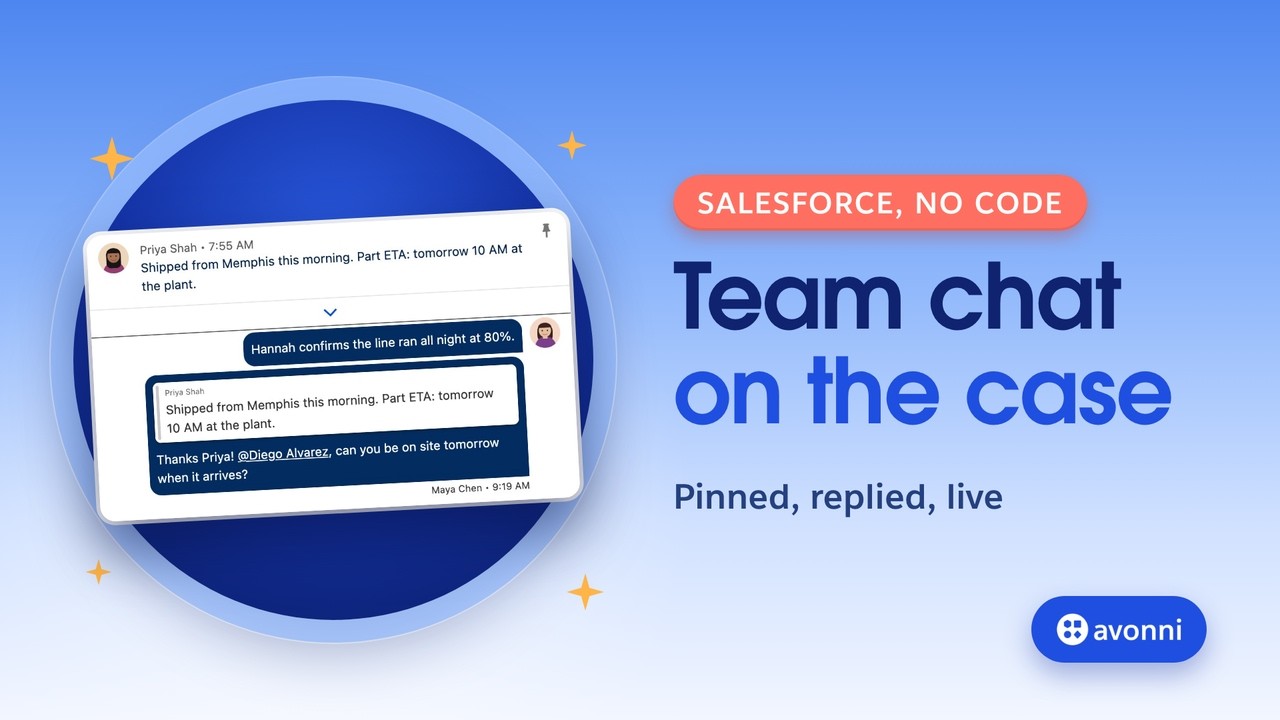
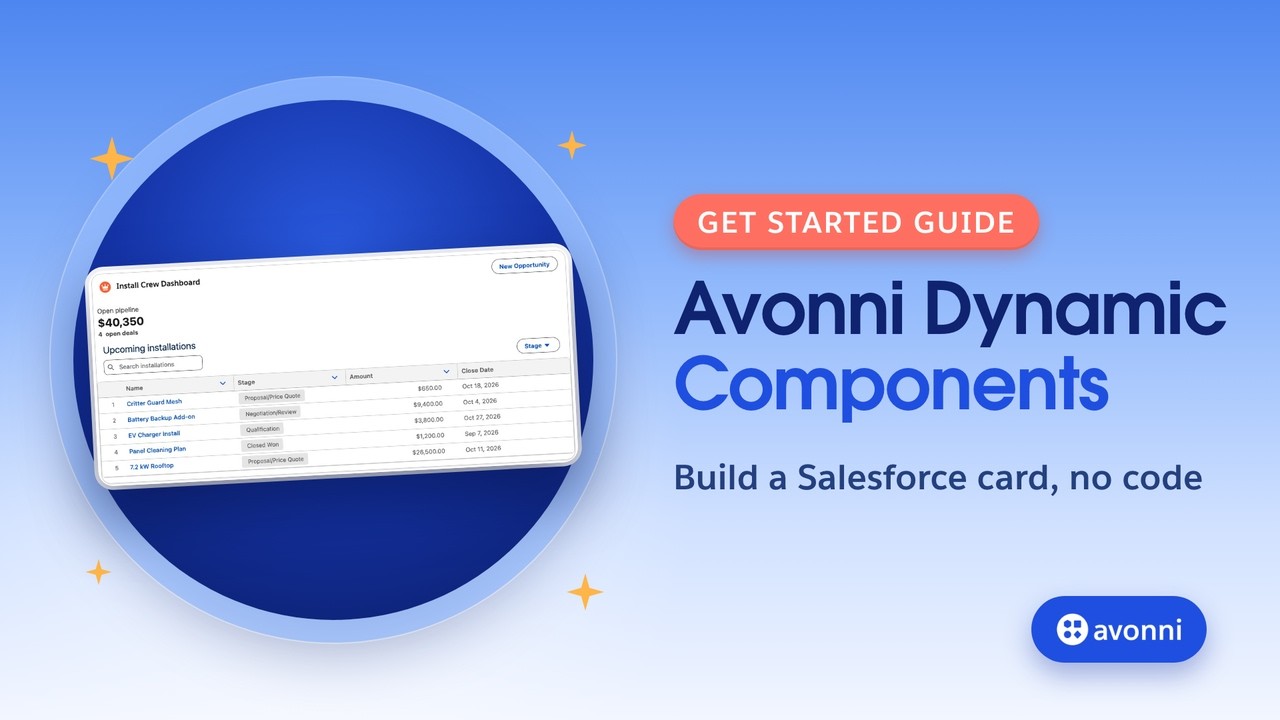
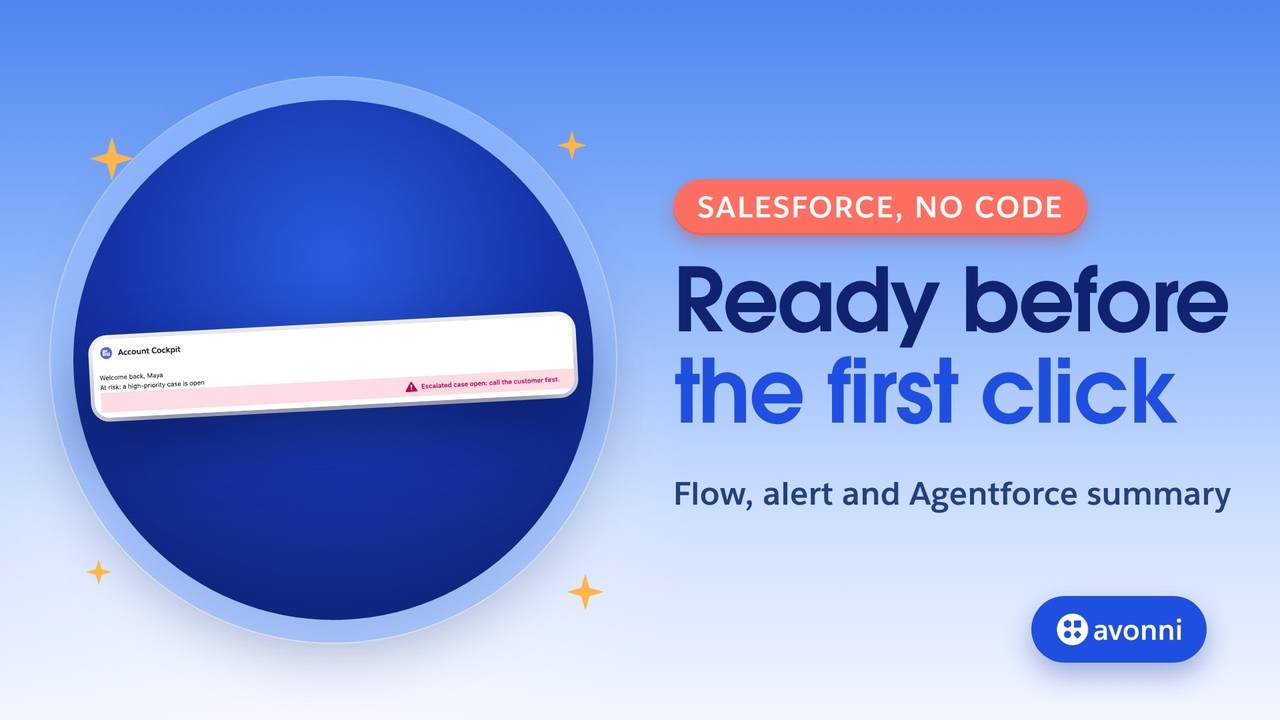
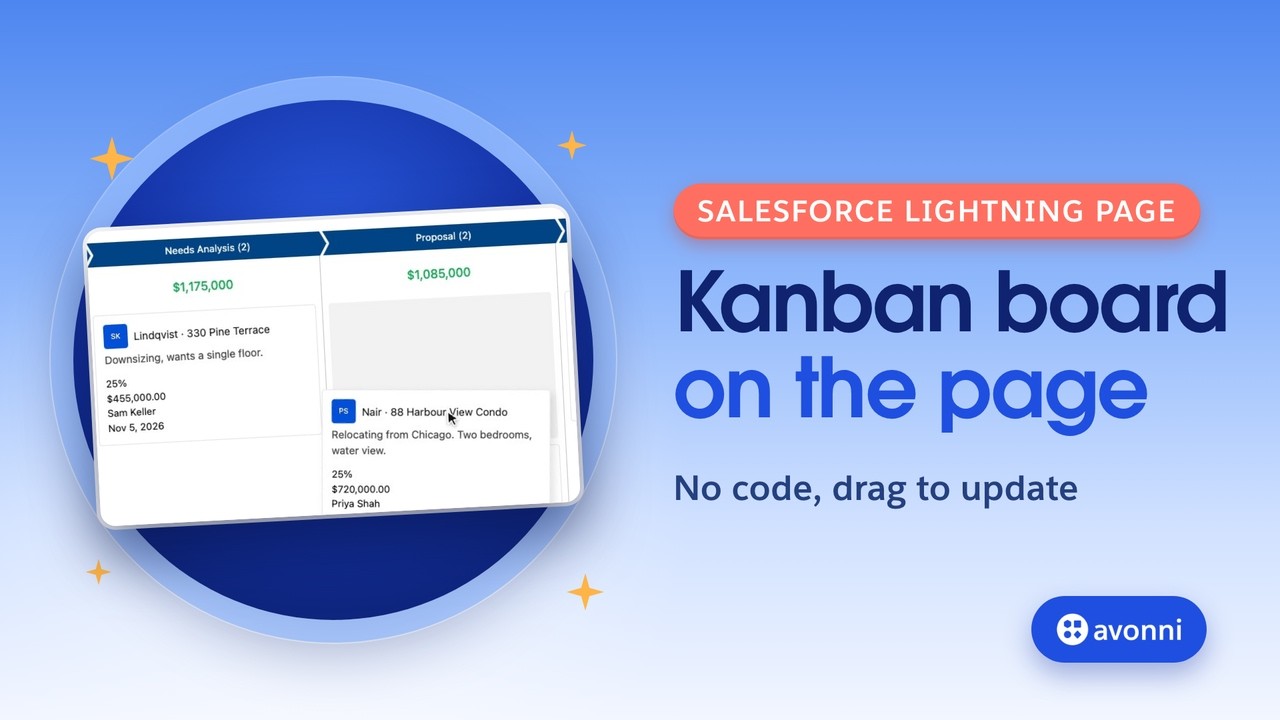
Welcome to a new Avonni video tutorial! Today, we build a team chat right on a Salesforce record page, with no code. It's for admins whose teams work one record together: a case under escalation, a big deal, a project. We'll use the Avonni Chat in Dynamic Components, and put the spotlight on what it gained this year: pinned messages, replies, actions on every message, and messages that arrive live. Let's go!
0:27 The need
Meet Maya. She's a support agent at Kestrel Robotics, which builds packaging robots for food plants. Two days ago, a customer, Maple Ridge Foods, called: Line 3 is down, the robot arm stops with fault E-217. Maya escalated the case, and four people got involved: Maya, Diego the field engineer, Priya who handles parts, and Sam, the account manager. Their answers ended up in emails, in Slack, in someone's notes. And whoever opens the case next doesn't know the workaround, or when the part arrives. So we'll give the team one conversation, right on the case. Why a Dynamic Component and not a screen flow? There are no steps here: the conversation lives on the page, always there, like the case details.
1:13 Standard or Avonni?
Let's be fair. Salesforce has Chatter: posts, comments and mentions on the record. But in orgs created since Summer '26, Chatter is off by default. It needs Feed Tracking on the object, and posts can only be pinned in groups and topics, never on a case. Salesforce now points you to Slack. With Salesforce channels, or Swarming for Service Cloud, a record gets its own Slack channel. That's great if your team lives in Slack. But Slack has to be connected, and the conversation lives in Slack, not in your Salesforce data. The Avonni Chat keeps every message as a record of your own object. So you can pin the key facts on the case, reply to one message, run an action from any message, and watch new messages arrive live. And since they're records, you can report on them and automate them with a flow.
2:02 What's new in the Chat
The Chat has been busy this year. In May, date dividers. In June, a header with actions. In July, pinned messages. In August, a menu on every message, and replies to a specific message. And in October, pins you can rename and limit. We'll use every one of them today.
2:22 What you need
You need four things. The Avonni Experience Components package, which includes Dynamic Components and the Component Builder. The Avonni Experiences Admin permission set for you, to build, and Avonni Dynamic Components User for your users, with their license. Then an object to hold the messages. Ours is Case Message, with six fields: the case, the author, the body in rich text, the time it was sent, a Pinned checkbox, and Reply To, which points to the message it answers. Why your own object? Every message becomes a record: searchable, reportable, and ready for a flow. And for live updates, a platform event and a small flow. We'll look at those near the end.
3:04 The Avonni collection
Everything happens in the Avonni Component Builder. Its palette has more than seventy-five elements: data tables, kanbans, maps, calendars, and in Data Display, the Chat. You install the package from the AppExchange, with ten free production licenses. The link is in the description.
3:23 Create the component
Open the Dynamic Components tab, click New Component, and start from a blank component. Drag the Chat onto the canvas. Then save it, with Case as its Target Page Object. That tells the component it's made for case pages, so it can read the ID of the case it sits on.
3:40 Load the case's messages
Now the data. Set the data source to Query, on Case Message, with one condition: Case equals the record ID of the page. Switch the value to Mapped, open $Component, and pick RecordId. Then sort by Sent At, oldest first, like any chat. Next, map the message: Content is the body, and Date is Sent At. In the advanced options, Key Field is the ID, and Participant ID is the author. Since the author is a user, map the participant too: the full name for the label, and the photo for the avatar. Now every message shows who wrote it, with their photo. And which side does a message go on? Current Resource ID decides. By default, it's the current user's ID: Maya's messages go on the right, everyone else's on the left.
4:30 A header and date dividers
New in June: the header. Give it a title, Escalation room, map the caption to the case subject so it works on every case, and use a case icon as its avatar. Then add a header action, Log a Call: Maya calls the customer every two hours. Its Header Action Click opens the Log a Call quick action: pick it in the list of global actions, and map the record ID to the page. New in May: Show Date Dividers. An escalation runs over days, so each day gets its own label, and each message only needs its time. Set Message Date Format to Preset, and pick the time.
5:08 Send messages
Now the publisher. Keep the mode on Rich, for bold, lists and links, and turn on Allow Mentions: type @, and pick a teammate. Set a placeholder, and name the button Send. Here's the key part: publishing saves nothing by itself. The Chat hands you the message, and you decide where it goes. So add a Publish a New Message interaction: Create Record, on Case Message. Map the case to the page's record ID. The rest comes from Message, the message just sent: its Participant Name is the author, that's you, and its Content is the body. On success, refresh the query, and the new message joins the thread.
5:48 Reply to a message
New in August: replies. Turn on Allow Reply, and every message gets a reply button. In the data mappings, map Reply To to our Reply To field, so a reply shows the message it answers. Then add one more line to the Publish interaction: Reply To gets Message, Reply To. That's the message being answered. Without it, the reply is saved as a plain message, and loses its quote.
6:14 Pin the key facts
New in July, and better since October: pins. Turn on Can Pin, and cap it at three, so the banner only holds what really matters. Then rename the action: Pin as key fact, and Unpin key fact. That's the October release. Map Pinned to our checkbox, then save each pin. Pin a Message runs Update Record on the pinned message, with Pinned set to true. Unpin a Message sets it back to false. Now a pin isn't just on Maya's screen: it's on the case, for everyone who opens
6:47 An action on every message
it. New in August: a menu on every message. Add a message action, Create follow-up task. Its Message Action Click opens the New Task quick action, picked in the same list, with the page's record ID, so the task is linked to the case. So when a message calls for a follow-up, the task is one click away. You can add as many actions as you like, and each one runs the interactions you choose.
7:13 Live: messages that arrive on their own
Now the star of the show: live updates. By default, the Chat refreshes when you send a message or reload the page. So when Diego answers from the field, Maya wouldn't see it. Three pieces fix that. A platform event, Case Message Event, with one field: the case ID. A record-triggered flow on Case Message: every time a message is created or updated, it publishes that event with the message's case. And in the Chat, under the data source's advanced options, Query Refresh EMP: the channel name is the event's API name, and the key field name is the case ID field. Leave the key field value empty: the Chat compares the event's case with the case on the page, and refreshes only when they match. And since the flow also runs on updates, pins arrive live too.
8:02 Put it on the case page
Save the component and activate it. Now open the case and click Edit Page. Search for AX dash: these are the Avonni components for App Builder. Drag AX - Dynamic Component into the right column, pick Case Team Chat, and check Display as Card, so it sits on a white card like the rest of the page. Save, and activate the page.
8:25 Test it
Let's run it, the way Maya would. Diego's workaround and Priya's part ETA are what everyone needs, so she pins both as key facts. The banner keeps them on top, and a click jumps back to the message. Then she replies to Priya, and mentions Diego to ask if he can be on site tomorrow. Her reply quotes Priya's message. And here's Diego's answer: he'll be at the plant at nine thirty. Maya didn't reload anything. The message just arrived. That calls for a follow-up. From Diego's message, Create follow-up task, and the task is on the case. And in Salesforce, every message is a Case Message record, with its author, its pin, and the message it answers.
9:06 Pro tips
A few pro tips before you go. Blocked Words, in the publisher's advanced options, keeps words like password out of the chat: they simply can't be typed. Maximum Length and Show Character Count keep messages short. Mentionable Participants IDs limits who can be mentioned. Last Publication Mentions gives you the IDs of the people mentioned, ready for a flow that notifies them. And for live updates, trigger your flow on create and on update, so pins go live too.
9:36 Recap
So, a team chat on the case: every message saved as a record, a header with an action, date dividers, replies, pins as key facts, an action on every message, and live updates. All of it in the Component Builder, with no code. The Avonni guide to real-time updates is linked in the description. Subscribe for more Avonni tutorials. Thanks for watching, and see you in the next one!