0:00 Welcome
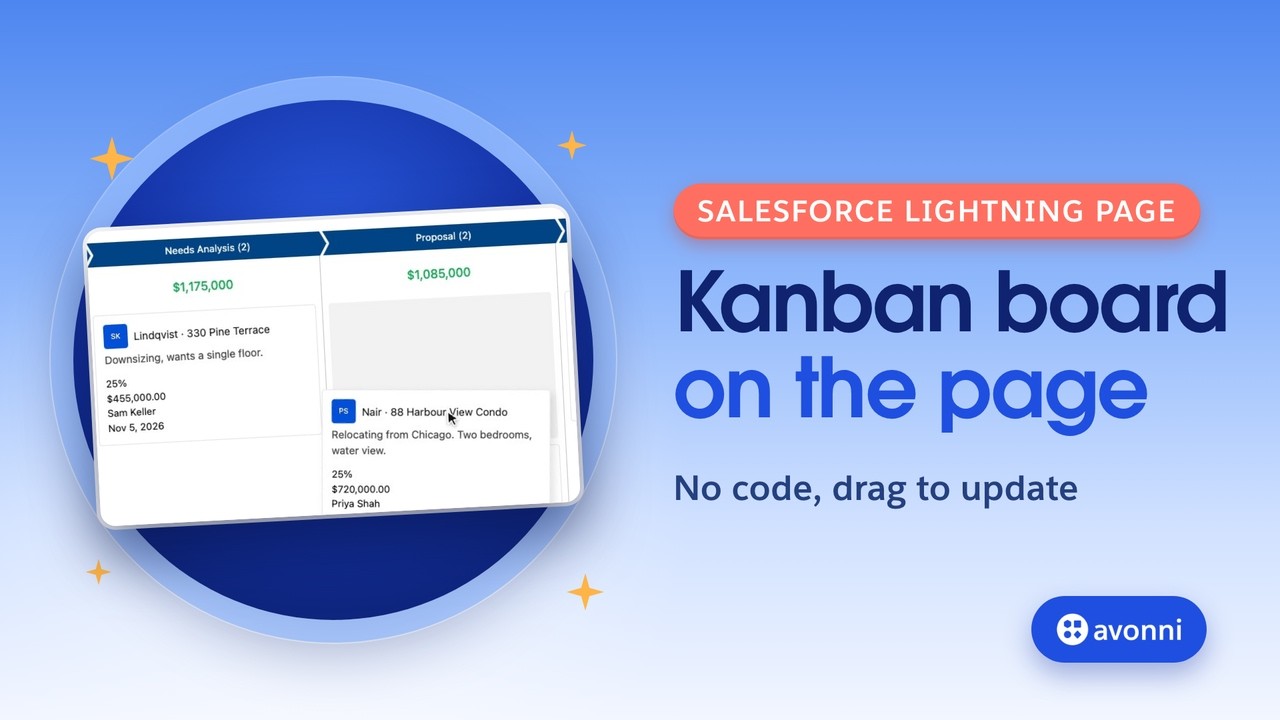
Welcome to a new Avonni video tutorial! Today, you'll build a Kanban board right on a Salesforce Lightning page. Drag a deal to the next stage, and the record is updated, with the column totals. No code, start to finish. Let's go!
0:15 What Salesforce gives you
Salesforce already has a Kanban, and it's a good one. Open a list view of opportunities, switch to Kanban, and you get a column per stage, a total per column, search, filters, and drag and drop. It's free, and it works. But it lives in a list view, in the Opportunities tab. Each list view has its own Kanban settings. It shows up to 200 cards, and up to four fields per card. And in Lightning App Builder, search for Kanban: there's no standard Kanban component for a record page. Now, you could go through Flow. Salesforce has a Kanban Board screen component, in beta. Build a screen flow that gets the account's opportunities, and embed it on the record page with the Flow component. That works to look at the deals. But the Flow Kanban Board is read-only: users can't drag cards between stages. And the flow runs every time the page loads. That's where the Avonni Kanban comes in. It sits right on the record page, shows only that record's deals, lets you drag them to the next stage, and lets you add your own logic after each drop.
1:26 Our example
To learn it, let's take a real use case. Westside Realty sells homes. Maya Chen runs the Downtown Office team. Every morning, she opens the Downtown Office account, and she wants to see her team's deals by stage, with the total per stage, and move a deal forward in one gesture. Today, she leaves the page, opens Opportunities, switches to Kanban, filters on her office, and comes back. Here's what we'll build instead: the board, on the account page, and one drag to move a deal.
1:59 The plan
Here's the plan. A query, to get the account's opportunities. Columns, from the Stage field. A total per column. Cards that show what matters. Search and filters. Then one interaction after the drop, and we put the component on the account page.
2:16 What you need
Before we start, you need four things. The Avonni Experience Components package, which includes Dynamic Components. The Avonni Experiences Admin permission set, to build components. An account with a few opportunities, and a Win Chance formula field that shows the probability of the stage. And, for our test, a validation rule: a deal needs a Next Step before it moves to Negotiation.
2:41 Why Dynamic Components
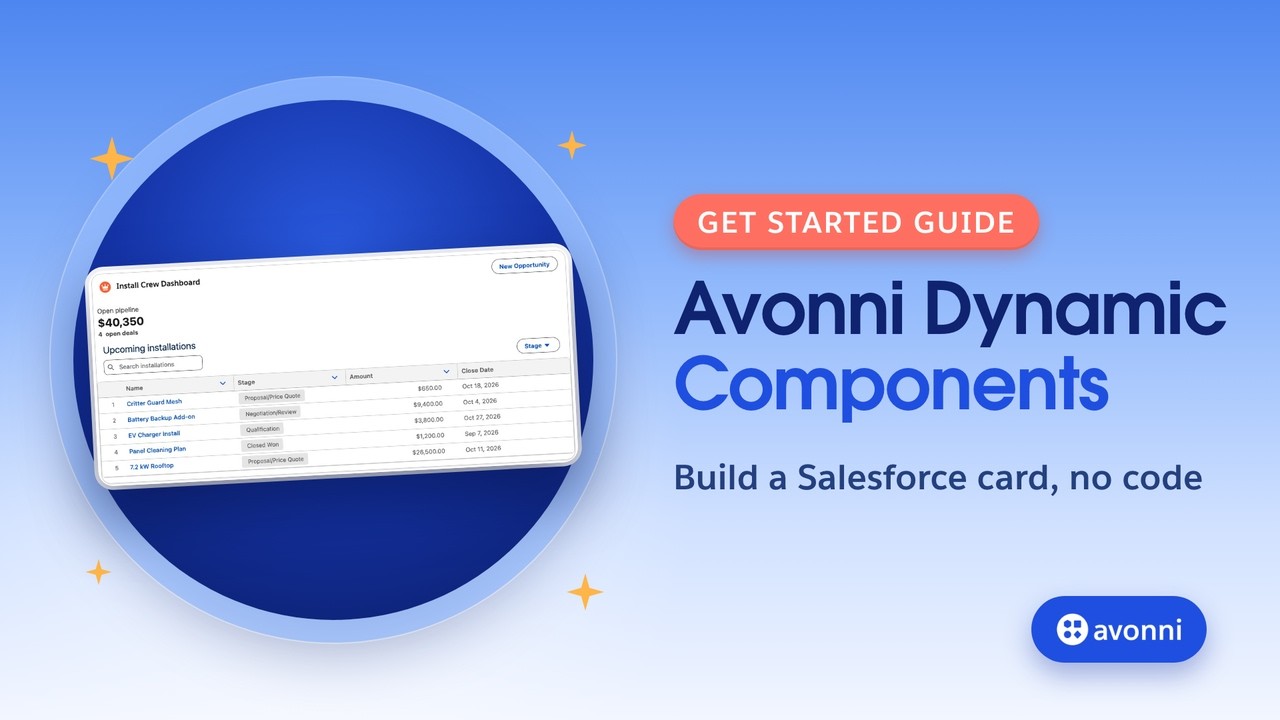
First, why Dynamic Components? In Lightning App Builder, you place components on a page, but you don't build them. You get the standard components, components from AppExchange, or your own Lightning Web Components, in code. Dynamic Components fill that gap: you build your own component, without code, with live data from a query, and your own logic on each click or drop. You build it once in the Component Builder, then you place it on any Lightning page, like a standard component. And unlike a flow, it's not a step in a process: it's always there on the page.
3:17 A new Dynamic Component
So open the Dynamic Components tab and click New Component. Start from a blank component, and drag the Kanban onto the canvas.
3:27 The query
The data comes from a query. Create a query on Opportunity. Add a condition: Account ID equals the record ID of the page. Switch the value to Mapped, open Global Variables, then $Component, and pick RecordId. That's how the board knows which account it's on. Then sort by Amount, descending, with empty amounts last. The biggest deals sit at the top of each column.
3:54 Columns and totals
In Data Mappings, the builder already filled two things. The key field, Id. And the group field, Stage. The group field decides the columns: one column per stage. Now the total. Add a Group Summary: field Amount, function Sum, displayed as currency, in US dollars, no decimals. Every column now shows its total. You could add an average or a count next to it, too. In the builder, you see every opportunity in the org, because there's no record page here. On the account page, the query keeps only that account's deals.
4:31 The cards
Now the cards. The title is already the opportunity name. Add the description. For the avatar, use the owner's full name as initials, and turn on Initials Auto Formatted: Priya Shah becomes P S. Then the fields on the card: the close date, the owner's name, the amount, and Win Chance. One look, and Maya knows who, when, how much, and how likely.
4:58 Columns and filters
The stage picklist has six values, but lost deals don't belong on a working board. In Column Order Direction, choose Custom. You get the list of stages: drag them to set the order, and remove Closed Lost. It's gone from the board. Set the variant to Path, so the columns read like a pipeline, and show the item count. Turn on search, on the opportunity name. And add two filters: owner, and close date.
5:26 After the drop
Here's something important. When a card is dropped in a new column, the Kanban saves the new stage for you, and shows a success message. You don't need an Update Record for that. So what is the Item Drop interaction for? For what comes next. When the stage changes, Salesforce recalculates other fields, like Probability, and our Win Chance formula. The card doesn't know that: without a refresh, it keeps the old value until the page reloads. So add a Refresh Query on the current component. It saves nothing, it reads the records again, and every card shows what's really in the database.
6:07 Save, and the Target Page Object
Save the component, and name it Westside Pipeline Kanban. Then one setting that matters: the Target Page Object. Set it to Account. It tells the component which record page it's made for. On an account page, it fills the page variables: RecordId, and the fields of the account on screen. That's what our query filter uses: Account ID equals RecordId. So the board shows this account's deals, and only these. It also loads the Account fields in the builder, in the Fields tab. Leave it empty only for a component that doesn't need a record, like a dashboard on an app page. Create the component, then activate it. A component that isn't active doesn't show up in App Builder.
6:54 On the account page
Open the account page, and Edit Page. In the Custom Managed components, drag AX Dynamic Component under the page header, where it gets the full width. Pick Westside Pipeline Kanban, and check Display as Card. It gives the board the white background of a Salesforce card, like the other components on the page. Without it, the columns sit on the gray page background. Then save, and activate the page.
7:24 Test it
Let's test it. Only Downtown's deals are here. Maya drags Nair, 88 Harbour View Condo, from Needs Analysis to Proposal. Success, and both totals are updated. And Win Chance went from 25 to 50 percent: that's the Refresh Query. Let's open the opportunity: the stage is really Proposal. Now Moreau, 12 Riverbend Loft, to Negotiation. This deal has no Next Step. The validation rule says no, the card goes back to Proposal, and Maya sees why: Add a Next Step before you move this deal to Negotiation. Nothing was saved. And one click on the owner filter: Priya Shah's deals, and the totals follow. It works!
8:11 Pro tips
Five pro tips. One: the drop saves the stage for you, so keep Item Drop for what comes after. Two: add a Refresh Query after the drop, for fields that Salesforce recalculates. Three: Item Drop runs even when the save fails, so don't put a success message there. Four: show your validation rule errors at the top of the page, so the message reads clearly in the toast. And five: a custom column order keeps the board short.
8:42 Recap
To recap. The standard Kanban lives in a list view. The Avonni Kanban sits on the account page, with that account's deals. We built it in the Component Builder: a query on the page record, columns from the stage, totals, cards, search and filters. The drop saves the stage, and a Refresh Query keeps every card true. Maya gets her pipeline where she already works: one drag, instead of a trip to another tab. Thanks for watching, and see you in the next Avonni tutorial!