0:00 Welcome
Welcome to a new Avonni video tutorial! Today, you'll see five things your Avonni Dynamic Component can do the moment it opens. It greets the user, runs a flow, shows only what matters, pre-fills a form, and asks Agentforce for a summary. All before anyone clicks. Let's go!
0:20 What On Load is
Most interactions wait for a click. On Load doesn't. It runs once, when the component opens, before it shows anything. You'll find it in the Component Builder, in the Interactions panel, right at the top. You add one or more actions, and they run in order, one after the other. So an action can use what the previous one loaded. There are five types: Assignment, Get Record, Execute Flow, Invoke Agentforce Agent, and Biometric. On Load is optional. Most components don't need it. Use it when your component has to be ready the second it appears, not one click later.
0:57 Why it matters
On a standard record page, components show your data as it is stored. The standard Flow component can run a screen flow when the page opens, but that's a separate flow, beside your component. Running logic inside your component, the moment it opens, like a lookup, a calculation or an AI summary, usually means a Lightning web component, written by a developer. On Load gives you that, with no code.
1:23 The example
Here's our example. SolarOps installs residential solar. Maya Chen owns the accounts. Every morning, she opens an account and wants to know right away: is this customer at risk, and what should I do first? We'll build one account cockpit, and give it one On Load action per chapter. Ferreira Residence has an escalated case. Alvarez Roofing has none. Same component, two very different screens.
1:48 What you need
Here's what you need. The Avonni Experience Components package, which includes Dynamic Components, with the Avonni Experiences Admin permission set. An autolaunched flow, because On Load runs flows in the background, with no screen. And for the last chapter, an active Agentforce agent in your org.
2:07 Thing 1: personalize with Assignment
First, let's make it personal. We create a text variable called Greeting. Then, in the Interactions panel, we click Add On Load Interaction and pick Assignment. We set Greeting to "Welcome back," followed by the user's first name, from the $User global resource. You'll also find $Profile, $Permission and $UserRole there, so you can adapt the component to who's looking at it. Then a Text element shows the greeting. Why not just type it in the Text element? Because an Assignment can build the value from several sources, and the next actions can reuse it.
2:43 Thing 2: calculate with Execute Flow
Next, a calculation. Our autolaunched flow, Account Health Check, takes an account Id, looks for an open high-priority case, and returns two values: a health label, and an alert text when something is wrong. In the component, we add a second On Load action: Execute Flow. We pick the flow, then map its input: recordId gets the page's record, from $Component, RecordId. That's the record the component sits on, thanks to the Target Page Object. Then the outputs. Each flow output goes into a variable of the component: Health Label, and Alert Text. When the component opens, the flow has already run, and the answer is on screen.
3:25 Thing 3: show only what matters
Now, the alert. Maya shouldn't see an empty red banner on every account. So we select the alert, and open Set Component Visibility. When to Display Component: All Conditions Are Met. The condition: Alert Text Is Not Null. The flow only fills Alert Text when there's a problem, so the banner only shows on accounts that need attention. This is the pattern to remember: On Load prepares the data, and visibility rules decide what the user sees.
3:54 Thing 4: pre-fill a form with Get Record
Thing four: a form that opens already filled in. In the cockpit, an Edit details button opens a second Dynamic Component in a dialog, and passes it the account Id. In that second component, we create two variables. A text variable, recordId, available for input, to receive the Id. And a record variable, Acc. The object is set here, on the variable: Account. Then, On Load, Get Record: Record Variable is Acc, Record Id is recordId. Each field of the form points to a field of Acc. Let's open it. Phone and Industry are already there. No empty form, no copy and paste.
4:36 Thing 5: summarize with Agentforce
Last one, the AI briefing. First, the cockpit gets its own Get Record, into a variable called Account Rec, the same way you just saw. Then, Invoke Agentforce Agent. Agent API Name: our Account Briefing Agent. Agent Input: the message we send. We build it from the account's name, industry and revenue, plus the health label from the flow. Remember, actions run in order: by the time the agent is called, all that data is loaded. Response Resource Name: a text variable, Briefing, that a Text element displays. When the page opens, Maya reads a short summary of the account and a suggested next
5:16 And Biometric
step. The fifth type, Biometric, asks for a fingerprint or face check before the component shows. It works in the Salesforce mobile app only, so we won't film it here.
5:27 Test it
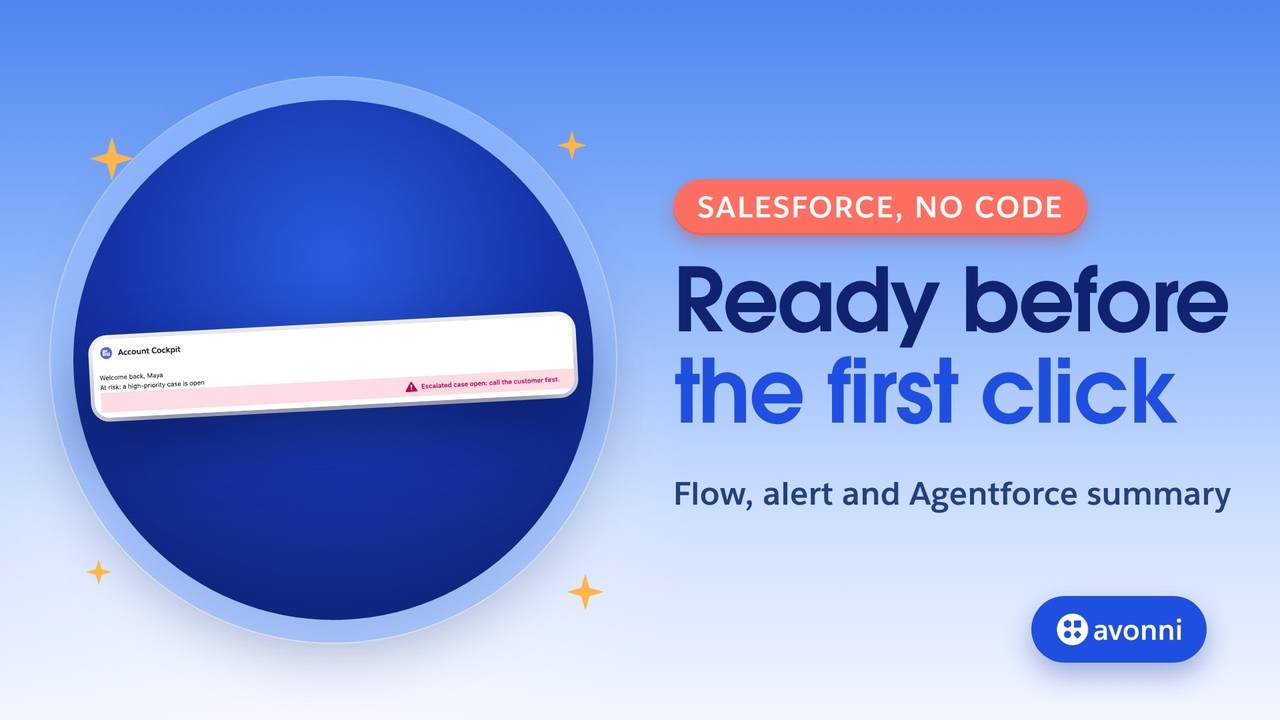
Let's open Ferreira Residence. Welcome back, Maya. At risk: a high-priority case is open. The alert is there, and the agent tells her what to do first. Now Alvarez Roofing. Healthy, no urgent case, and no banner. Same component, a different screen, decided before Maya clicks anything. Notice that the cockpit appears all at once. On Load runs before the display, so the component waits for every action, and an agent call takes a few seconds. Keep On Load for what really has to be ready.
6:00 Pro tips
A few pro tips. Order your actions: load the data before the action that uses it. You can't reference the component's elements in On Load, they don't exist yet: use variables. Use autolaunched flows only. And keep it lean: every action adds to the wait.
6:18 Recap
Let's recap. On Load runs once, before your component shows, with actions in order. You saw five things: personalize with Assignment, calculate with Execute Flow, show only what matters with a visibility rule, pre-fill a form with Get Record, and summarize with Agentforce. Thanks for watching, and see you in the next Avonni video!