0:00 Storm to route in one click
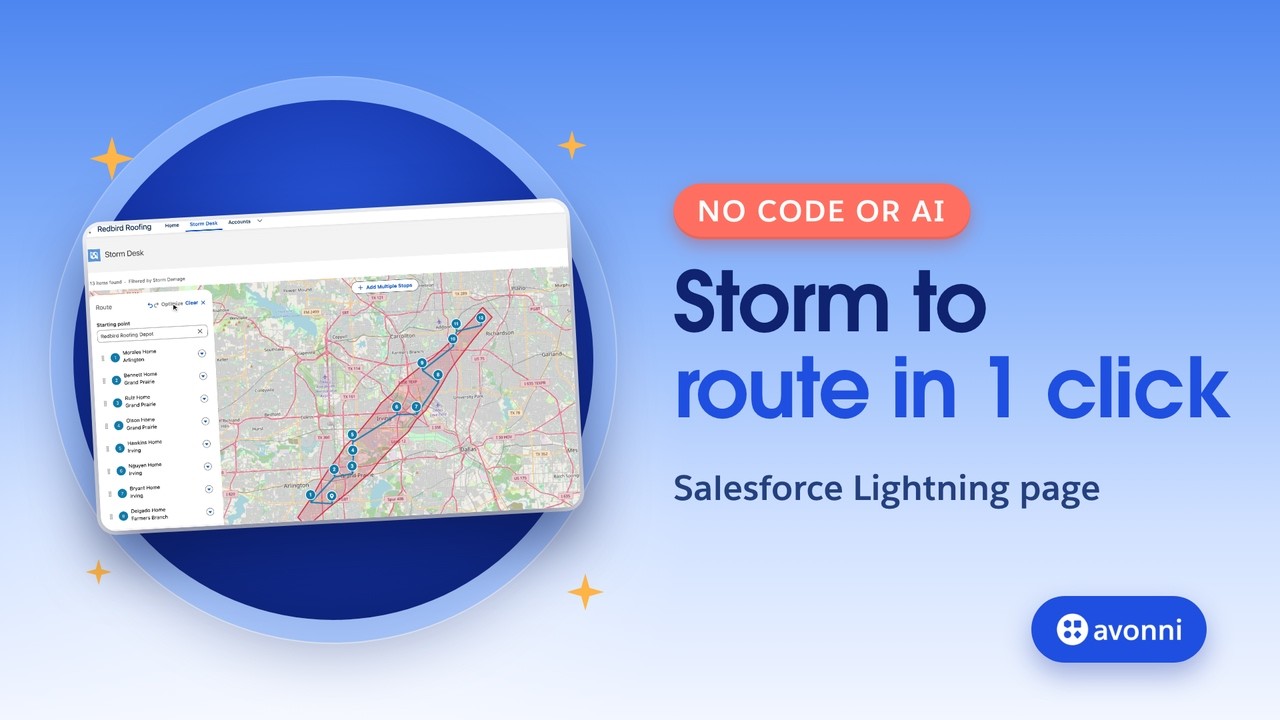
Watch: a hail storm just crossed Dallas. I circle the twelve critical roofs, click Optimize, and Salesforce plans the whole day, stop by stop. Hi, I'm Cédric from Avonni. In this tutorial, I'll show you how to build this route planner twice: once by hand in the Component Builder, with no code, and once with AI.
0:22 The storm desk
Redbird Roofing has two hundred customers around Dallas. Last night's storm hit some of them hard. Red is critical, orange is moderate, gray is no damage, and the red shape is the path of the storm. This morning, one crew has to see every critical roof, and the dispatcher needs the route in minutes, not in a spreadsheet.
0:44 Before you start
You need the Avonni Experience Components package, and routing turned on once for your org: that's what draws real streets and arrival times. It takes three steps, and the links are in the description. First, a Mapbox access token. In your Mapbox account, open Access tokens. A public token, the one that starts with P K, is enough: the default one works. Leave URL restrictions empty. Second, in Setup, open Remote Site Settings and add a site called Mapbox, with the URL api dot mapbox dot com. Without it, Salesforce blocks the call to Mapbox. Third, in the Avonni app, open the Settings tab. On the Routing card, click Enable routing, pick Mapbox, paste your token, and enable it. Avonni checks the key, and the status turns to Connected. Keep Route stop optimization on: that's what powers the Optimize button. One thing to know: every user who can open a map with the route panel uses this key, so their routes count against your Mapbox plan.
1:50 Build it by hand
In the Component Builder, drop a Map on the canvas. Its data comes from a query on Accounts: every home we cover in Texas. Now the pins. The title is the account name, and the description shows the city, so the dispatcher knows where each stop is. The type is Pin, and the fill color comes from a formula field, Pin Color: it turns the storm damage into a color, so the map reads at a glance. Latitude and longitude come from the billing address. And we add a filter on Storm Damage, so we can show only the critical homes. Under Content, pick Leaflet. Route planning works on Leaflet, not on Google Maps, and Leaflet handles hundreds of pins easily. Turn on Marker Clustering with a radius of twenty-five: close pins group into a bubble, but the stop numbers stay readable once the route is on the map. Under Draw, turn on Enable Draw, paste the storm path as GeoJSON, and leave the toolbar empty: the shape shows, but nobody can edit it. And under Route, turn on Show Route Panel, on the left, overlaid on the map. On the left, it never covers the filter button on the right. Save, activate, and add it to a Lightning page. Ours is a tab called Storm Desk.
3:11 Plan the day
Let's plan the day. Filter on Critical: twelve homes left. Open the route panel, and circle them with the lasso. All twelve are in, even the ones hidden in a bubble. The crew leaves from the depot, so we bring the depot back in the filter, and pick it as the starting point. The line zigzags all over Dallas. Click Optimize, and the stops fall in order, from the depot outward. In Settings, a roof inspection takes about forty minutes, and the crew leaves at eight. Calculate route. Real streets, an arrival time at every stop, and lunch from noon to one is built in. And look at the last stop: Knight Home, in Richardson, at six twenty-one. It's past the end of day, so it turns orange. The dispatcher knows right now: start earlier, or move that roof to tomorrow. From any stop, the crew opens Google Maps or Waze. And the whole route exports as a CSV.
4:09 Now, with AI
Now the same page, with AI. In Claude Code, with the Avonni Agent Skills, here's the whole prompt. Build an Avonni Dynamic Component called Storm Desk AI, and activate it. Show the Texas accounts with a billing address on a Leaflet map. Color each pin with the Pin Color field, show the city under the name, and add a filter on Storm Damage. Turn on drawing and draw the storm path from the GeoJSON file in this folder, with an empty toolbar. Cluster the pins with a radius of twenty-five, and add a route panel on the left, over the map. Claude loads the Avonni skill and checks the Map documentation for each setting, so it doesn't guess. It shows a plan, we say build it, and it deploys and activates the component. We didn't touch a single setting by hand.
4:59 By hand or with AI
Side by side, the same route planner. By hand, it took us a few minutes in the Component Builder. With AI, one prompt. And you can open Claude's version in the Component Builder and change any setting yourself.
5:12 Why not standard?
Could you do this with standard Salesforce? The lightning map component is still in beta: it shows up to ten geocoded addresses, and it has no routes. Salesforce Maps does plan routes, but it's only included in the top Sales edition; otherwise it's an add-on you buy. Here, it's a Map you build on any Lightning page, with route planning built in.
5:35 Pro tips
A few tips. Use Leave at, not Leave now: your plan won't depend on the time you open the page. Optimize orders up to twelve stops with real driving times, and a route holds up to twenty-five. And the color formula works anywhere in Salesforce, with or without Avonni: one field turns a picklist into a color.
5:58 Recap
To recap: one query and a color formula put every customer on the map. The storm path is a GeoJSON shape. A filter and a lasso pick the stops, Optimize puts them in order, and Calculate gives real arrival times, with late stops in orange. By hand or with AI, it's the same component.
6:19 Next step
Next, watch how to set up the Avonni Agent Skills in Claude Code, so you can build your own pages with one prompt.