The standard Data Table screen component in Salesforce Flow has no export option. To let users download what they see as a CSV or Excel file, you have three options: generate a CSV file with the free UnofficialSF action, build your own Lightning Web Component, or use a data table component that ships with an export button. This post walks through all three, with what each one costs you.
Why the standard Data Table can't export
The Data Table screen component displays records and lets users select them. Since Spring '26 it also sorts columns and edits a handful of field types inline. Export is not part of it: there is no button, no property and no output that turns the table into a file. Users who need the data in a spreadsheet end up asking for a report, or copying rows by hand.
Option 1: the UnofficialSF "Convert Records to CSV" action
UnofficialSF publishes a free invocable action that turns a record collection into a CSV file.
How it works: you pass it a record collection (for example, the rows selected in your Data Table) and a file title. It creates a Salesforce File and returns its ContentDocument ID.
Where the file lands: in the Files related list of the records you link it to, or with the running user if you link none. The user then opens or downloads it from there.
What you control: which fields go in the file, and who can see it.
Limits: CSV only, standard governor limits apply, and the download is not one click: the file is created first, then retrieved.
It is a good fit when you need a CSV attached to a record, and you are comfortable adding a few elements to your flow.
Option 2: a custom Lightning Web Component
A developer can write an LWC that receives the records from the flow, shows them in a table and builds the file in the browser. You get exactly the behaviour you want. You also own the code: tests, deployment, and every fix when a new requirement comes in (Excel on top of CSV, accented characters, larger volumes).
Option 3: an export button with no code
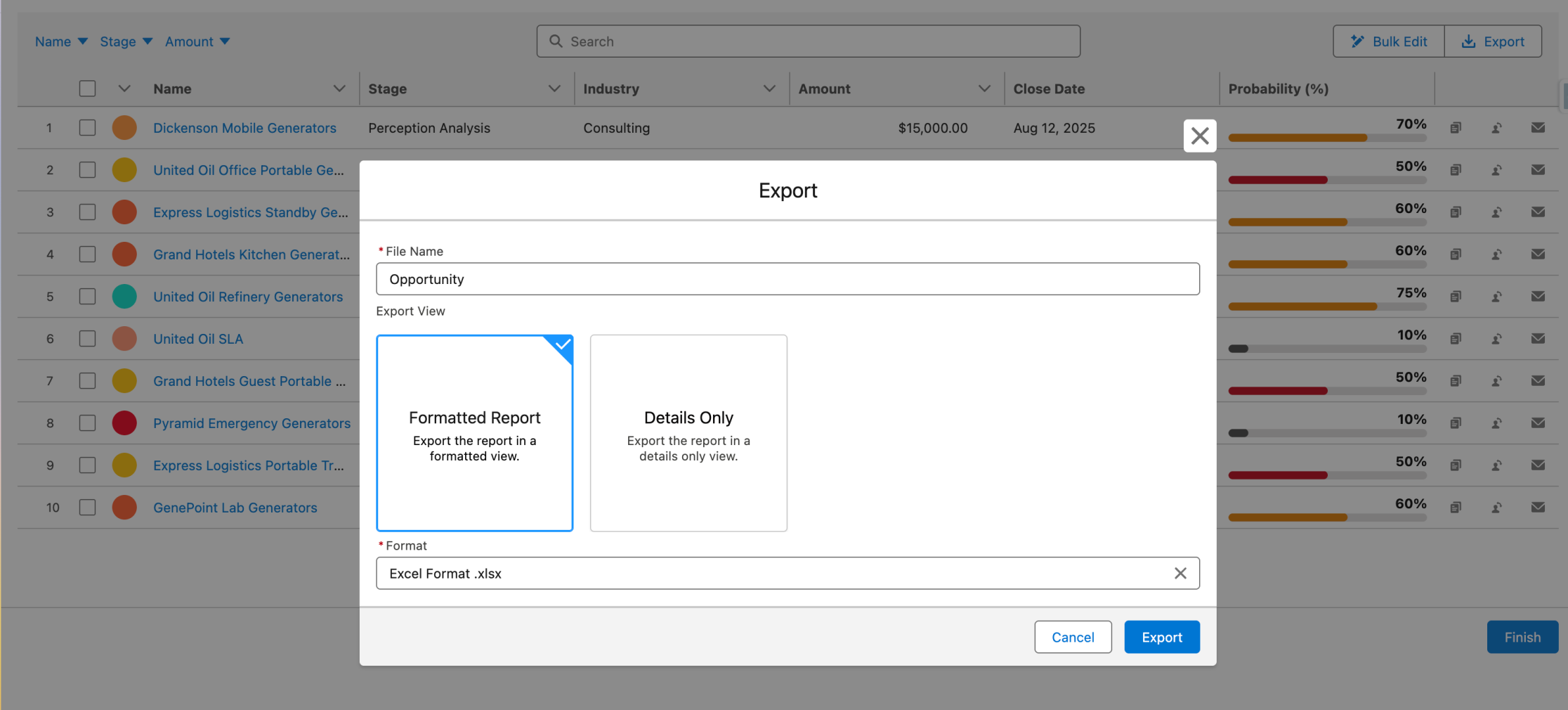
The Avonni Data Table for Screen Flows has a built-in Export To action. You add a button to the table header, point it at Export To, and users download the table as CSV or Excel in one click.
Set it up
Add the Avonni Data Table to your screen and connect it to your records (a query, or a record collection variable).
In the header actions, add a button, for example "Export".
In the interactions, choose the header action click, then the Export To action.
Set the defaults: available formats (CSV, Excel or both), file name and encoding.
What users get: a small dialog where they confirm the file name, the format and the export view. Formatted Report keeps values as they appear in the table, Details Only exports the raw values.
Which rows are exported
If the user has selected rows, only those rows.
Otherwise, the rows loaded in the table.
With Export All Data turned on, every record returned by the table's query, up to 50,000.
Two useful settings
Hide Export Dialog skips the dialog and downloads the file right away, with the defaults you set.
Exportable fields adds fields to the file that are not shown as columns in the table.
The three options side by side
UnofficialSF action
Custom LWC
Avonni Data Table
Code
None
Yes
None
Formats
CSV
Your choice
CSV and Excel
Download
Through Salesforce Files
Your choice
One click, from the table
Selected rows only
Yes, if you pass them
Your choice
Yes, automatically
Volume
Governor limits
Your choice
Up to 50,000 records with Export All Data
Maintenance
Community package
Your team
Avonni
FAQ
Can users export only the rows they selected?
Yes. With the Avonni Data Table, selected rows are exported on their own. With the UnofficialSF action, pass the selected rows as the record collection.
Is there a limit on the number of records?
The Avonni Data Table exports up to 50,000 records when Export All Data is on. The UnofficialSF action runs within standard Apex governor limits.
Can I skip the export dialog?
Yes. Turn on Hide Export Dialog on the Export To action, and the file downloads immediately with the format, file name and encoding you set.
Will accented or Asian characters display correctly?
Pick the encoding that matches how your users open the file. The Export To action offers UTF-8, UTF-16, ISO-8859-1 and Japanese, Chinese and Korean encodings.






%20(Vignette%20YouTube)%20(81).png)