0:00 Welcome
Welcome to a new Avonni video! This one is a comparison, on one job: editing records in a screen flow. Since Spring '26, the Salesforce Data Table can edit records inline. So when do you still need the Avonni Data Table? We build the same flow twice, with the Salesforce table on the left and the Avonni table on the right, then add real requirements one by one. By the end, you'll know exactly when the native table is enough, and when your flow needs more. Let's go!
0:30 A fair test
Quick disclosure: we make Avonni, so here's how we keep it fair. One org, one account with nine open deals, one sales manager who isn't an admin. Two flows with the same Get Records before the screen and the same Update Records after it. Only the table changes, and we build both on camera. Every claim about the Salesforce table comes from its official documentation, read in October 2026. Links below.
0:56 The job
Here's the job. Every Friday, a sales manager reviews an account's open deals before the forecast call: select the deals, update the amount and the next step, save. That's a screen flow: a guided review launched from the account, with a save step behind the screen. We start with this minimal need, then add two requirements.
1:17 Need 1: Salesforce Data Table
First, the Salesforce Data Table. Its source: the records from Get Records. Columns: Name, Stage, Amount and Next Step. Since Spring '26, a column can be editable: we turn it on for Amount and Next Step. After the screen, an Update Records element takes the table's Edited Rows, because the table doesn't save anything by itself. Your flow does. Let's run it as our sales manager. We edit an amount. Then we select two deals and change the next step: with several rows selected, the table can update all of them at once. Apply. Now a tip: click the Confirm button under the table before Next. In our test, skipping it meant the edits never reached the flow. Confirm, Next, and the new amount is on the account. For this need, the native table does the job, with no package and no extra license.
2:10 Need 1: Avonni Data Table
Now the same flow with the Avonni Data Table. In the screen editor, search for Avonni: these are the Avonni Flow Screen Components, from an AppExchange package. We add the Data Table and open the Component Builder, where it's configured. Same source, same columns, Amount and Next Step editable. One setting to know: Suppress Bottom Bar. It hides the table's own Save and Cancel buttons, so the edits go straight to the flow on Next. Then the same Update Records on Edited Rows. Same user, same edits, Next: same result on the account. For the minimal need, it's a tie.
2:46 Requirement 2: a stage for each deal
During the review, the manager moves deals along: this one to Negotiation, that one to Closed Lost. Each row needs its own stage. In the Salesforce Data Table, Stage is a picklist, and picklist isn't in the documented list of field types you can edit inline. So the column stays read only. Flow still has native answers. A second screen can apply one stage to all the selected deals. Or a Repeater, another standard component, shows one small form per deal, each with a stage picklist filled with its current value. It handles up to thirty deals, as forms rather than a table, and saving takes a loop. In the Avonni Data Table, the Stage column is already a combobox: we just make it editable. It takes its values from the picklist. A stage for each deal, right in its row. Next, and every deal is saved with its own stage.
3:38 Requirement 3: totals by stage
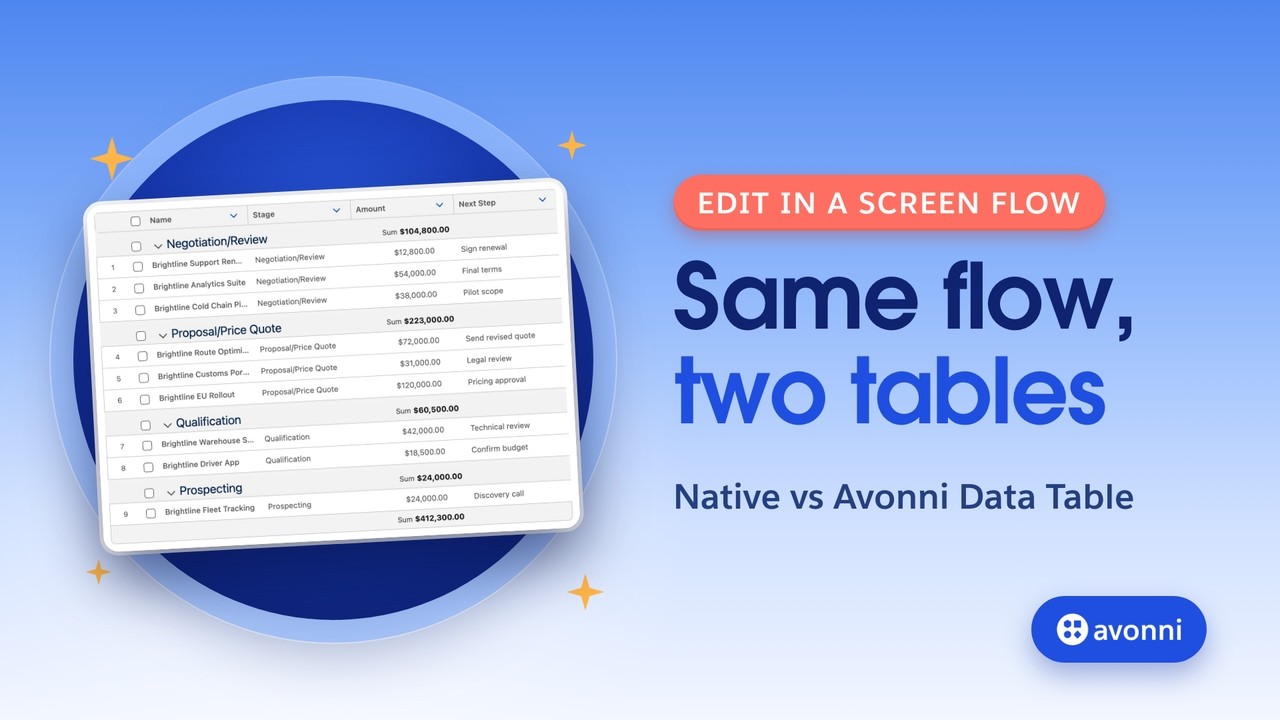
Second request: while updating amounts, the manager wants the deals grouped by stage, with a total per stage, before saving. The Salesforce Data Table documentation doesn't offer grouping or column totals. The usual answers are a report outside the flow, or a total computed in the flow and shown on another screen. In the Avonni Data Table: Group By, Stage. In the Amount column, Summarize By, Sum. Each stage gets its subtotal. We change an amount, and its subtotal follows right away, before anything is saved.
4:14 What each option takes
What does each option take? The component. The Salesforce table is built into Flow Builder. The Avonni table needs its package, free in sandboxes with ten free licenses in production, and a permission set for everyone who runs the flow. The flow. Identical, and neither table saves on its own. Permissions. Launched from a record page, a screen flow runs in user context by default, so the manager's field permissions apply. We tested it with Next Step read only. Neither table saved a change. The Avonni table showed the column as read only. The Salesforce table let the manager type, and the save skipped the value without an error. Later changes. A new column means a new flow version either way, in the native panel or in the Component Builder, which someone on your team needs to know. And the native limits: up to fifteen hundred rows shown, two hundred selected, and no mobile support.
5:09 When custom development makes sense
There's a third road: your own Lightning web component on the flow screen. It makes sense when your team writes and maintains code, or needs a behavior no configurable table offers. Without a package, your developers build the table from scratch. With one, the Avonni LWC Components package gives them a data table as a tag, with inline editing and grouping, and they write only the logic. Either way, count the build, the tests, and the upkeep at every release. We didn't build one here, so we won't compare it. Free community components exist too, like the UnofficialSF Datatable, also not tested here.
5:47 How to choose
So, how do you choose? If your users edit text, numbers, currency or checkboxes, and a package isn't worth it, start with the Salesforce Data Table. It's built in, and it gained real inline editing this year. If each row needs its own picklist value in the table, or people need groups and totals while they edit, that's where the Avonni Data Table adds what the native one doesn't offer today. And for a truly unique need, with developers on hand, a custom component, from scratch or on Avonni LWC Components. Salesforce keeps improving this component, so check the release notes: this comparison is dated October 2026.
6:27 Recap
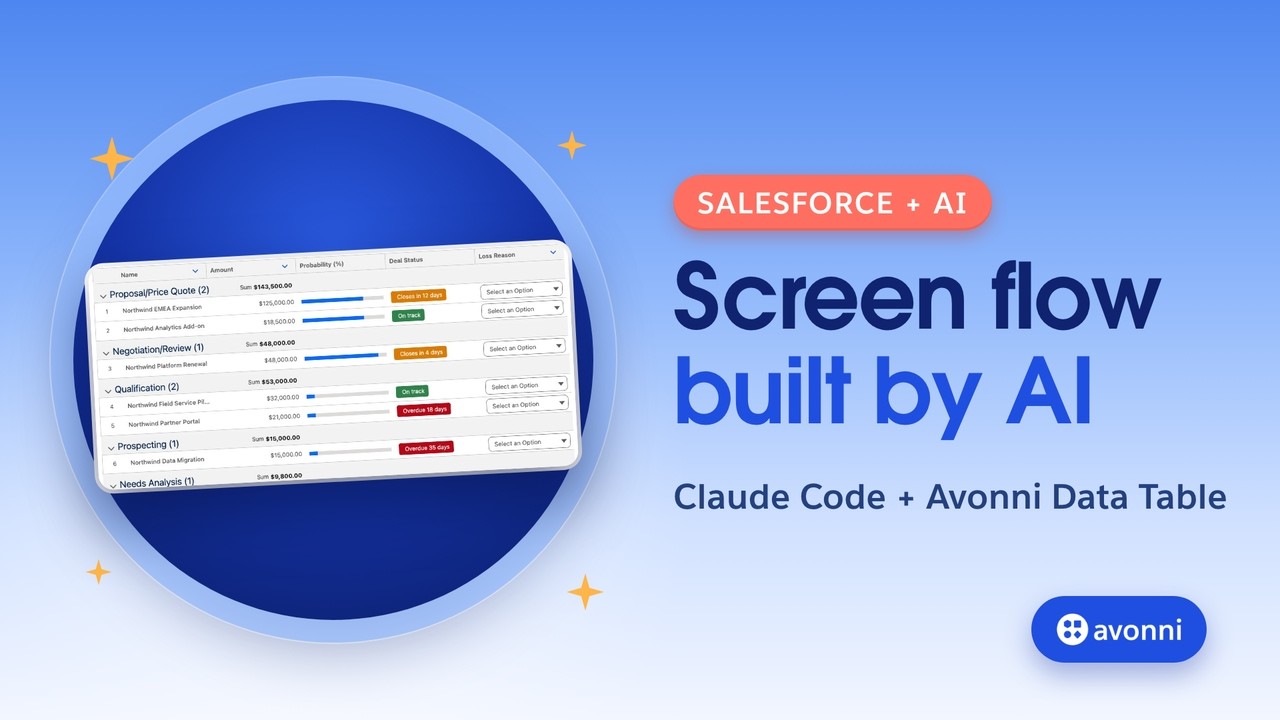
To recap. For the minimal need, both tables work, and the native one costs nothing extra. A picklist in each row, and groups with totals, are where the Avonni Data Table made the difference. To go further, the next video builds a complete flow with it: a loss reason in each row, deals grouped by stage. The link is on screen. Thanks for watching, and see you in the next Avonni tutorial!