0:00 Welcome
Welcome to a new Avonni video tutorial! Today, AI builds a Salesforce screen flow for us, and the Avonni Data Table lets it do what the standard table can't: pick a reason right in each row. Claude Code designs the logic, and we finish the table in the Component Builder. Let's go!
0:20 The Data Table
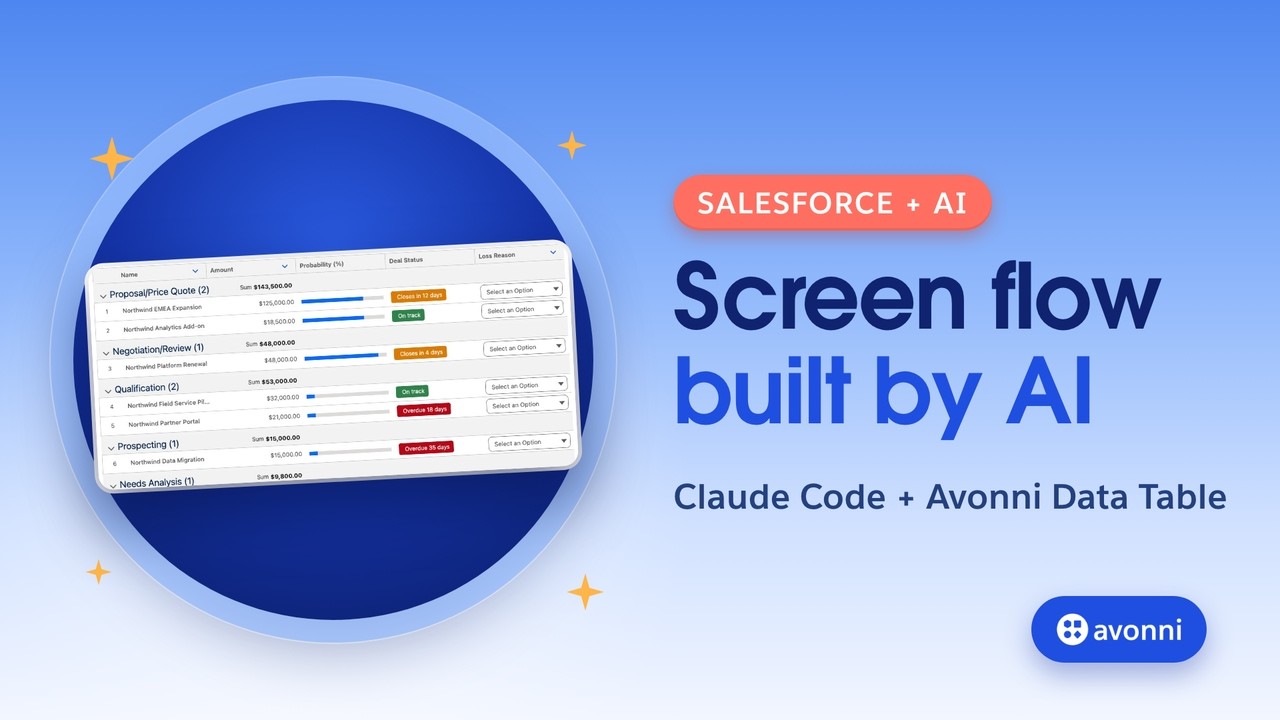
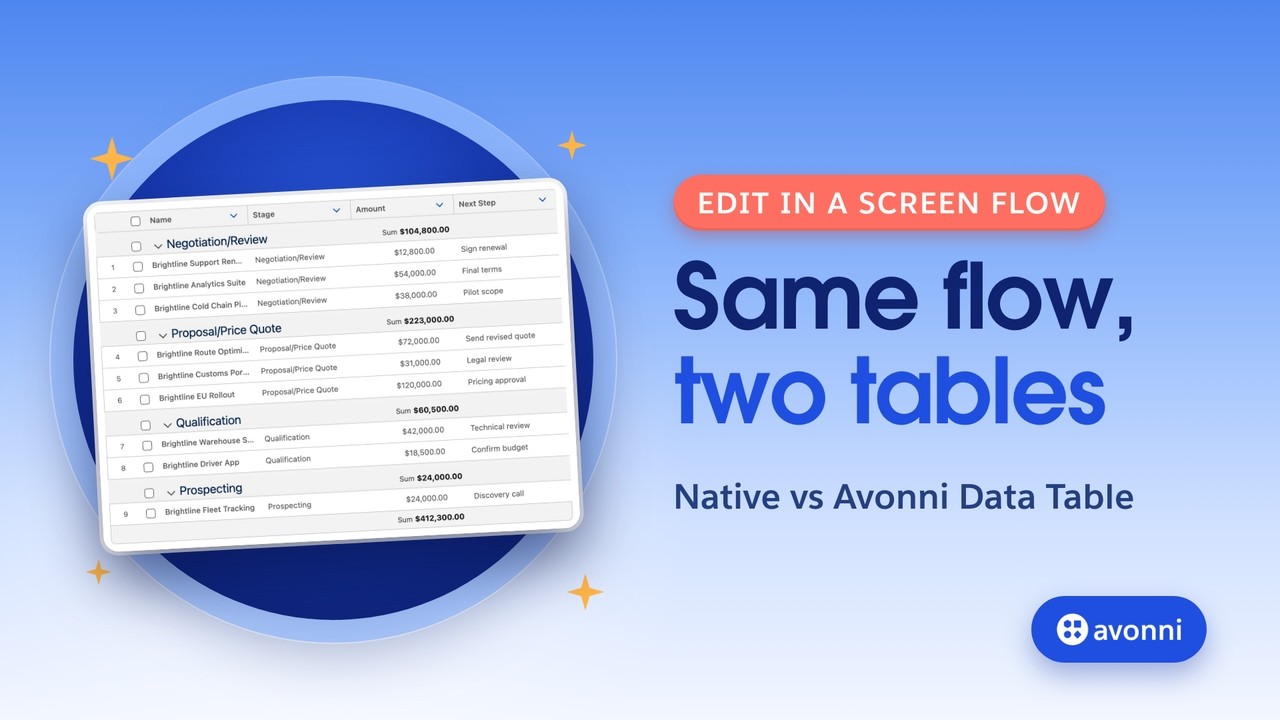
The Avonni Data Table shows records in a table people can work in. Rows can be grouped, with a subtotal for each group. A cell can be a badge whose color comes from a field, a progress bar, or a dropdown people fill in right in the row. And you configure it all in the Component Builder. Salesforce also ships a Data Table for screen flows. It selects rows, searches, sorts, and edits text, numbers and currency in place. But it can't group rows or show totals, it has no badges, and it can't edit a picklist in a row. That's exactly what our flow needs.
0:57 Our example
To learn it, let's take a real use case. At the end of the quarter, a sales manager cleans up an account's pipeline. Today, closing a lost deal means opening each opportunity, changing the stage, picking a reason, and creating a follow-up task by hand. One at a time. We'll build a screen flow on the account page instead. The deals are grouped by stage, with a total for each stage, and a colored status shows which ones are overdue. The manager picks a loss reason right in the row of each lost deal, adds a comment, reviews the total, and confirms. Every deal is closed with its own reason, and each owner gets a follow-up task.
1:38 What you need
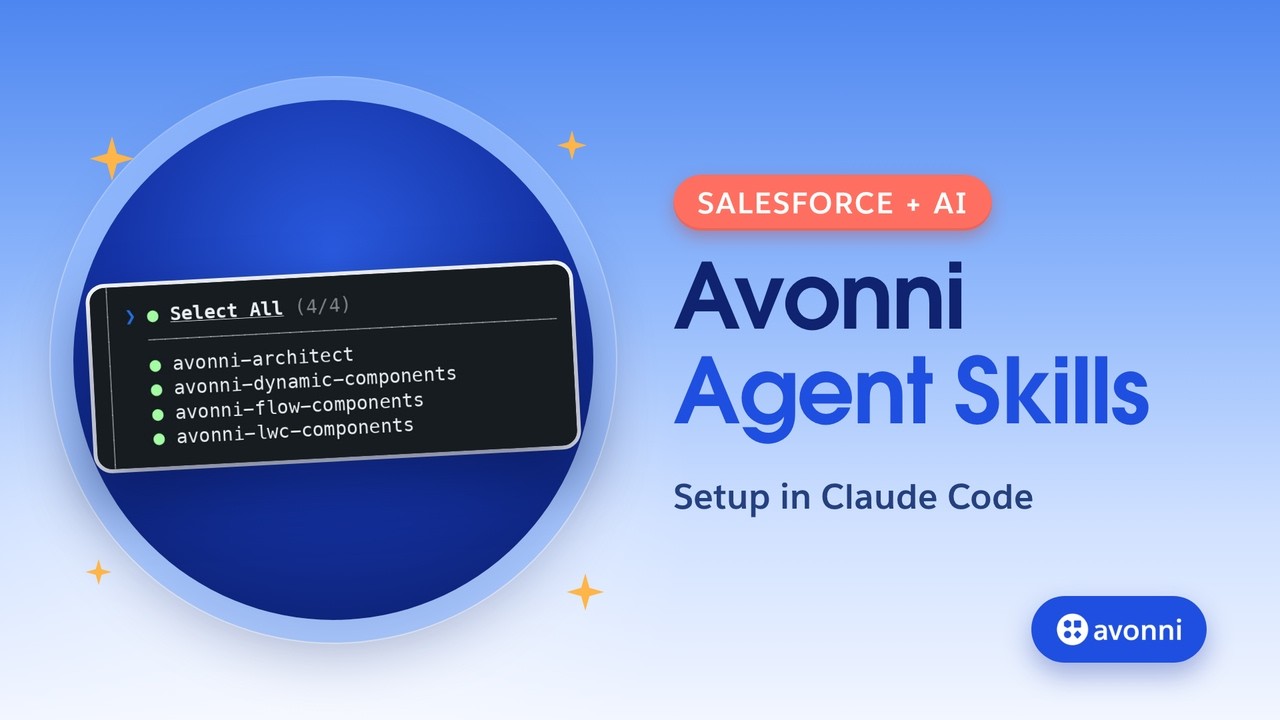
Before we start, you need three things. The Avonni Flow Screen Components package in your org. On Opportunity, a Loss Reason picklist, and a Deal Status formula with its color, for the colored status. And Avonni Agent Skills in your AI assistant. We're using Claude Code here. Why the skills? Without them, the assistant answers from memory and guesses the Avonni settings. With them, it follows the Avonni way of building, and the Avonni MCP server gives it the real documentation of every component, so it checks instead of guessing. If you want to know how to set up Claude Code with the Avonni Agent Skills, watch the dedicated video, the link is in the description.
2:22 The perfect match
Here's what makes the combo work. The Agent Skills only cover the Avonni components: here, the Data Table, the Text Area, the Metrics and the Illustration. Everything else comes from Claude itself. It knows Salesforce Flow: getting records, loops, decisions, assignments, updating and creating records, and how to stay within the limits. Together, you get the whole flow, logic and screens, from one conversation.
2:53 The prompt
Here's the whole prompt. Create a screen flow for the account page to close lost deals in bulk. Show the open opportunities grouped by stage, with the total amount of each stage. For each deal: its amount, its probability as a progress bar, and its Deal Status as a badge colored by the Deal Status Color field. The manager picks a loss reason in the row of each lost deal, and adds one comment. Every deal with a reason is closed as lost with its own reason, a follow-up task goes to its owner, and a confirmation ends the flow. Claude Code loads the Avonni Flow Components skill and checks the Avonni documentation. Before building anything, it shows a plan and asks for your OK. At the end, it lists its assumptions, like the table keeping its own Save bar for the edits. We say: looks good, build it and deploy it. It writes the flow, runs the Avonni validation, and deploys it. And it's upfront about what it left out: no stage totals, because the Avonni docs don't say how to set them up, so it won't guess. It even leaves the Deal Status field alone, since it may be a formula.
4:06 Iterate with the assistant
Before closing anything, the manager should see what's about to happen. So we ask, in the same conversation: before closing them, add a review step that shows how many deals and the total amount. It plans a Review screen with two Avonni Metrics, the number of deals and the total amount, plus a warning. The loop adds up the amounts and starts from zero each time, so going back never counts twice. We say yes, and it redeploys.
4:34 What Claude built
Let's open the flow in Flow Builder and look at what Claude built. It gets the account's open deals and shows the first screen. Then it resets the totals and loops over the edited rows. A decision keeps the deals with a reason, and an assignment prepares each closure and its task. After the review, the flow updates the deals and creates the tasks, each in one step. All of this is standard Flow, written by Claude.
5:01 The Avonni components for screen flows
The Avonni part lives on the screens. Open the first screen, and search the components for Avonni: here's the whole collection, seventy-five Avonni components for screen flows. Tables, charts, maps, calendars, pickers and many more, right next to the standard ones. You get them from the AppExchange: install the Avonni Flow Screen Components package, free in sandboxes, with ten free production licenses. Then assign the Avonni Flow Screen Components permission set to the people who build or run the flows.
5:35 Polish it in the Component Builder
Back to our screen. Select the Data Table and open the Component Builder. Its data comes from the Get Records element, so the preview shows no data here. First, Claude kept the table's own Save bar, as its plan said. We don't want a second Save, so we turn on Suppress Bottom Bar: the reasons go straight to the flow when the manager clicks Next. One title is enough: the flow screen already shows its name, so we clear the table's own title, Open Deals. Next, the badge. Claude wrote its color as plain text, so it can't work. In the Deal Status column, we turn on Field Name for the background color and pick Deal Status Color: each row now takes its color from the formula. And we set the text to white. Last, the stage totals Claude left out. In the Amount column, Summarize By, Sum. Each stage now gets its subtotal. We save the flow as a new version, and activate it.
6:38 Put it on the account page
Now let's put it where the clean-up happens: the account page. In the Lightning App Builder, drag the Flow component onto the page and pick Close Lost Deals. Then tick the box that passes the record ID into the flow. That's how it knows which account it's on. Save and activate.
6:56 Test it
Let's test it. The badges show which deals are overdue, and each stage shows its total. We pick Competitor for the data migration, and No Budget for the partner portal. The support upgrade is late too, but still alive, so we leave it. A comment, then Next: the review shows two deals and thirty-six thousand dollars. But there's no Next button on this screen, so the manager can't confirm.
7:22 Fix it with the assistant
Back in Claude Code, we continue the same conversation. The Review screen has no Next button, and since we changed the table in the Component Builder, we ask it to start from the version in the org. Claude finds the cause: the screen was set to hide its Next button, and it owns the mistake. It turns that one setting back on, keeps our table changes, and redeploys.
7:47 Test it again
Let's run it again. Same reasons, same comment, and this time the review has its Next button. Next, and the confirmation says two deals closed as lost. The page now lists the deals still open, the totals follow, and each owner has a follow-up task. It works!
8:08 Recap
To recap. One prompt, and Claude Code built a complete screen flow: the logic from its own Flow knowledge, and the Avonni components through the Agent Skills. A second prompt added the review step. In the Component Builder, we finished the table: no second Save bar, badges colored by a formula, and a subtotal for each stage. A real test caught a missing Next button, and Claude fixed it in one message. And the Avonni Data Table did what the standard one can't: a reason in each row, grouped deals with totals, and colored badges. The link to the Agent Skills setup video is in the description. Thanks for watching, and see you in the next Avonni tutorial!