0:00 Welcome
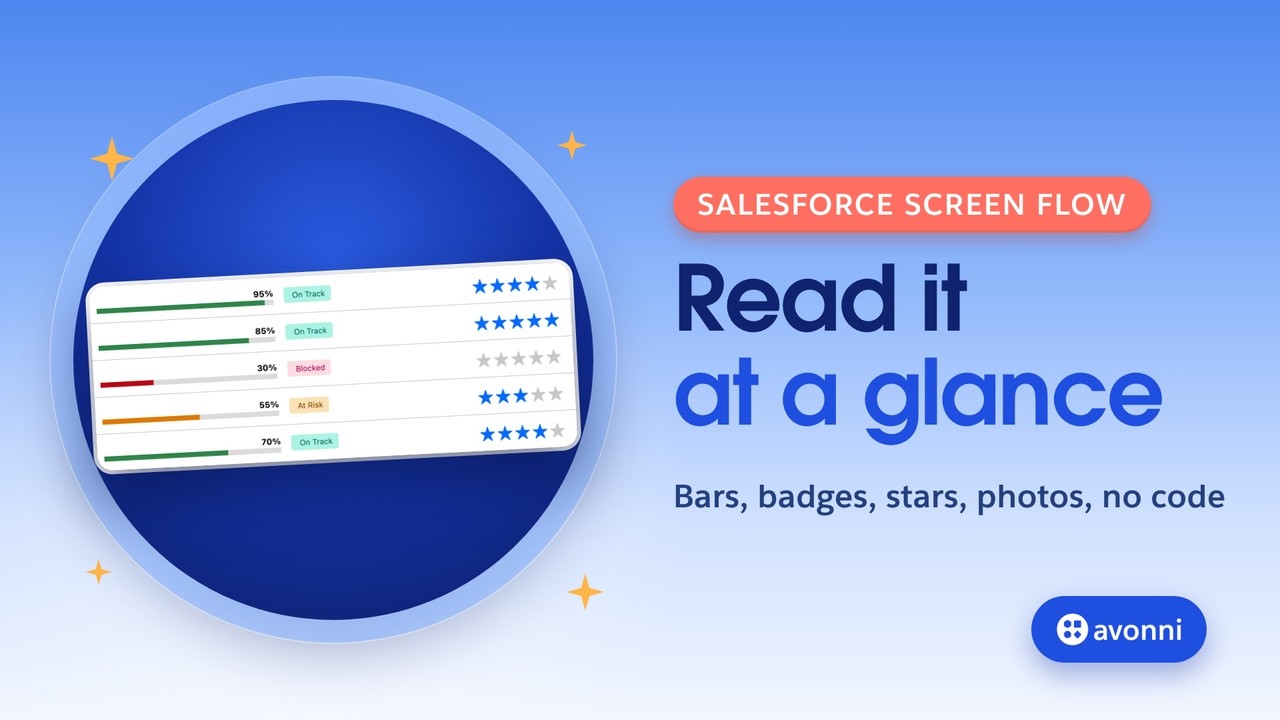
Welcome to a new Avonni video tutorial! Today, we turn the table of a Salesforce screen flow into one you read at a glance: progress bars, star ratings, status badges, and the crew lead's photo. It's for admins who build screen flows, and it's the third episode of our Data Table series. Here's where we're going. Red means blocked, the stars are clickable, and the flow saves them. Let's go!
0:25 The need
Meet Maya. She runs operations at SolarOps, a residential solar installer. Every Monday, she reviews the week's installs with her crew leads. Today, that review is a grid of text: thirty percent, At Risk, four. To know what's late, she has to read every cell. She needs two things. Spot the installs at risk, and send their crew lead a follow-up. And rate each customer's satisfaction, right in the review. So we'll build her a screen flow called Monday Install Review. Why a flow and not just a page? Because there's logic behind the screen. The stars she changes are saved, and every install she checks creates a task for its crew lead. And it runs at one moment: the Monday review.
1:08 Standard or Avonni?
Salesforce gives you good tools here, so let's be fair. The standard Data Table in a flow selects rows, sorts, and since Spring '26, it edits numbers and text right in the cell. But every column shows plain values: no bar, no badge, no stars, no photo. You can add a picture with an image formula: a field that shows a flag or stars. It works in a list view, and even in the standard Data Table. But it's read-only, it takes one formula per picture, and the pictures are the sample images from the Salesforce help. Reports have conditional formatting. It colors summary values, in summary and matrix reports. Great for a dashboard, not for a review where you act on each row. The Avonni Data Table adds column types: a progress bar, a badge that takes its color from a field, stars you click to edit, and an avatar. One honest note: this table is for reading and acting inside a flow. For a team dashboard, a report or a dashboard is still the right tool.
2:11 What we'll build
Here's the plan. A Get Records fetches this week's installs. A screen shows them in the table. Then the flow saves the ratings Maya changed. A Decision checks whether she checked at least one install. If she did, a Loop builds one task per install, and a single Create Records saves them all. Every save gets a fault path to a clear message, and a confirmation screen ends the review.
2:37 What you need
Before we start, you need four things. The Avonni Flow Components package, with its permission set assigned, so the components show up in Flow Builder. An Install Project object, with a percent complete, a status, a customer rating and a crew lead. Turn on Allow Activities, so tasks can be related to it. Two formula fields. One turns the status into a theme name: success, warning or error. You'll see why: it colors two columns. The other gives the crew lead's name. And the crew leads' photos. A formula can't read a user's photo, so a small record-triggered flow copies it into a URL field on each install. The steps are in the description.
3:18 The Avonni collection
In the screen editor, search for Avonni and you get the whole collection: more than seventy screen components, the Data Table among them. You install the package from the AppExchange. It's free in sandboxes, with ten free production licenses. The link is in the description.
3:34 Get the installs
First, a Get Records on Install Project. The condition: the status doesn't equal Completed. And we sort by install date, soonest first. Why here? Filtering and sorting in the query means the flow carries only what Maya needs, in the right order, whatever table shows
3:52 The standard Data Table
it. Now the screen. First, the standard Data Table, so you see exactly where it stops. Source: our Get Records. Unique identifier: the record ID. We add the columns: name, percent complete, status and customer rating, and we let Maya edit the rating. Let's run it. It works: rows to check, and a rating she can edit as a number. But look at it. Thirty percent, Blocked, four. Maya still reads every cell. That's what we're going to fix.
4:24 The Avonni Data Table
Same screen, same collection, now with the Avonni Data Table. We open it in the Component Builder. Data source: Variable, our Get Records. Then the columns, from the fields list: name, percent complete, status, customer rating, and the crew lead photo URL. Each column has a type, and that's where the table becomes visual.
4:46 Bars and badges from one formula
Percent complete becomes a progress bar. A Percent field goes straight in: ninety-five fills ninety-five percent of the bar. Under Theme, we turn on Field Name and pick Status Theme. Now each bar takes the color of its install's status. We also turn on Show Value, so the number stays readable. Status becomes a badge. Same trick: Variant, Field Name, Status Theme. Green on track, orange at risk, red blocked. One formula, two columns.
5:16 Stars you can click
Customer rating becomes a rating. Out of the box, it shows numbered buttons. Set the icon name to utility:favorite, and they become stars. Then we make the column editable. Maya will click a star to change the rating, right in the row.
5:31 Crew lead photos
Last column: the crew lead. The type is Avatar, and the picture comes from the column's own field: the photo URL our small flow copied. Under Primary Text, Field Name, Crew Lead Name, so the name sits next to the photo. Variant circle, size small. Two more settings. The title: This week's installs. And Suppress Bottom Bar. Why? Without it, the table shows its own Save button, and a rating Maya changes but doesn't save is lost when she clicks Next. With it, every change goes to the flow on
6:06 One Create Records, out of the loop
Next. Back on the canvas. First, an Update Records saves the edited rows. The table hands the flow only what changed, with each record's ID, so it goes straight in. Right after, an Assignment counts them with Equals Count, for the confirmation screen. Then a Decision: did Maya check at least one install? We test the table's number of selected rows. If she did, a Loop goes through the selected rows. Inside, an Assignment fills one task: the subject, Call customer, with the install's name. Assigned to its crew lead, related to the install. Then it adds the task to a collection. And here's the pro move. The Create Records sits after the loop, not inside it. One save for every task. That's Salesforce's own advice: never put a data operation inside a loop, because each one counts against the flow's
6:58 Fault paths and confirmation
limits. Every save can fail, so each one gets a fault path to an error screen. Its message shows the reason Salesforce gives. And a confirmation screen tells Maya how many ratings were updated and how many tasks were created.
7:12 On the Operations page
Now we put the flow where Maya works: the Operations page of the SolarOps app. In Lightning App Builder, we drop the Flow component and pick Monday Install Review. Save, and it's live.
7:25 Test it
Let's run it, as Maya. Here's the week at a glance. Moreau and Ferreira are green and almost done. Whitfield Barn is red, blocked at thirty percent. Nair Duplex is orange. First, Maya clicks Next without checking anything. Nothing to follow up: the flow skips the tasks and confirms. Now the real review. She checks Whitfield Barn. The customer at Nair Duplex called to say thanks, so she gives them four stars instead of three. One click. Next. One rating updated, one task created. In the list view, Nair Duplex now has four. And on Whitfield Barn, Diego, the crew lead, has the task: Call customer. One more. Maya clicks a star on Tanaka Residence, at forty percent. SolarOps only rates a customer once the install is half done, and a validation rule says so. The fault path catches it and shows the reason. Good to know: with a fault path, the other rows of the same save still go through. Only the failing one is skipped.
8:24 Pro tips
A few pro tips before you go. Keep the Create Records out of the loop: one save for all the tasks. Filter and sort in the Get Records, not in the table. One formula can color two columns: the badge variant and the bar theme read the same values. Without Avonni, an image formula still puts a flag in a list view, read-only. And a fault path changes a save: the good rows go through, and only the failing ones are skipped.
8:52 Recap
So: a progress bar colored by status, a badge from the same formula, stars Maya clicks and the flow saves, and the crew lead's photo. Plus the logic around it: one Create Records out of the loop, and a fault path on every save. If you missed it, our Data Table tips and tricks episode is linked in the description. Three Shorts are coming from this video. Subscribe so you don't miss them. Thanks for watching, and see you in the next one!