0:00 Welcome
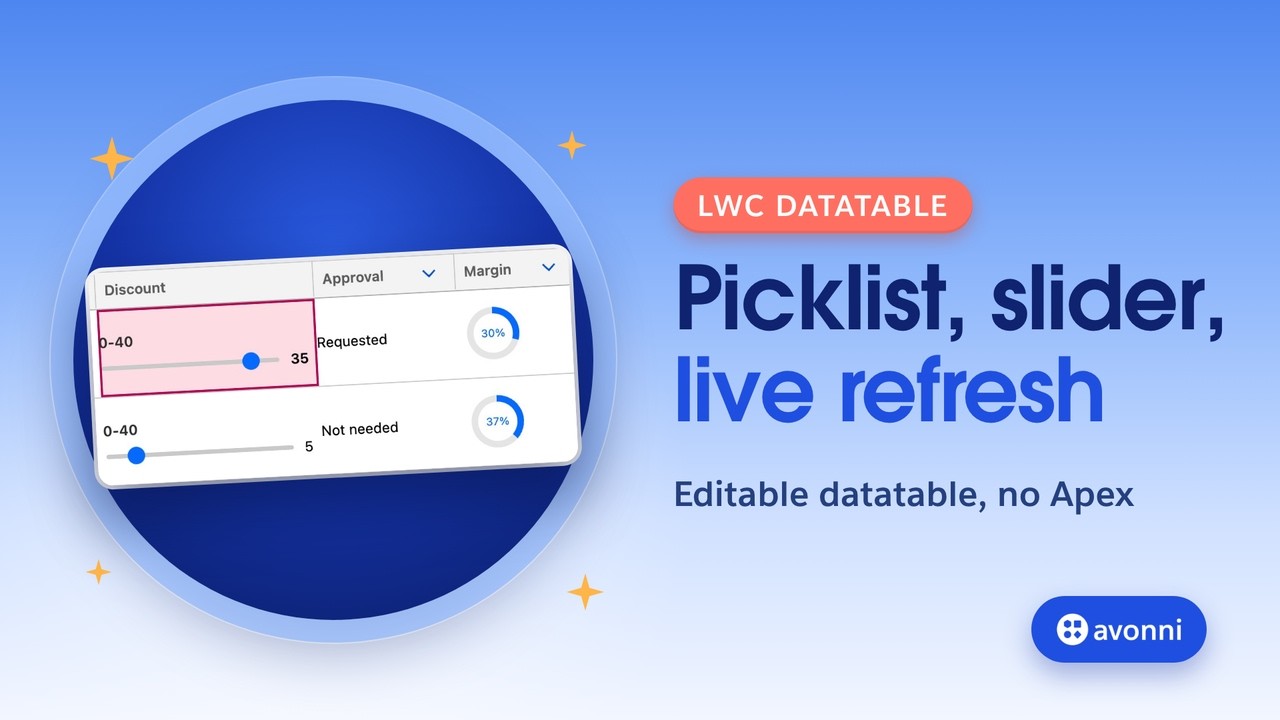
Welcome to a new Avonni video tutorial! This one is for Salesforce developers who build Lightning Web Components. If you've ever searched for "LWC datatable picklist", this is for you. We build an editable data table with product photos, a picklist, a slider, a counter, star ratings and toggles right in the cells, a business rule on save, and a table that updates live when someone else changes the data. No Apex. Let's go!
0:28 What we build
Same deal lines, two tables. On the left, the standard lightning-datatable. On the right, the one we build today. Product photos, a counter, a slider, a picklist, a margin you read at a glance, stars, a date and a toggle, all editable in the cell. Here it is on the opportunity page. Change a quantity, rate a line, save, and the total follows. Push a discount past the limit, and the table refuses and asks for approval. Then the deal desk approves from another place, and the table updates by itself. No reload.
1:02 The need
Meet Alex, an account executive at a robotics company. Alex builds deals line by line: quantity, discount, approval, how confident the win is, when it ships. Above twenty-five percent off, the deal desk has to approve. Today, that means an Excel file, an email, and a page Alex keeps reloading.
1:22 The standard datatable
Could you build this with the standard lightning-datatable? It's a good component, but it has fourteen column types, and none of them is a picklist, a slider, a counter, a rating, a toggle or an image. To get one, you extend LightningDatatable and write a custom type: a template to show the value, another template to edit it. One per type. The table doesn't load data either: you write the Apex or the wire adapter, plus the search. And for live updates, you subscribe to a platform event yourself, with empApi. With the Avonni Data Driven Data Table, avatars, counters, sliders, picklists, ratings, toggles and progress circles are column types, over thirty in all. The table runs its own query, has search built in, and refreshes on a platform event with one property.
2:11 Why not code it yourself
So why not write those custom types yourself? Or ask an AI? You can, and in the demo it looks the same. But a data table with rich editing is hundreds to thousands of lines: each custom type, its editor, the keyboard support, the draft values, the errors, the data loading, the event subscription. An AI writes it fast, and then it's yours to read, test and fix. Salesforce ships three releases a year, and each one is a chance for something to break. With Avonni LWC Components, that code lives in a managed package. Avonni tests and updates it with every release, and you get the fixes by updating the package. It follows SLDS and passed Salesforce's security review. Your repo only holds what's yours: your query, your columns, your rule. In this video, just over a hundred lines. And if you build with AI, it works better this way. The Avonni MCP server gives your assistant the real docs of every component, so it writes your logic on top of one tag.
3:14 The plan
Five steps. Query the deal lines, no Apex. Define the columns. Add the save rule. Turn on live refresh. Put it on the page.
3:24 Before you start
You need four things. The Avonni Components package: it gives your code the avonni tags. VS Code with the Salesforce CLI, connected to your org, because the component lives in your code. A Deal Line object under Opportunity: a quantity, a list price, a discount, an approval picklist, a win confidence from one to five, a ship date, an in-quote checkbox, a product photo, and two formulas, total and margin. And a platform event, Deal Desk Update, published by a record-triggered flow every time a deal line changes. That's what the live refresh listens to. All of it is in the project, linked in the description.
4:02 Create the component
In the VS Code terminal, we create the component with the Salesforce CLI: sf template generate lightning component, named dealDesk, type LWC, in the lwc folder.
4:15 The template
The template holds one tag: avonni-dd-datatable. This tag is the whole table: the cells, the editors, the save bar, the search. A header title. The query and the columns come from our JavaScript. Errors and draft values too, so our code can talk back to the table. Refresh-emp is the live refresh. Search fields adds the search box. We hide the checkbox column. And two handlers: save and cancel. Last, a small CSS file puts the table on a white card, like the rest of the page.
4:49 Query the deal lines, no Apex
Now the JavaScript. The query getter tells the table what to load: the Deal Line object, the lines of this opportunity, biggest total first. Record ID comes from the record page. That's query mode: the table runs the query itself. No Apex class, no wire adapter.
5:07 The columns
Each column is a field and a type. This is where the table comes alive. The product, as an avatar: the photo, with the product name next to it. Quantity, as a counter, editable, from one to ninety-nine. Discount, as a slider from zero to forty, editable right in the cell. Approval, as a combobox. Look: no options. The table reads the picklist values from the field. That's the picklist people search for. Margin, as a progress circle. Win confidence, as star ratings. Ship date, as a date you edit in the cell. In quote, as a toggle. Then the money, side by side: list price, sortable, and the total. Margin and total are formula fields, so Salesforce does the math. Ten columns, ten lines, and the widths give every column room to
5:57 The save rule
breathe. Here's the heart of it. When Alex clicks Save, the table hands us the draft values: only the fields that changed, with the record ID. Each draft also has an index we don't need, so we drop it. Rule one: Alex can't set Approval to Approved. Only the deal desk does that. Rule two: a discount above twenty-five percent. We refuse it, and we set that line's approval to Requested, so the deal desk sees it. To refuse, we hand the table an errors object: a message per row, and the fields to mark in red. Nothing is saved. Otherwise, updateRecord saves each line, still no Apex. We clear the errors and the draft values, show a toast, and refresh the table. And look at what we wrote: a query, columns, a rule. Not one line of table.
6:48 Live refresh
Now the live part. The liveRefresh getter gives the table a platform event: Deal Desk Update. When one is published, the table runs its query again. The key field and its value narrow it down: only events for this opportunity refresh this page. On the other side, the record-triggered flow publishes that event every time a deal line changes, whoever changes it.
7:12 Metadata and deploy
The metadata file: isExposed set to true, the Record Page target, for the Opportunity object. Then back to the terminal, sf project deploy start. The deploy succeeds.
7:25 Put it on the page
In Salesforce, we open the Helios Freight opportunity and edit the page. We search for Deal Desk under Custom and drag it right under the record header, so the table gets the full width of the page. Save, and back to the record.
7:40 Test it
Time to test. Alex needs four more charging docks. The counter goes to sixteen, Apply. The customer just said yes to premium support: four stars, and it goes in the quote. One Save for all of it. Saved, and the total follows. Now the big one. Alex drags the robot discount to thirty-five percent and saves. Refused: the line turns red, the message says why, and the approval switches to Requested. Alex cancels the draft. On the deal desk side, Dana approves thirty percent. We play Dana from the terminal: sf data update record, on that deal line. Watch the table. A second later, the slider jumps to thirty, the line says Approved, and the margin drops. Nobody reloaded the page.
8:25 Pro tips
A few tips you can reuse. Draft values arrive as strings, with an index: clean them before you save. After a save, hand the table an empty draft values array, or the cells stay highlighted. For a date-only field, use the date-local type: no time zone, so the day you pick is the day you save. This rule lives in the browser, so it protects this table, not other ways to edit a line: add a validation rule for a real guarantee. And while you iterate, turn on debug mode for your user, or Lightning serves you the old version of your component.
9:00 Recap
That's it. One Avonni tag for the whole table, and our own code only for what's ours: a query with no Apex, ten columns with photos, a counter, a slider, a picklist, stars and a toggle, a save rule that says yes or no, and a live refresh on a platform event. The full code is in the description, along with our other LWC tutorials. See you in the next video!
9:23 Next step
Next, watch how to build a drag and drop Kanban board in LWC, also without Apex.