0:00 Welcome
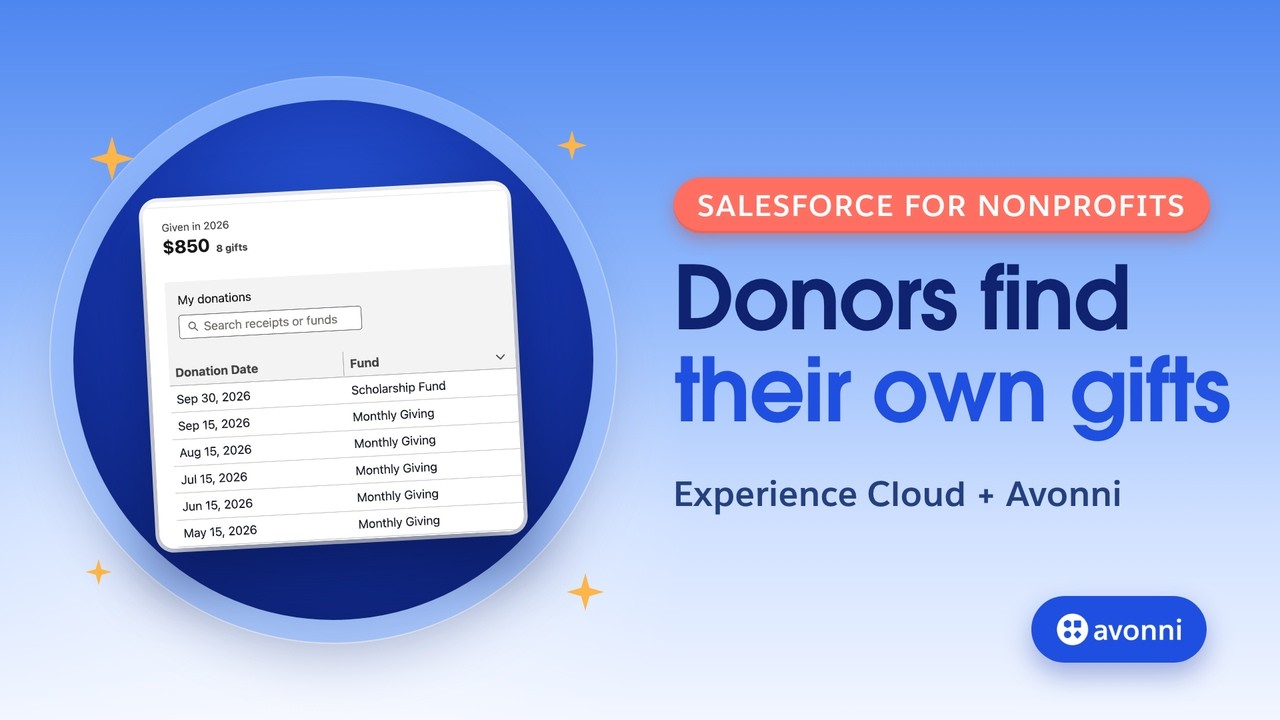
Welcome to a new Avonni video tutorial! This one is for nonprofit admins who run an Experience Cloud site for their donors. Every January, donors write in to ask how much they gave this year, or to find a receipt. Today, we'll build a page where they find it themselves. Here's the result: a donor logs in, and sees their total for the year, and every gift, with its receipt number. No code, and no report. Let's go!
0:26 The need
Meet Priya. She's the only admin at Ridgeline Outdoor Academy, a nonprofit that sends kids to outdoor camps. Her donors don't have a Salesforce license. They log in to the donor portal, an Experience Cloud site. So that's where the page goes. First, let's be fair to Salesforce. Experience Builder has a Record List component. It shows a list view of your records, with a count, up to fifteen rows per page. But it shows no total in dollars. And a dashboard won't help here: the Customer Community license doesn't include reports and dashboards. That's where two Avonni components come in. The AX Metric adds up your records with a live query: a sum, a count, an average. And the AX Data Table shows the gifts with search, filters and a status badge, from a query you set right in the component, without creating a list view.
1:18 What we'll build
Here's the plan. A My Donations page, for logged-in donors only. A link to it in the site's menu. Two metrics on top: what the donor gave this year, and since the beginning. And a table of every gift below. Then we'll log in as two different donors, to make sure each one only sees their own
1:38 What you need
gifts. Before we start, you need four things. An Experience Cloud site, here an LWR site. Donors as customer users, with a Customer Community license. A donation object with a lookup to the donor's Contact: here, a custom object called Donation. That's because this license can't read Opportunities, where NPSP stores gifts. And the Avonni Experience Components package, from the AppExchange. The link is in the description below. One more thing, and it's the key to this whole video: a Sharing Set. It gives each donor access to the donations where they are the donor. We set it up in Setup, Digital Experiences, Settings. Remember it: it will matter at the end.
2:21 A page for donors
Open your site in Experience Builder. In the pages menu, click New Page, then Standard Page, and New Blank Page. Name it My Donations, and click Create. Now open the page properties. Under Page Access, choose Requires Login. A guest visitor never sees this page, only a logged-in donor.
2:43 Add it to the menu
A page nobody can find doesn't help. Click the navigation bar, then Edit Default Navigation. Add a menu item. Name it My Donations, choose Site Page as the type, and pick our page. Leave Publicly available unchecked: it's for members. Save the menu.
3:01 The yearly total
First, split the section into two columns, so the two metrics sit side by side. Click the Components icon and type AX. Here's the whole Avonni collection. Every component starts with "AX dash". Drag the AX Metric onto the page. Its property panel opens on the right: that's where every AX component is set up. The label: Given in 2026. Now the value. Switch Type of value to Query. The object is Donation, the field is Amount, and the aggregate function is Sum. Turn on Treat Blank Value as Zero, so a gift with no amount never breaks the
3:41 Received gifts, this year
total. Two filters. Add a condition: Status equals Received. A pledge isn't money in yet, and a refunded gift isn't a gift anymore. Add a second one: Donation Date equals, and switch the value to Date Literal, This Year. Next January, the total starts over, all by itself. Under Primary Metric, set Format Style to Currency, in US dollars, with no decimals. Look at the canvas: you're logged in as the admin, so the total adds up every donor. Hold on to that thought.
4:13 A count, and a second metric
Under Secondary Value, build the same query, with Count instead of Sum, and add the suffix "gifts", and a tooltip. The donor sees how much, and how many. Now drop a second Metric next to it: Lifetime giving. Same query, same Status filter, but without the date. One component, two readings.
4:33 The table of gifts
Now the table. Drag the AX Data Table under the metrics, set its Data Source to Query, on Donation. Add an Order By: Donation Date, descending, so the newest gift comes first. Under Data Mappings, add the columns, one at a time: Donation Date, Fund, Amount, Status, and Receipt Number. For Status, choose the Badge type: the status reads at a glance.
5:00 Search and filters
Now the part donors will love. Under Filters, add Fund and Status: two buttons above the table. Under Search Fields, add Receipt Number and Fund, and give the search box a placeholder. Turn on pagination, ten gifts per page. Then Read Only, and Hide Checkbox Column: donors read, they don't edit. And a header title: My donations.
5:24 The sharing set filters
You may have noticed something. Nowhere did we filter on the logged-in donor. No "Donor equals current user". That's on purpose. Avonni components follow your sharing settings. The query runs as the donor who's looking, and the Sharing Set only lets that donor read their own donations. So the same page shows each donor their own gifts, and their own total. The sharing does the filtering, not the component.
5:49 Publish and give access
Click Publish. Then, before your donors see the page, three things. An Avonni license for each member who logs in, from Installed Packages, Manage Licenses. The Avonni Experience Cloud Components User permission set. And read access to the Donation object and its fields, here with a permission set of our own.
6:10 Test it as Sam
Let's test it like a real donor. Open Sam Whitfield's Contact, and click Log in to Experience as User. Here's the portal, and here's My Donations in the menu. Sam gave eight hundred and fifty dollars this year, in eight gifts. His refunded gift and his pledge are in the table, but not in the total. Filter on the Scholarship Fund: there's his five hundred dollar gift. And if he needs the receipt for his tax return, he types its number in the search box. Found.
6:39 And as Nadia
Now the test that really matters. Log in as another donor, Nadia Ferreira. Same page, same components. And she sees one thousand three hundred and fifty dollars, and her three gifts. Not one of Sam's. That's the mistake you never want on a donor portal, and the Sharing Set takes care of it.
6:58 A new gift shows up
One last thing. Back in Salesforce, Priya records Sam's Fall Campaign gift: two hundred and fifty dollars, received today. On the portal, Sam refreshes the page. His total jumps to one thousand one hundred dollars, nine gifts, and the new gift is right at the top. Nothing to rebuild, nothing to export: the page always reads the live data. To be clear, this page shows and finds gifts. It doesn't create a PDF receipt, and it doesn't take payments.
7:27 Pro tips
A few pro tips before we wrap up. Let the sharing do the filtering: one Sharing Set, and every component on the page follows it. A profile can only have one Sharing Set, so if yours already has one, add a mapping to it. Leave refunds and pledges out of the total with a Status filter. And always test with a second donor before you go live.
7:50 Recap
Let's recap. A My Donations page that requires login, linked in the menu. Two AX Metrics that add up the received gifts, this year and since the beginning. An AX Data Table with search, filters and a status badge. And a Sharing Set that makes sure each donor only sees their own gifts. New to Avonni on Experience Cloud? Start with our Experience Cloud quickstart video. The link is in the description below. Thanks for watching!