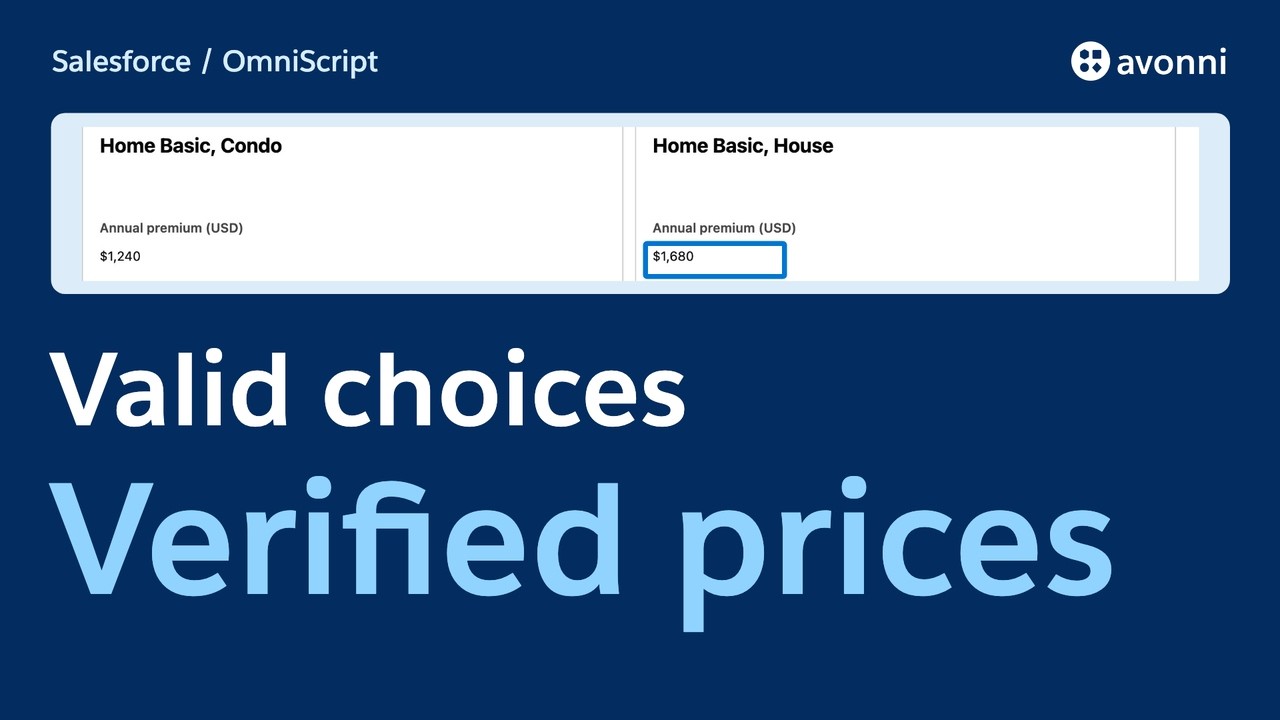
0:00 When an answer changes
Change one answer, and your OmniScript knows which plans still qualify. The old selection is cleared, and the user can see why. I'm Cédric. In this tutorial, we'll build this card picker by hand, then with Claude Code, including the return trip and a server check before confirmation.
0:18 Follow the data
Northfield Mutual is our fictional insurer. An agent enters the property's occupancy and construction year, chooses a plan, and reviews the annual premium. The choices come from an Integration Procedure. They're a JSON response, so our LWC adapts that response into cards and sends the selection back to the OmniScript. Avonni LWC Components is a library of reusable Lightning Web Components, installed as a managed package. Developers compose them inside their own LWCs, using properties, events and methods. The library includes pickers, tables, charts, maps and other interface building blocks. Today we're using Visual Picker. There are three responsibilities. The Integration Procedure supplies the catalog. The wrapper manages the selected offer and the current answers. Avonni Visual Picker displays the cards and handles the selection interface. At confirmation, a second Integration Procedure checks the selection against its own catalog. The price we display there comes from that response.
1:24 Manual path: start the component
You'll need an org with OmniStudio standard runtime for the guided process, Avonni Components for the Visual Picker, and the Salesforce CLI to deploy the LWC; the demo metadata and links are in the description. Create a Lightning web component named northfieldPlanPicker. In its metadata file, expose the component so we can use it in OmniScript. This example uses the standalone integration: the component extends LightningElement and communicates with OmniScript through a documented event. It doesn't require the OmniScript customization package. We have two public inputs. Catalog receives the Integration Procedure response. Initial choice receives the selection already stored in the OmniScript, which we'll use when the user comes back.
2:16 Turn pricing rules into cards
A product can have several pricing rules. We keep the active rate grids, then create one card per rule. Each card needs a stable value. We combine the product ID and rule key with a vertical bar. An array index would change when we filter or reorder the offers. This key still identifies the same rule. The adapter rejects duplicate keys instead of quietly choosing the wrong price. Our demo identifiers cannot contain that separator. The title combines the product and rule labels. Description stays plain text. The conditions become tags, and the formatted annual price goes into fields. The numeric price stays numeric in the selection data. The adapter also evaluates the two demo conditions: occupancy must match, and the construction year must be later than the rule's threshold. If a condition fails, we keep a readable explanation. These are deliberately small rules for the tutorial. The server will check them again before we show a confirmed choice.
3:21 Let the picker render the offers
The radio group switches between Qualified and All. Qualified contains the eligible offers. All also shows the others, with the unmet conditions and disabled selection. Pass the cards to items, and the selected key to value. Size is responsive. Column attributes let us use one column in a narrow container and two when there is enough room. This tag provides the card layout, selected and disabled states, and the selection interaction. Our adapter supplies the content and decides which offers qualify. Those are separate responsibilities in the code. Required and the missing-value message describe the picker's own input constraint. We'll also add a native OmniScript requirement to control navigation. When change fires, read its documented value from event detail. Resolve that key against the current options. An unknown or ineligible key doesn't become a valid selection just because an event contains it. For styling, use the hooks returned by the MCP. Here we're adjusting alignment, corner radius and the height of the cards, while keeping their content readable.
4:34 Restore a choice, or clear it
This is where the integration becomes useful. Coming back to the step should restore a valid choice. Changing the answers should make us check that choice again. When catalog changes, rebuild the options from the current answers. When initial choice arrives, restore its key and filter. Then resolve that key against the options we have now. If the offer no longer qualifies, clear the key and show an explanation. We also publish a null selection, so the previous title and price don't remain in the OmniScript data. The event is omniaggregate. It bubbles to the OmniScript with a choice object containing the filter, selection and a valid flag. Aggregate override replaces that object instead of leaving old fields behind. The component keeps the last published state and skips identical updates. That's useful because the parent passes our saved choice back through a public input.
5:30 Wire the OmniScript
The first step collects occupancy and year built. Load Catalog sends those answers to the Integration Procedure and stores its response in Plan Catalog. In Choose Plan, add the Custom LWC element and select our component. Pass Plan Catalog into catalog. Pass the stored choice into initial-choice. In this structure, the event writes under Choose Plan, Plan Picker, choice. Check that actual path in Data JSON before using it in another element. Now add a Messaging element. Its validation expression checks that choice valid equals true. Configure the false message as a Requirement: choose an eligible plan before continuing. That native requirement controls the step. It gives us an explicit message when there is no valid choice, including after a change to the property answers.
6:26 Ask the server before confirming
The browser has enough information to display an offer. At confirmation, we still ask the server to verify it. Send the selection key, occupancy and construction year to Validate Selection. Don't send a price for the procedure to accept. Our supplied demo procedure matches the key to an active offer and checks its conditions. A matching offer returns the catalog's title, price and currency. Otherwise, it returns an invalid result. Here's a useful test. Add a client price of one dollar to the request. For this eligible Condo selection, the response still contains twelve hundred and forty dollars. An unknown or inactive key is rejected. Review Plan reads Quote Validation, the server response. Its own requirement prevents completion if verification failed. We don't display a previous browser price as a verified result.
7:25 Test the whole return trip
Start with an owner-occupied property built in nineteen ninety-six. Two plans qualify. All shows four, including the explanations for the two that don't. Try Next without selecting a plan. Stay on this step, with the requirement visible. Select Condo, then continue. The review shows the title and annual price returned by the server. Go back. The selection is still there. Now go back to the property details and change the year to nineteen seventy-five. On returning, the old choice is gone, and the explanation tells us why. Next is blocked. Correct the year and choose an eligible plan again. The server verifies the new submission before the review. Also check the keyboard and a narrow container. A successful deployment alone doesn't prove that the selection, navigation and layout work together.
8:20 Build the same result with Claude Code
Now let's build the same behavior with Claude Code. Avonni's LWC skill guides the assistant, and its MCP server provides the live component API. That's AI plus Avonni: Claude writes our OmniScript integration around a Visual Picker that Avonni maintains. The prompt includes the JSON contract, the two filters, restoration after Previous, and invalidation when the answers change. It also states the integration boundaries: use the standalone event for the choice, native OmniScript messaging for navigation, and the supplied server procedure for the verified price. The Avonni LWC skill tells Claude to read the live MCP documentation before generating code. Watch it resolve the item fields, the change event and the styling hooks. Claude is composing an existing UI component and writing our integration around it. The same component API is available whether we write that integration ourselves or ask an assistant to help. Review the plan before the build. In particular, check that All doesn't allow an ineligible offer through, and that the confirmation reads the server result. Then deploy the generated component to the rehearsal org. Run the same acceptance test on that component: empty selection, a valid choice, Previous, changed answers, and confirmation. Local tests and an AI success message don't replace this Salesforce test.
9:53 What about standard Salesforce?
An OmniScript radio element is useful for a straightforward choice, including image options. Here, each offer also combines condition badges, a price field, a description and a responsive layout. The SLDS Visual Picker blueprint gives you a design to implement. You can also compose your own interface from standard inputs and markup. Native radio inputs already provide useful keyboard behavior. For this screen, Avonni brings the combined card presentation and its configuration API: tags, price fields, descriptions, disabled offers and columns that follow the container width. We exercised that combination in the Salesforce test.
10:37 Why use Avonni LWC Components?
So why use the library when we can write the interface ourselves, or ask AI to generate it? The first benefit is having the UI behavior already implemented. For this picker, we configure the card content, selection states and responsive columns through documented properties. In our test, keyboard navigation also skipped the disabled offers. That gives us an existing component to integrate and verify, with less interface code to build for this project. The second benefit is consistency and customization. The components use the Salesforce Lightning Design System, and their styling hooks let us adjust their appearance through a supported API. Here, we changed alignment, corner radius and card height while keeping our own data and event handlers. The third benefit is ongoing maintenance. Avonni maintains the component implementation in the managed package, provides product support, and publishes updates with Salesforce releases. The LWC library is listed as Lightning Web Security compatible and AppExchange security-reviewed. Our team still tests the complete OmniScript when we change the integration or upgrade the package. That matters with AI too. Generated UI code becomes code your team owns: someone will have to understand it, change it and diagnose problems later. With Avonni, the assistant can read the component's actual API through the MCP and focus its generated code on our application's behavior. The reusable UI implementation remains in the package. In this example, we still own the eligibility rules, selection restoration, OmniScript communication and server price check. Avonni supplies the presentation and interaction layer we compose around that logic. We can reuse that component in another custom LWC with different data and rules. Our wrapper and data adapter total two hundred and twenty-three lines, including metadata, comments and blank lines. Those lines implement the filtering, state restoration and data contract. The card presentation comes from the component
12:44 Debug the contract
package. When a result looks wrong, trace the same key through three places: the catalog, the saved choice and the server response. If a code change seems to have no effect, check the version actually loaded in the browser. During our tests, an older component definition remained loaded after deployment. Debug mode and a fresh load are useful, but verify the code before comparing two implementations. Keep descriptions as text, and use the documented fields for prices. Keep keys unique. And test what happens when the answers change after a selection already exists. Use the package's documented properties and styling hooks as the boundary for UI changes. Keep your business rules in your own code, where your team can review and test them.
13:34 Recap
We turned an Integration Procedure response into rich selection cards. We restored a choice when it was still valid, cleared it when the answers made it invalid, and asked the server to verify the offer before showing its price. Avonni provided the reusable card interface. Our code connected it to the business process. Both build paths have the same responsibility: keep the data contract intact throughout the journey.
14:01 Try it yourself
Your next step is to save the verified selection to a quote, keeping the selected rule and confirmed price together. Use the companion project as a starting point. Thanks for watching. I hope this helps with your next OmniScript.