0:00 The cheapest quote leaves something out
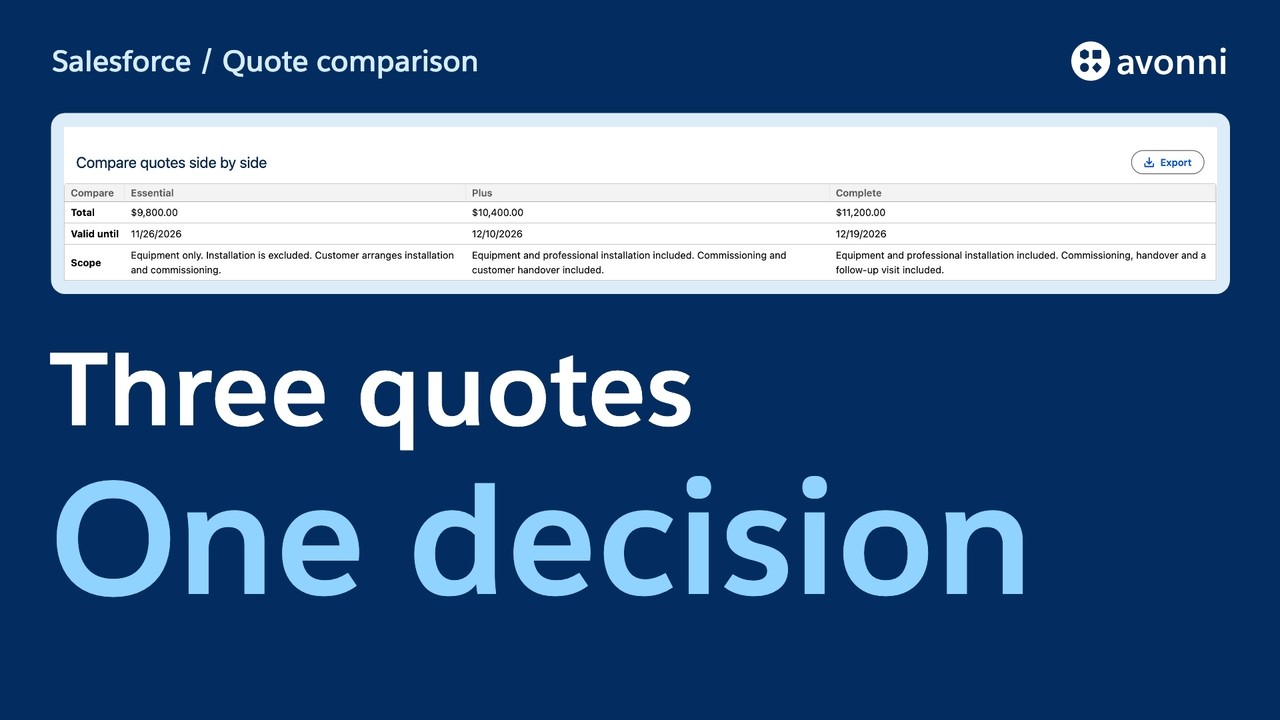
The cheapest quote leaves out installation. These two include it. Put the offers side by side, and you can compare the scope with the price, then export that same comparison. Hi, I'm Cédric from Avonni. In this tutorial, we'll build a Salesforce Screen Flow to compare selected quotes and prepare the follow-up. First by hand, then with Claude Code.
0:22 One opportunity, three offers
Our sales rep has three offers for one installation. Essential costs ninety-eight hundred dollars. Plus includes installation for ten thousand four hundred. Complete adds a follow-up visit for eleven thousand two hundred. The rep chooses two or three quotes, compares them, and keeps an Excel copy of that selection. Then they choose the offer to follow up and create a task on the opportunity. That's why we're using a Screen Flow: selection, comparison, a decision, and a follow-up action in one guided process.
0:56 Build it by hand
Avonni Flow Screen Components is a library of ready-made components for richer flow screens, without writing a custom Lightning component. For example, Date Picker lets users select dates from a calendar, and Input Pen captures a drawing or signature directly on the screen. For our quote review, Record Grid turns the selected collection into a comparison, with one quote per column and one field per row. Once the package is installed, open a Screen element in Flow Builder. In the Components panel, search for Avonni. The components appear under Custom. Add a component to the screen, select it, and click Open Component Builder. That's where you configure its data and appearance with a live preview. Flow Builder gets the records and connects the steps. Our rep uses the finished flow from the opportunity page in Salesforce. Install the package from AppExchange; ten production licenses are free. Assign the Avonni Flow Screen Components permission set and, in production, a package license so users can run it. You'll also need Quotes enabled and access to Quote, Opportunity and Task for this example. Setup links are in the description. Start with a Screen Flow and a text variable called recordId, available for input. The opportunity page passes in its record ID, so Get Records can retrieve only that opportunity's quotes. Keep their IDs as well as the fields we'll compare. The totals come from the quote records and their line items. We aren't calculating a second price in the screen. On the first screen, add the native Data Table. Let the rep select at least two quotes and at most three. This table does the selection; Record Grid will display the comparison. If the opportunity has fewer than two quotes, show a clear message instead of an empty comparison.
2:55 Turn the selection into columns
On the comparison screen, add Avonni Record Grid and open its Component Builder. Set Data Source to Variable, then choose the selected rows from our native table as the Records Collection. That detail matters: choosing all the quotes would ignore the rep's selection. Record Grid uses the collection we supply; it doesn't run its own query. For Column Header Field, choose Quote Name. Now each offer has a recognizable heading. Add Total, Valid until, and Scope first. Those are the three questions behind this decision: what does it cost, how long is it valid, and what's included? Then add Subtotal, Discount, Tax, Shipping, and Status for the supporting details. Use clear row labels, and format amounts as currency and the expiration as a date without a time. Keep the grid read-only for this review. We're choosing an offer, so the comparison should show the saved quote values.
3:56 Make the comparison comfortable to read
Use Compare for the row-label heading. Show three records per page, and use automatic column widths so the offers share the available space. Set a minimum of two hundred pixels and a maximum of four hundred twenty, with up to five lines of wrapped text for the descriptions. Keep the column headings and the field-label column frozen, so their meaning stays with you when the comparison needs scrolling. There's one Flow setting to check as well. On the comparison component, refresh the inputs when the screen is revisited. If the rep goes back and changes the selection, the comparison needs to use that new selection. Keep the native selection table's stored values so the rep can adjust what they already chose.
4:43 Export the comparison you chose
Turn on Enable Export. That adds the download action to the grid. Let's test three quotes first. The grid shows Essential, Plus, and Complete. Choose Formatted Report in the export dialog, and the Excel file keeps the comparison layout: offer names across the top and criteria down the side. You may need to adjust column widths for longer descriptions. Now compare only Plus and Complete. Both the grid and the exported file should contain those two offers. Essential should be absent. That's the useful handoff here: the rep can take the comparison they just made into the follow-up conversation, without assembling the offers again in a separate report. This is an Excel comparison, not a customer quote PDF.
5:33 Turn the decision into a follow-up
The comparison helps the rep decide. A separate native Radio Buttons component records that choice, using the selected quotes as its choices. Display the quote name, and keep its ID as the value. Ask for a short reason and a follow-up date. Then show a confirmation before creating the task. Create one task for the current user, related to the opportunity, with the chosen quote and the reason in its description. Add a fault path with a clear error message, and prevent back navigation from creating the same task twice. For our test, choose Plus: installation is included, and we don't need the extra visit. Confirm, then check the task in the opportunity's activity. The chosen offer, reason, date, and owner should all match.
6:24 Build it with Claude Code
Now let's build the same process with Claude Code. Give it the same brief: quotes for the current opportunity, a native selection table, a Record Grid for that selection, export, and a confirmed follow-up task. Use the Avonni Flow skill for the component configuration, with the MCP supplying its current properties. Claude handles the surrounding standard Flow logic. The full prompt and setup link are in the description. Review the plan before generation. Check the record filter, the selected collection feeding the grid, the column heading, the comparison fields, and the task's confirmation and fault path. Validate the generated file, then deploy it to the demo org and activate it. Those are separate steps; a valid file alone doesn't prove the business process works. Open the generated flow in Salesforce and repeat the same tests: three quotes, two quotes, the exported comparison, and the follow-up for Plus. Testing gives us two corrections. The confirmation says to click Next, but only Previous is available. No task has been created. The visual review also catches a long description running beyond the visible column with three quotes. Return to the same Claude Code conversation. Have Claude correct the screen navigation and add the same five-line wrapping we used in the manual version. Deploy and activate the corrections, then repeat the tests. Check the saved task in the opportunity's activity: Plus, the reason, the date, the owner, and the opportunity should all match.
8:04 When does Record Grid earn its place?
A native Data Table already selects and displays these records. A native three-column Section can also present three fixed offers clearly; we tested that, and it works. Record Grid earns its place here when the comparison follows the selected collection and the rep exports that same matrix from the flow. Salesforce reports can export data too. If you only need three fixed summaries on a screen, the native layout may be all you need.
8:35 Recap and next step
Get the opportunity's quotes, let the rep choose the comparison, and pass that selection into Record Grid. Export the comparison when it's useful, then confirm the follow-up before writing a task.
8:50 Next step
Next, watch seven Avonni Data Table tricks for Salesforce Screen Flows. You'll learn more ways to make the selection and review steps useful in your own flows.