0:00 See the deals behind the number
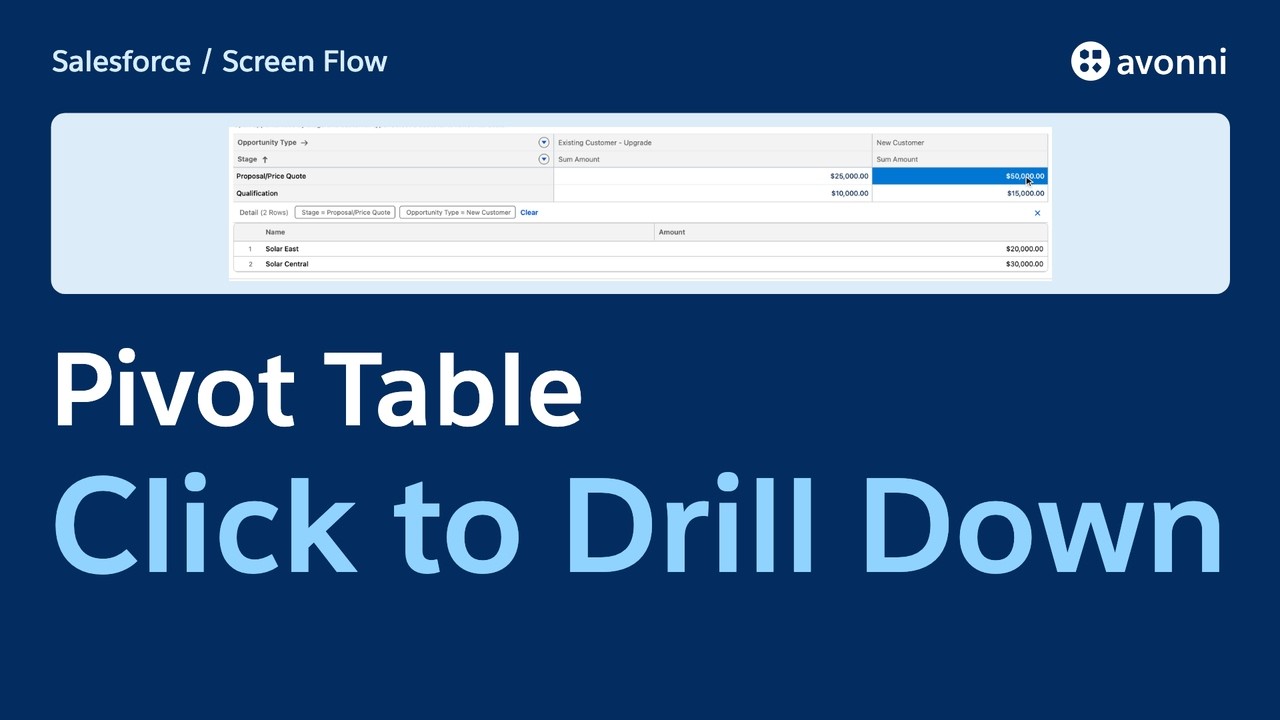
You’re in a pipeline review. Someone asks, “Which deals make up the fifty thousand dollars in new-customer proposals?” One click, and there they are. You can compare that segment with the rest of the pipeline and go straight into your review notes. I’m Cédric. I’ll show you how to build that screen.
0:17 Avonni Flow Screen Components
Avonni Flow Screen Components adds configurable building blocks to Salesforce Flow Builder. A Pivot Table sits outside Salesforce’s standard Screen Flow component library. With Avonni, we can compare totals by stage and customer type, inspect a cell’s deals, and continue the review in the same flow. Install the Avonni package and open Custom on a flow screen. Here’s the collection, from Data Tables and Kanban boards to maps and calendars. For this review, choose Pivot Table. The Avonni Component Builder configures the screen component. Flow Builder connects the review steps. We’ll build it by hand first. For the second build, Claude Code turns the brief into a first draft of the Flow file. The Avonni skill guides the build, and the MCP supplies the actual component settings. You review the plan and test the result in a scratch org.
1:12 Build it by hand
On your review screen, add the Avonni Pivot Table from the Custom components in Flow Builder. Select the component and click Open Component Builder. This is where you control the source of the records, how they’re grouped, and what happens when someone clicks a number. Under Data Source, use Opportunity and set Closed to false. That keeps the closed deals out of both the totals and the detail. Under Data Mappings, add Stage to Group Rows and Opportunity Type to Group Columns. In Aggregations, choose Amount and set the measure to Sum. Each cell now adds up the open opportunities at that intersection. Turn on Detail Rows. That’s the setting that opens the records behind a cell when the user clicks it. Then connect your review screen to the next screen in the Flow. Here, the next button is called Review notes, and it leads to a notes field for the sales manager.
2:09 Run the manual flow in Lightning
Back in the Solar Sales Workspace, the manager can compare all four segments. Open the New Customer cell for Proposal or Price Quote. Solar East is twenty thousand dollars and Solar Central is thirty thousand. They add up to the fifty thousand in the grid. The closed opportunity stays out of the review. Click Review notes to continue in the same Flow.
2:35 Build the same flow with Claude Code
Here’s the same brief in Claude Code. Give it the job first. Then tell it which records to include, how to group them, and what a click should do. Ask it to read the Avonni skill and look up Pivot Table in the MCP. The two prompts used for this build are in the description. Check the proposed mapping before Claude writes the Flow file. Look for open Opportunities, Stage in rows, Opportunity Type in columns, Sum of Amount, and Detail Rows. The skill validator checks the file. The scratch org is where we check the experience. In the sales workspace, open Pipeline Review AI and click the same fifty-thousand-dollar cell. Solar East and Solar Central appear. Review notes takes us to the next screen.
3:26 Compare with standard Salesforce Flow
Now that we’ve seen the result, let’s run the same review with standard Flow components so you can see what the Pivot Table takes care of. In our native version, pick a stage and customer type, then click Show opportunities. Get Records finds those deals, a loop totals them, and the Data Table shows the matching rows. If you’re doing reporting, Salesforce matrix reports can also open the records behind a total. Here, Avonni takes care of the grouping, the math, and the drill-down in one component. The manager can scan all four totals before picking a segment, then go from the number to the deals in one click. The summary stays in view, and her next step is still right there.
4:14 Next step
Next, watch how to make a Screen Flow Data Table easier to scan using progress bars, badges, and avatars.