Record-by-record editing wastes time. If you need to update 50 Opportunities or 20 Accounts at once, the UI forces you through click-for-each-record hell. Mass editing solves this. The Avonni Data Table gives you two ways to do it: a flow-based approach with a two-flow pattern, or a no-code Dynamic Components setup that works directly on Lightning Pages. Both let your users select multiple records and update them all in one shot.
Four ways to bulk edit records in Salesforce
List views with inline editing. Select several records, edit a field once, and apply the change to all of them. No setup, but not every field qualifies: built-in fields like Record ID or Created Date, compound fields like Name and address, and dependent picklists can't be edited inline, and a list view that mixes record types isn't inline editable by default.
Mass quick actions. An admin adds an update action to a list view, and users apply it to the records they select. Good for one repeatable change.
Data Loader. Export to CSV, edit, import. It handles large volumes, but it's an admin tool, not something you hand to a sales rep.
An editable table in a Screen Flow or on a Lightning page. Users filter, select rows, and update them on one screen, with validation before they save. That's the approach this article walks through, using the Avonni editable data table for Salesforce.
The pain of record-by-record editing
Let's be concrete. You need to update the Stage on 50 opportunities from "Prospecting" to "Qualification." In traditional Salesforce, that means opening each record, clicking Edit, changing the Stage, and saving.
That's 50 clicks, 50 page loads, 50 saves. At 10 seconds per record, that's nearly 8 minutes. For 50 records.
Now add the error factor. After clicking the 30th opportunity, mental fatigue sets in. Did you update this one already? Did you change the Stage or leave it blank? You might update the wrong field, or update only 40 records when you meant to update all 50. The time cost scales, but so does the error rate.
Multiply this across your org. If your team does bulk updates quarterly, that's lost productivity adding up to hours every year, multiplied by hundreds of users.
Salesforce's native mass edit limitations
Salesforce offers list view inline editing. You can select multiple records and edit them in-line, which is faster than the record-by-record approach. But not every field can be edited this way, and a field missing from the page layout shows "Inline editing isn't supported for this cell" unless an admin changes the User Interface settings.
What about the other native options?
Data Loader: Powerful for admins, but not something you'd hand to an end user. It requires CSV exports, manual edits, and re-imports. Too many steps for a sales rep who just needs to update 20 opportunity stages.
Mass quick actions: An admin can add an update action to a list view so users change the same fields on the records they select. It works for one repeatable change; it isn't a place to review and edit records row by row.
Mass editing via Avonni Data Table in Flow solves all of these limitations.
Why bulk editing in flows is better
A flow-based bulk edit gives you:
Large record sets
Page through hundreds of rows
Filter first, then select and update the rows you need, within Salesforce's own limits.
Lookup and picklist fields
Edit them in the row
Lookups, picklists, and multi-select picklists are editable right in the table.
Validation & guidance
Show context before save
Hints, warnings, and calculated values — inline, before the user commits.
Complex filtering
Match exact criteria
Use flow logic to load only the records you want users to touch.
Customizable UX
Design the experience
Headers, instructions, progress indicators, success messages — your call.
Conditional fields
Reactive components
Status changes to "Closed" → the Close Reason field appears instantly.
Understanding the performance implications
When you update 100 records, Salesforce saves 100 records, and every trigger, flow, and validation rule on the object runs for each of them. Test a bulk edit on a small set first, and warn users when the field starts automation.
Configuration tips for large record sets
Pagination for scanning
If you're editing 500 records, showing all 500 rows on one screen is overwhelming. Configure the Data Table to show 25 rows per page. Styling your Data Table for visual consistency also helps with large datasets.
Limit visible fields
Don't show every field. Show only the fields users need to edit plus context fields like Owner.
Filter before loading
Use the flow's filter logic to narrow the record set before the Data Table loads them. Smaller datasets load faster and are easier to edit.
Field validation during bulk edit
Required field validation
Mark fields as required in your Data Table configuration. If a user tries to save without filling a required field, the Data Table prevents save and shows an error message.
Pattern validation
For fields like email or phone, Avonni can validate patterns (e.g., "must be valid email"). Configure this in the Data Table column settings.
Custom validation logic
Before the update, run a flow decision. Example: "If Status = Closed AND Amount = 0, show an error message."
Real-world use cases for mass editing
Sales
Quarterly pipeline updates
Q1 ending. All "Proposal" opportunities move to "Negotiation" or "Closed" — reps select their own and bulk update in one go.
Sales
Mass status & territory changes
200 accounts marked "Active" and reassigned to a new territory or owner — one operation, 30 seconds.
Service
Support outage cleanup
200 cases closed with resolution notes after a service outage. A 45-minute task drops to 2 minutes.
Marketing
Data cleanup after imports
500 leads imported from a trade show with a blank source. Bulk update Source to "Dreamforce 2026" in one save.
Marketing
Contact list cleanup
1,000 contacts tagged "Unknown" source. Filter, bulk-edit each to its correct source, save once.
Operations
Renewal status updates
30 contracts entering renewal next quarter. Set Status, Renewal Owner, and Renewal Date — all in one screen.
Displays Salesforce records in an Avonni Data Table. Users select rows and click a "Bulk Edit" button.
2
Bulk edit flow
Edit selection in a modal
Opens as a modal. Loads only the selected records, makes them editable, saves changes, and closes.
Let's build it
Step 1: Build the main flow
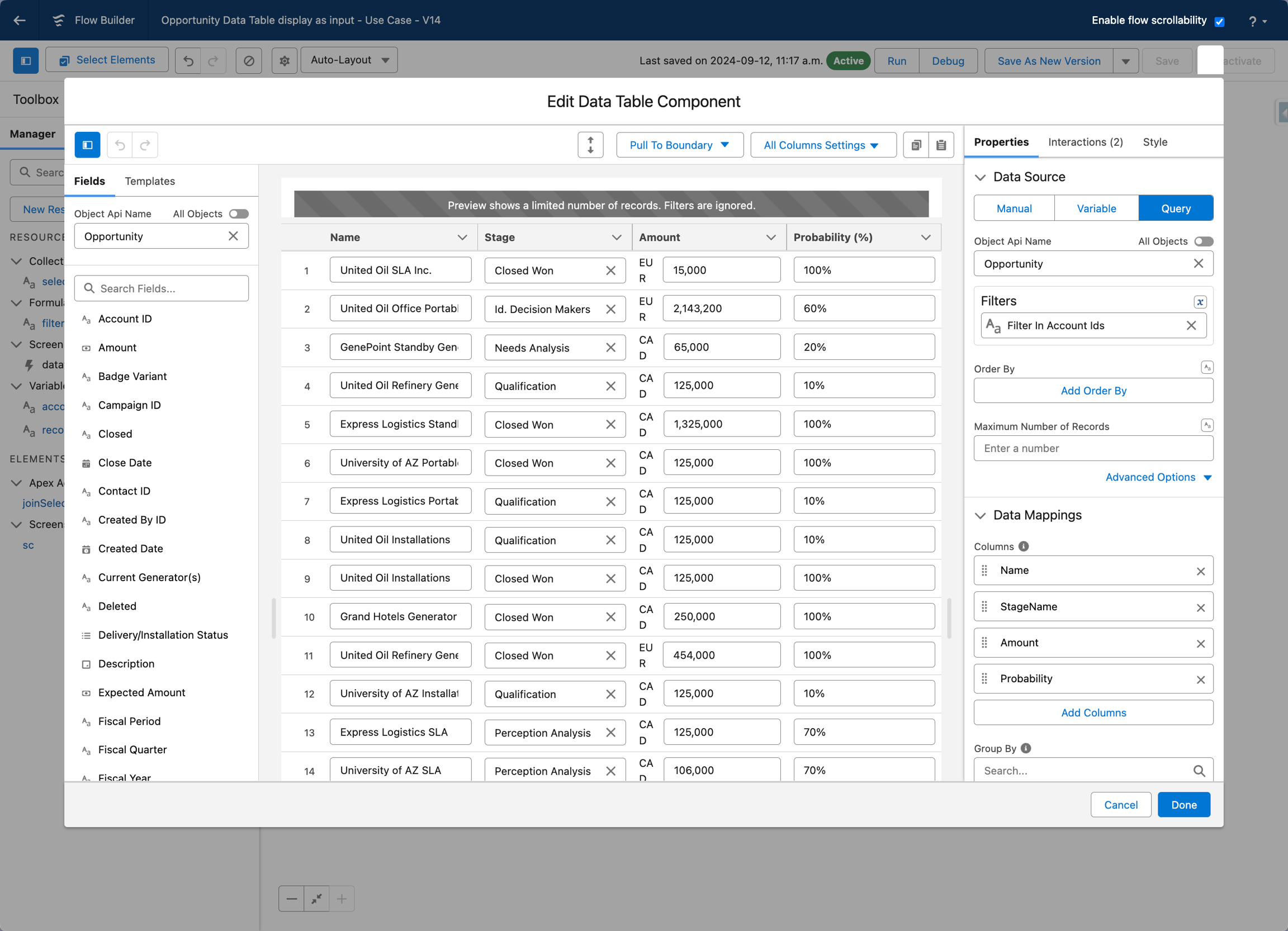
The main flow is what your users see — a Data Table with records and a Bulk Edit button that launches the second flow. You'll configure the table, point it at a data source, and add the button.
Step 2: Build the bulk edit flow
This second flow opens as a modal when the user clicks Bulk Edit. It receives the selected record IDs from the main flow, loads only those records, makes them editable, and saves the changes back to Salesforce when the user hits Save.
Step 3: Connect the flows
Final piece: wire the Bulk Edit button on the main flow to launch the second flow as a dialog, pass the selected IDs across, and refresh the main table once the bulk edit completes.
You've built mass editing. Users select records, click Bulk Edit, update them all at once, and the main table refreshes.
If you're building on Lightning Pages instead of Flows, the Data Table's bulk edit works as a Dynamic Component too. The setup is simpler: no second flow, no modal configuration. The component handles everything built-in.
Your users select multiple rows, click one button, and a modal appears where they update the same fields across all selected records at once. Hit Save, and Salesforce updates every record. No Flow needed. No Apex. Nothing to maintain on the backend.
The setup comes down to three things:
1
Editable fields
Mark which columns can change
In data mappings, only flagged columns appear in the bulk edit modal. Stage and Close Date editable, Amount locked — you decide.
2
Row selection
Pick records to update
Turn on multi-row selection. Cap at 50 if the field triggers automation — a safety rail worth setting.
3
Header action
Wire the trigger button
Add a header button ("Bulk Edit") and connect it to the built-in "Edit Selected Records" interaction. That kicks off everything.
Once those three pieces are configured, the Data Table handles everything else: rendering the modal, showing the right fields, and pushing the mass update to Salesforce. Most admins have it running in under 15 minutes.
Don't bulk-enable everything at once. Pick the scenario that wastes your team the most time — usually opportunity stages or case statuses — and build for that first.
Tip 2
Limit editable fields in the modal
15 fields is overwhelming. Most teams expose 3–5. Fewer choices, faster completion.
Tip 3
Confirm before triggering automation
If the field kicks off a process builder, approval, or flow, warn the user. Nobody wants to send 200 surprise email notifications.
Tip 4
Use it alongside filters
Filter by owner, date range, or status first. Then bulk edit the filtered set. Built-in filtering and bulk edit are stronger together than either alone.
Every click you eliminate is time back in your team's day. Bulk edit turns a 30-minute task into 30 seconds.
Filed under
Written by
Jean-Baptiste Vergé
Co-Founder, Head of Engineering
Co-founder of Avonni and Head of Engineering, Jean-Baptiste has spent 8+ years building the next generation of low-code development tools for Salesforce. He leads the technical vision behind Avonni's interactive prototyping and component builder platform.




.png)
.webp)
.webp)
.png)
.avif)
.png)
.webp)
.webp)