Summer '23 introduced Reactive Components to Flow Builder. Here's what changed: components on the same screen can now react to each other without a server round-trip on every interaction. Historically, clicking "Next" sent all input to Salesforce servers, processed it, and returned results. This created friction in long-form flows—additional latency, potential validation errors, and decision fatigue.
What reactive means in Salesforce Flow context
Traditional Salesforce Flow is server-centric. Every user action triggers communication with Salesforce servers: "The user picked a value. Let me send that to the server. The server processes it. The server returns a result. Now I can show the next screen."
That's fine for simple, linear flows. But for complex, interactive scenarios—where users make selections that should immediately reveal or hide other options—it's slow. Each click means a network round-trip. On a slow connection, that's noticeable. On a fast connection, it's still unnecessary latency.
Reactive Components shift logic to the client side (the browser). When a user selects a color in a Visual Picker, the browser instantly shows or hides related Carousel components. No server involved. No waiting. No round-trip.
This is what "reactive" means: components react to each other's state changes instantly, client-side, without server communication.
Benefits of the reactive approach
Reactive Components shift this to client-side. All components read each other's state instantly. You consolidate multiple screens into one, reducing Next button clicks and keeping users in a single UI context.
Benefits:
Single-page UX: Collapse multi-screen workflows into one screen. Users see changes instantly.
Component communication: Previously siloed. Now one component's output directly affects another's visibility or state.
Faster configuration: Build complex interactions without extensive flow logic.
Better perceived performance: No loading spinners. No server latency. Interactions feel snappy and responsive, like native web apps.
Reduced decision fatigue: Users stay on one screen instead of clicking Next multiple times. Fewer page transitions mean fewer opportunities to lose context or make mistakes.
Understanding performance impact
Server round-trips aren't free. A typical flow screen with a Next button creates latency measured in hundreds of milliseconds. With a slow network, that's easily 1-2 seconds per screen. A five-screen flow might take 10 seconds just waiting for servers.
Reactive Components eliminate that. Since everything happens client-side, interactions are instant. The trade-off: you can't use server-side logic to determine visibility (e.g., querying Salesforce to fetch dependent picklist values). But for most interactive scenarios, client-side logic is sufficient.
In real-world usage, users report feeling like flows are faster by an order of magnitude. That's the difference between 2-second delays per screen and instant responses.
Common reactive patterns beyond the color picker
Dependent picklists
Classic use case: Industry picklist drives Country picklist. User selects "Technology," and only countries with tech operations appear in the Country dropdown. With reactive components, that filtering happens instantly, no server call needed.
Configure this by setting the Country picklist's visibility condition: "Show only if Industry equals Technology." When the user changes Industry, Country options update instantly.
Filtered data tables
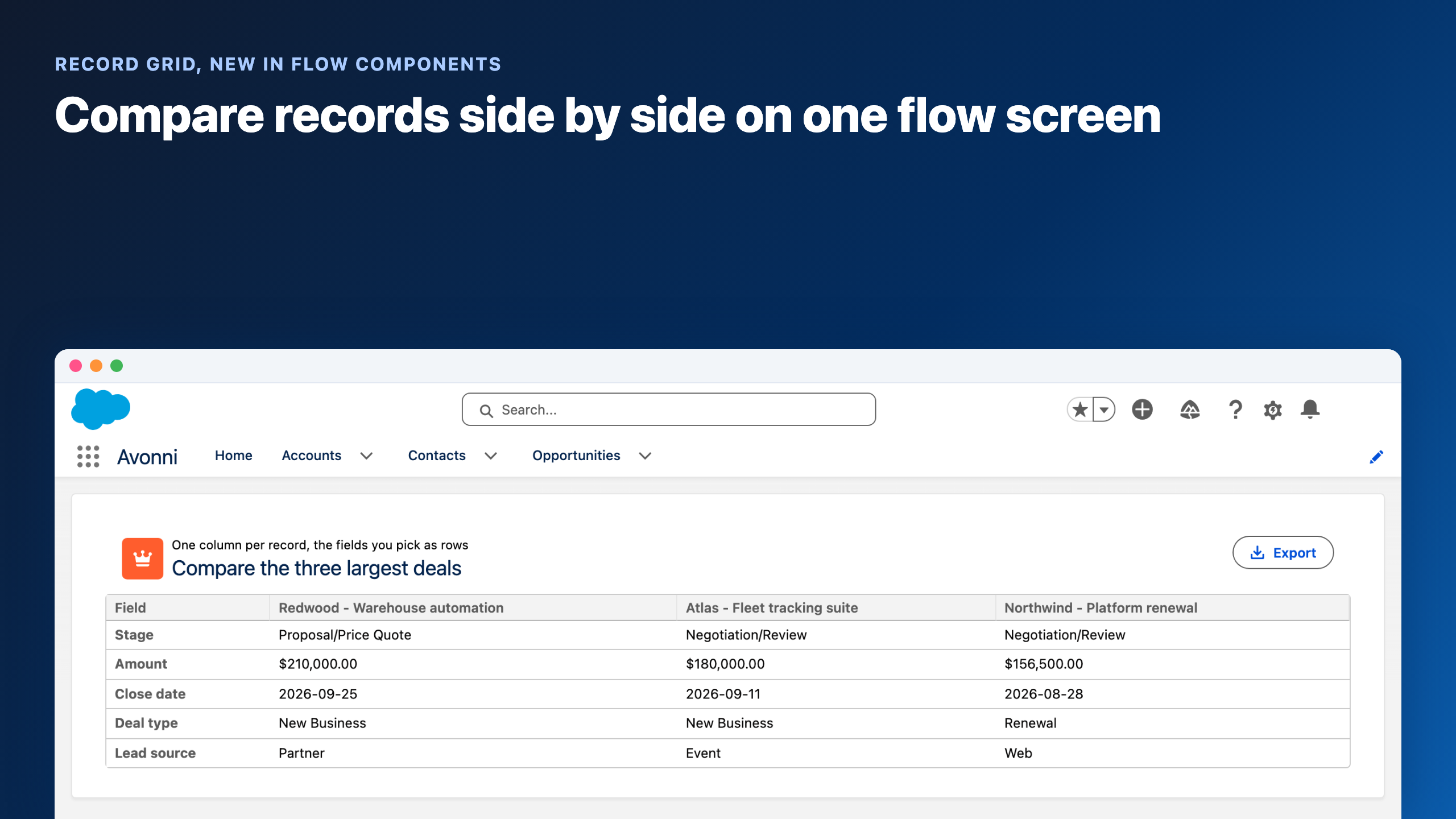
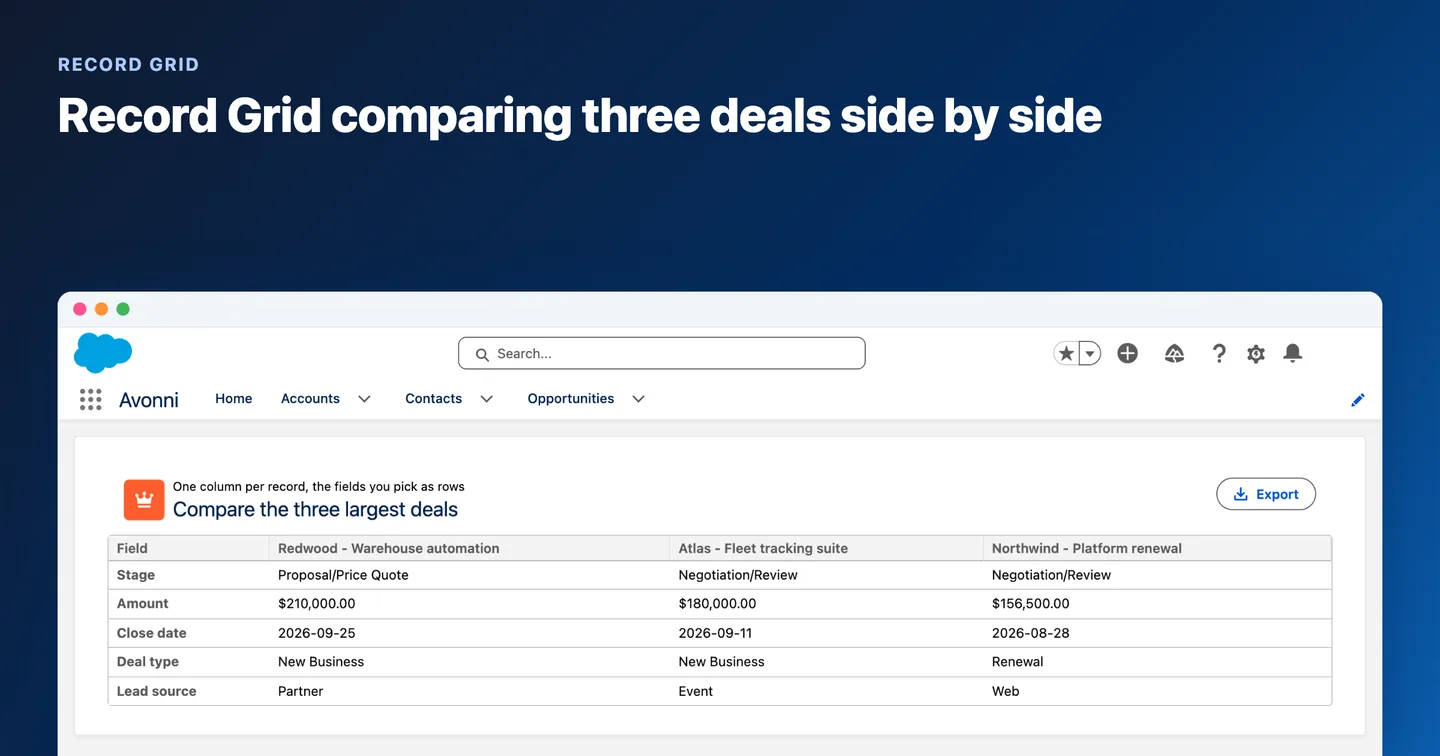
You have an Avonni Data Table showing all Opportunities. A Visual Picker above the table lets users filter by Stage. When the user selects "Closed Won," the table instantly shows only Closed Won opportunities. The entire table re-renders client-side—no server query.
Conditional form sections
A form includes multiple sections: Personal Info, Company Info, Billing Address. A Radio Button asks "Are you an individual or company?" If "Individual," hide Company Info and Billing Address. Show only Personal Info. This happens instantly as the user toggles the Radio Button.
Dynamic pricing calculations
An input form for a quote. User enters Quantity and Unit Price. A reactive Display component instantly calculates Total = Quantity × Unit Price, showing the result without a Next button or server round-trip.
Progressive disclosure
Show advanced options only when a user clicks "Show Advanced Settings." Behind the scenes, you're just toggling visibility of sections—no server logic needed. Users see a cleaner initial form, but full power is available.
Common mistakes when setting up reactive components
Mistake 1: Trying to use server-side logic with reactive visibility
You can't query Salesforce inside a reactive visibility condition. Reactive means client-side. If you need dependent values from the server (like a picklist that varies by user's region), you'll need to pre-load that data into a collection before the user reaches the screen. Then the reactivity can filter the pre-loaded collection.
Mistake 2: Overloading a single screen
Reactive Components let you collapse many screens into one. That's powerful. But don't collapse everything. If a screen becomes too complex—too many conditional sections, too many options—users get lost. Use reactive for related, interactive elements. Use traditional Next buttons to progress through distinct logical phases.
Mistake 3: Not testing visibility conditions
A visibility condition like "Show if PickerA equals Value1 AND TableB has rows AND DateField is after Today" can get complex fast. Test every permutation. Make sure the right components appear and disappear as expected.
Mistake 4: Ignoring accessibility
When components appear and disappear reactively, screen readers and keyboard users need clear cues about what changed. Label your components clearly. Make sure users can navigate via keyboard alone. Test with assistive technology.
When to use reactivity vs when Next buttons are appropriate
Use reactive when:
Components are on the same logical screen and closely related (e.g., filter controls and filtered results)
Visibility or state changes should be instant (e.g., toggling advanced options)
Data comes from the browser (form inputs, client-side calculations)
You want to reduce user clicks and context switching
Use Next buttons when:
You need server-side logic (querying records, complex validations)
You need to branch flows based on conditions evaluated server-side
Data needs to persist to the database between steps
A screen is complex enough that users need a clear "page break" to process it
Most flows use both. Start with a reactive screen for immediate, client-side interactions. Use Next buttons to progress to server-dependent logic or new logical phases.
Example: color-driven carousel visibility
Set up an Avonni Visual Picker (color selection) paired with multiple Avonni Carousel components (one per color). When a user selects a color, only that color's carousel renders.
Drag the Avonni Visual Picker onto the screen. Configure with manual data source: one item per color (label + value).
Step 4: Add Carousels
Add one Avonni Carousel per color, each displaying images for that color variant.
Step 5: Configure visibility conditions
Select each Carousel. In properties, set Set Component Visibility to respond to the Visual Picker output. Example: show the white carousel only when visualPickerColor equals "white". Repeat for each color.
Step 6: Test
Save and run the flow in Flow Builder. Toggle colors in the Visual Picker. Carousels appear and disappear instantly—no Next button required. This delivers the interactive experience without server latency.




.gif)


%20(Vignette%20YouTube)%20(81).png)
%20(Vignette%20YouTube)%20(78).png)
%20(Vignette%20YouTube)%20(79).png)